

Hiding and Unhiding Menu Bar Items
BuhoBarX makes it easy to hide and unhide menu bar items on your Mac.
How to Hide or Unhide Menu Bar Items
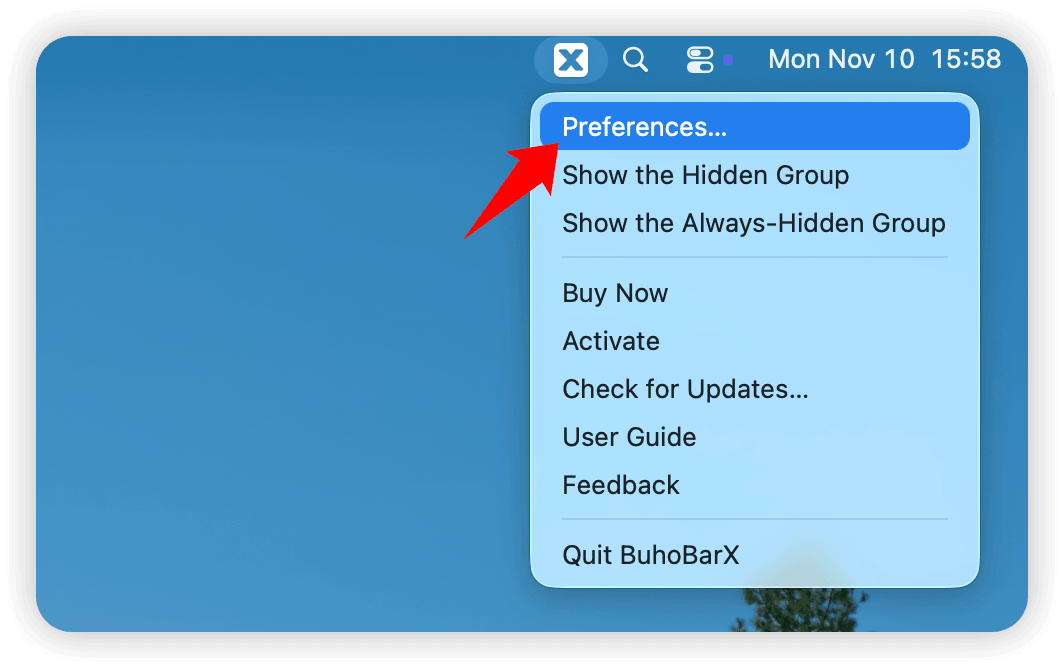
- Right-click the BuhoBarX icon in the menu bar and select Preferences.
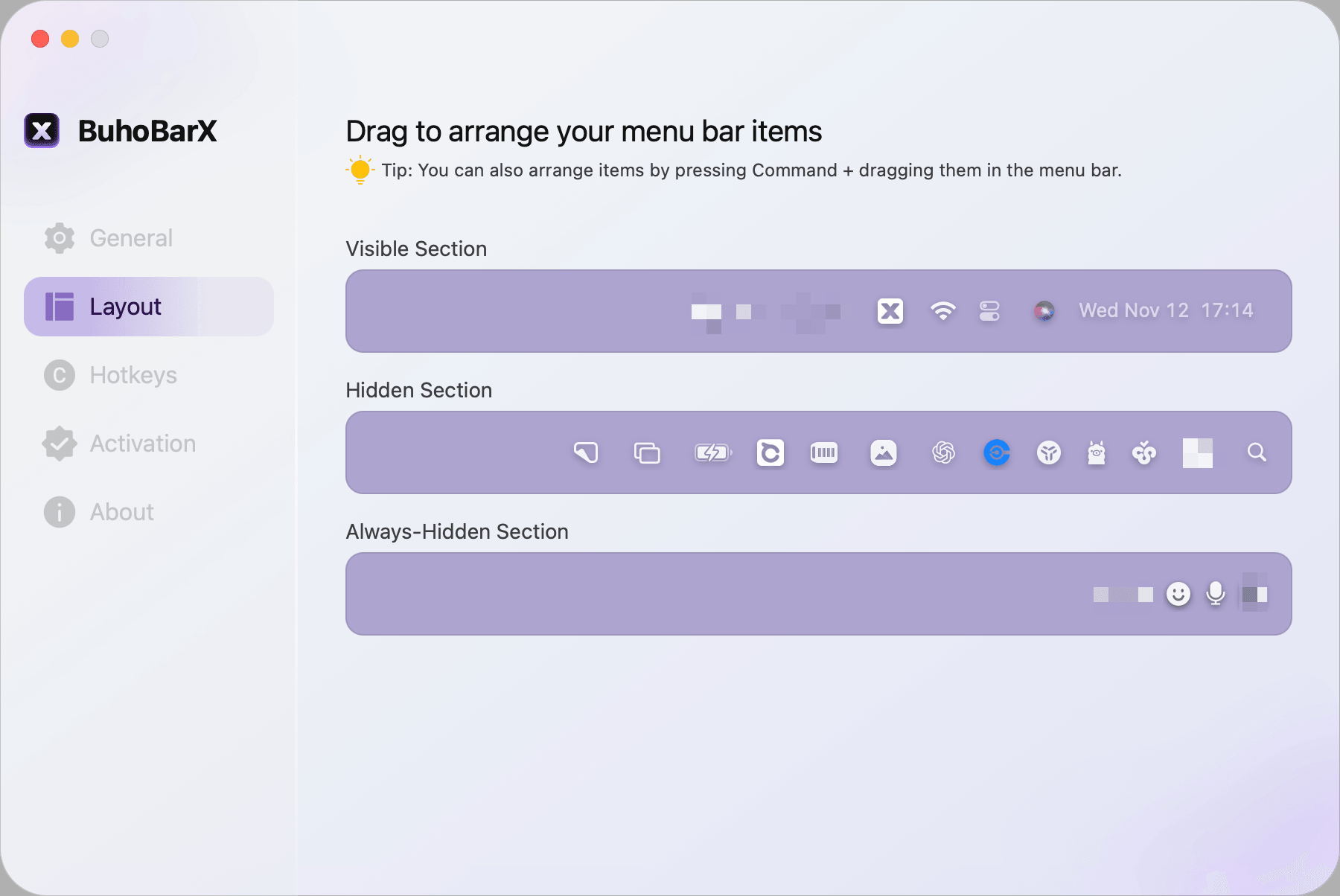
- Most menu bar items are automatically placed in the Hidden Section.
- To hide items, keep them in this section.
- To show items in the menu bar, drag them to the Visible Section.
- Do the opposite if you want to unhide a hidden item.
- If you never want an icon to appear in the menu bar, drag it to the Always Hidden Section.


How to Temporarily Show Hidden Menu Bar Items
Sometimes, you may want to temporarily show hidden items in the menu bar.
To do this, do one of the following:
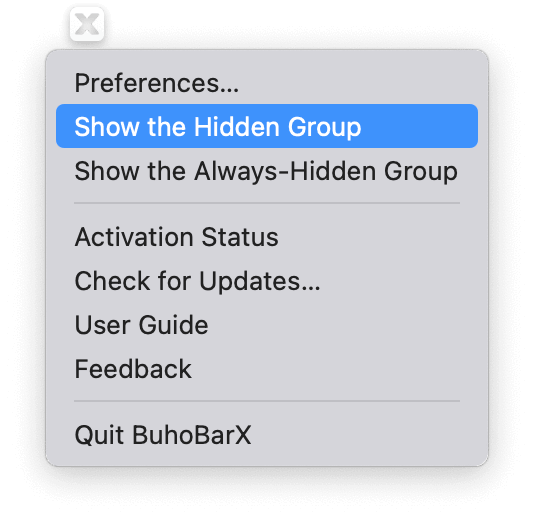
- Click the BuhoBarX icon, right-click it again, and select Show the Hidden Group.
- Hover over the empty space in the menu bar (if Click Empty Status Bar Space is enabled in General Settings).


How to Show Always Hidden Menu Bar Items
If you want to view the items in the Always Hidden Section, do one of the following:
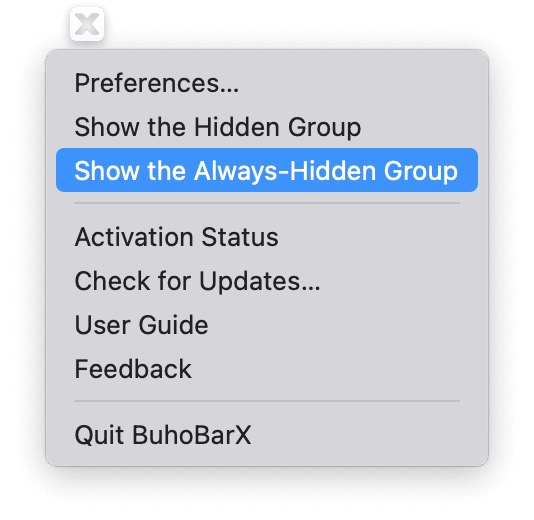
- Right-click the BuhoBarX icon and select Show the Always Hidden Group.
- Hover over the empty space in the menu bar (if Hover Over Status Bar Space is enabled in General Settings).

Tip
You can also set up hotkeys to show hidden or always-hidden menu bar items by going to Preferences > Hotkeys.