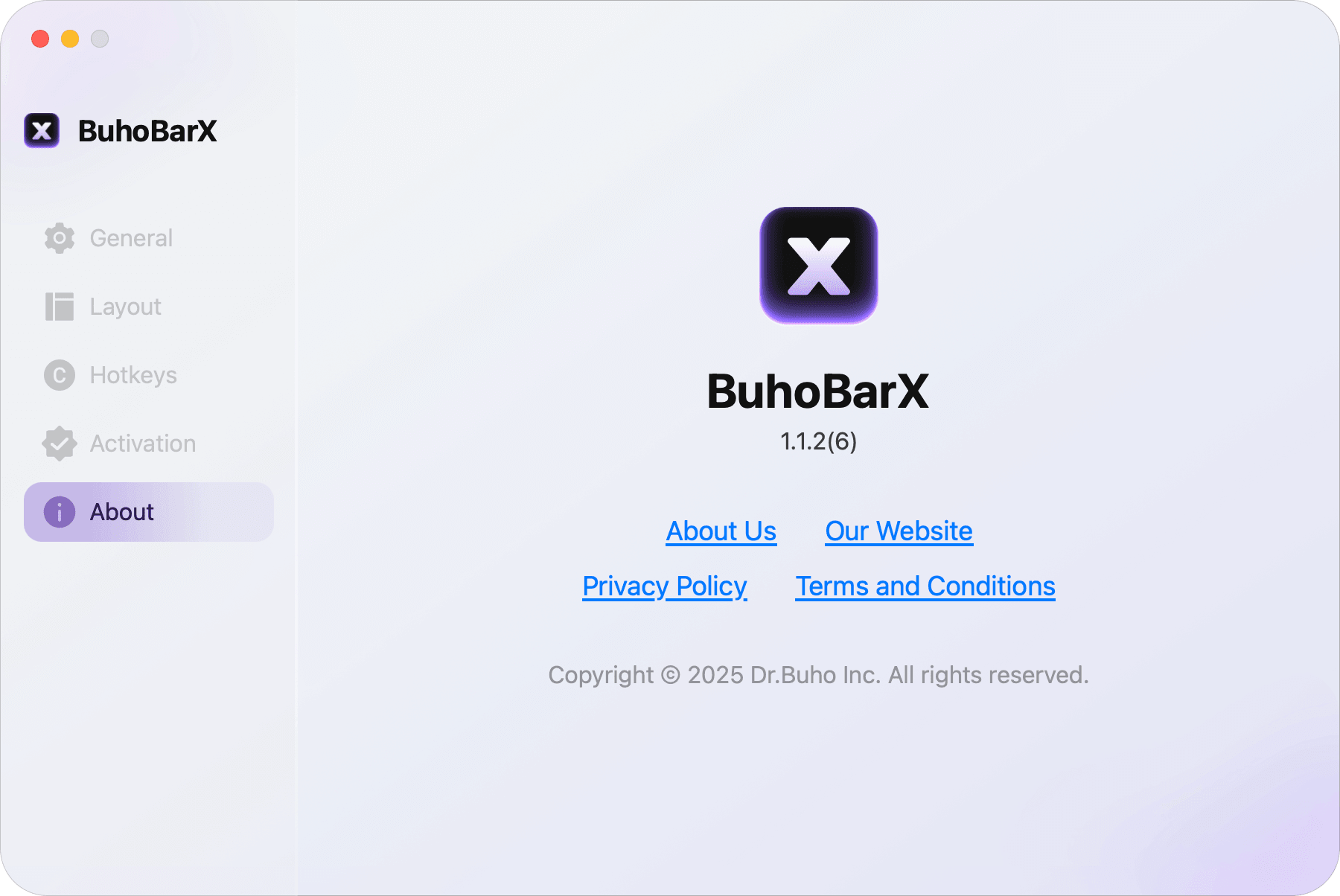
About BuhoBarX
BuhoBarX is a Mac menu bar manager designed to keep your menu bar clean and organized. It’s especially useful when there’s not enough space for new menu bar apps, or when your MacBook’s notch takes up too much room.
BuhoBarX Dashboard
From the BuhoBarX Dashboard, you can easily see which menu bar apps are visible, hidden or always hidden. Using the General and Hotkeys settings, you can further customize BuhoBarX to match your workflow.
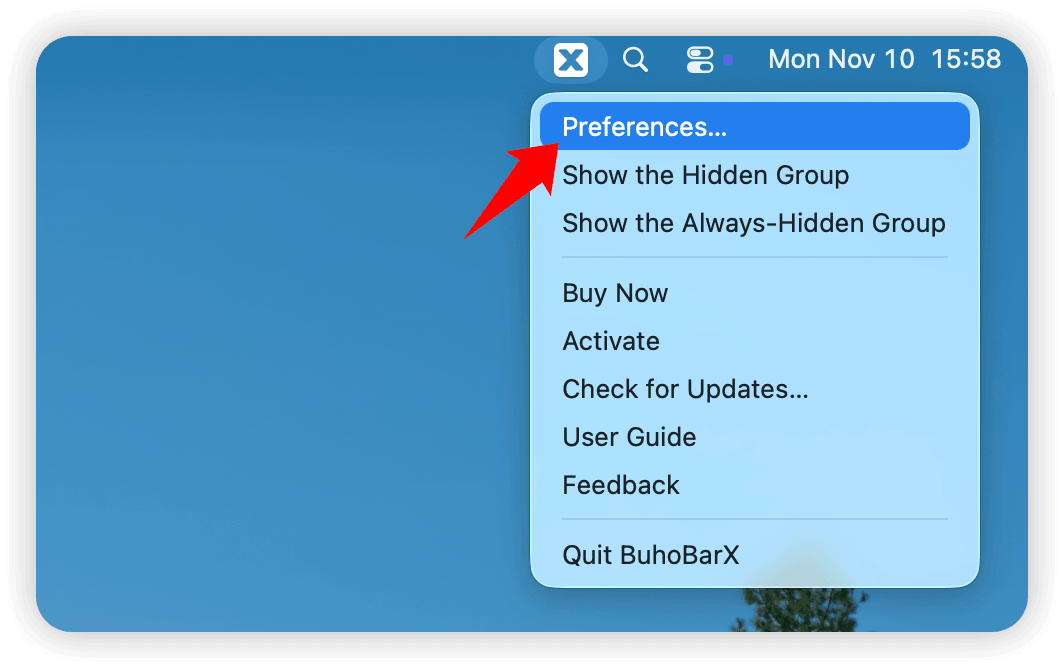
To adjust the settings, simply right-click the BuhoBarX icon in the menu bar and select Preferences.

General Settings
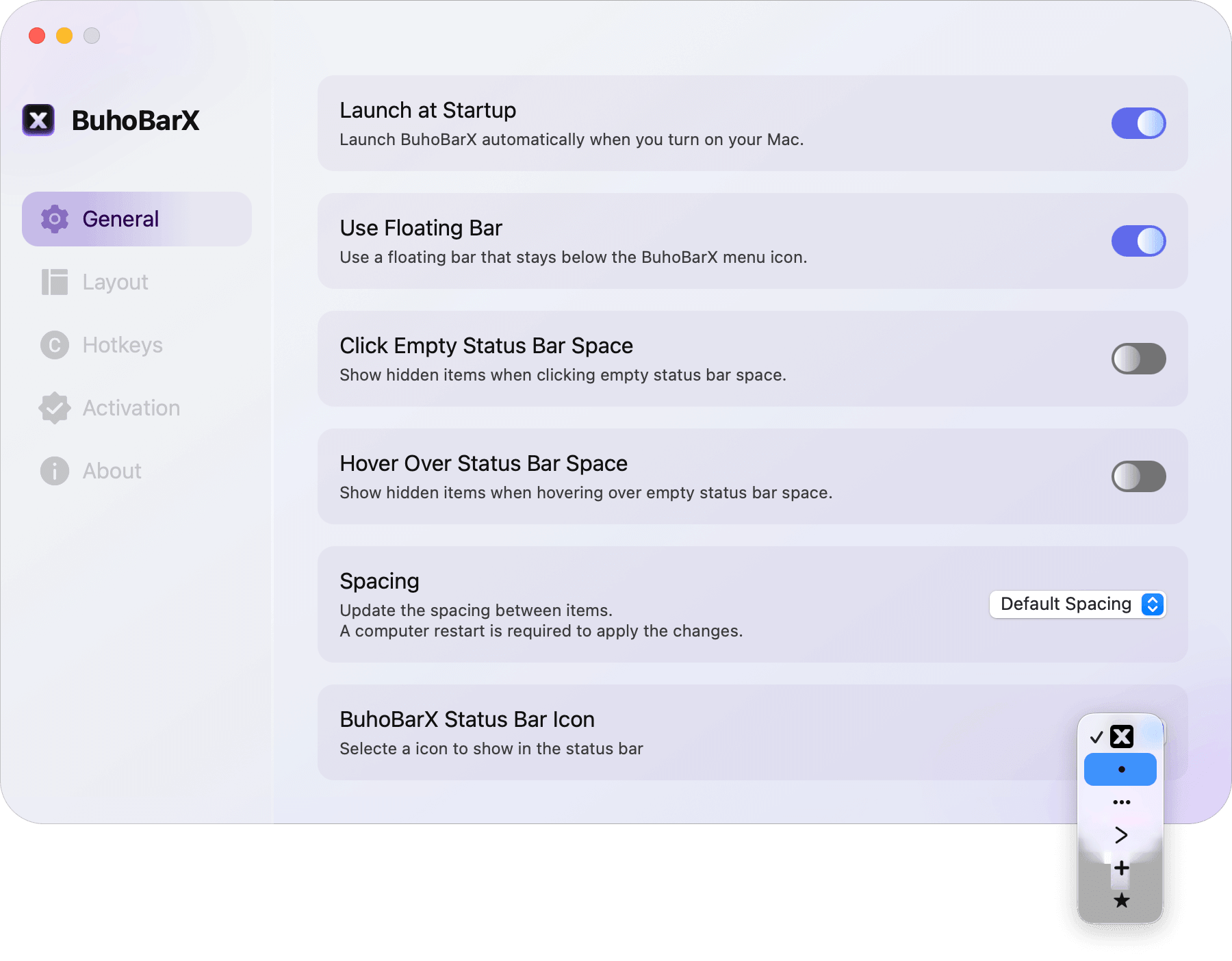
Here, you can manage various general options, including:
- Choose whether to launch BuhoBarX automatically when your Mac starts.
- Enable or disable Use Floating Bar.
- Enable or disable Click Empty Status Bar Space.
- Enable or disable Hover Over Status Bar Space.
- Adjust the spacing between menu bar items to Small, Tiny, or None.
- Choose your preferred BuhoBarX icon for the menu bar.

Layout Settings
In this section, you can choose which menu bar items should be Visible, Hidden, or Always Hidden.
Simply drag each app icon to the section where you want it to appear.


Hotkeys Settings
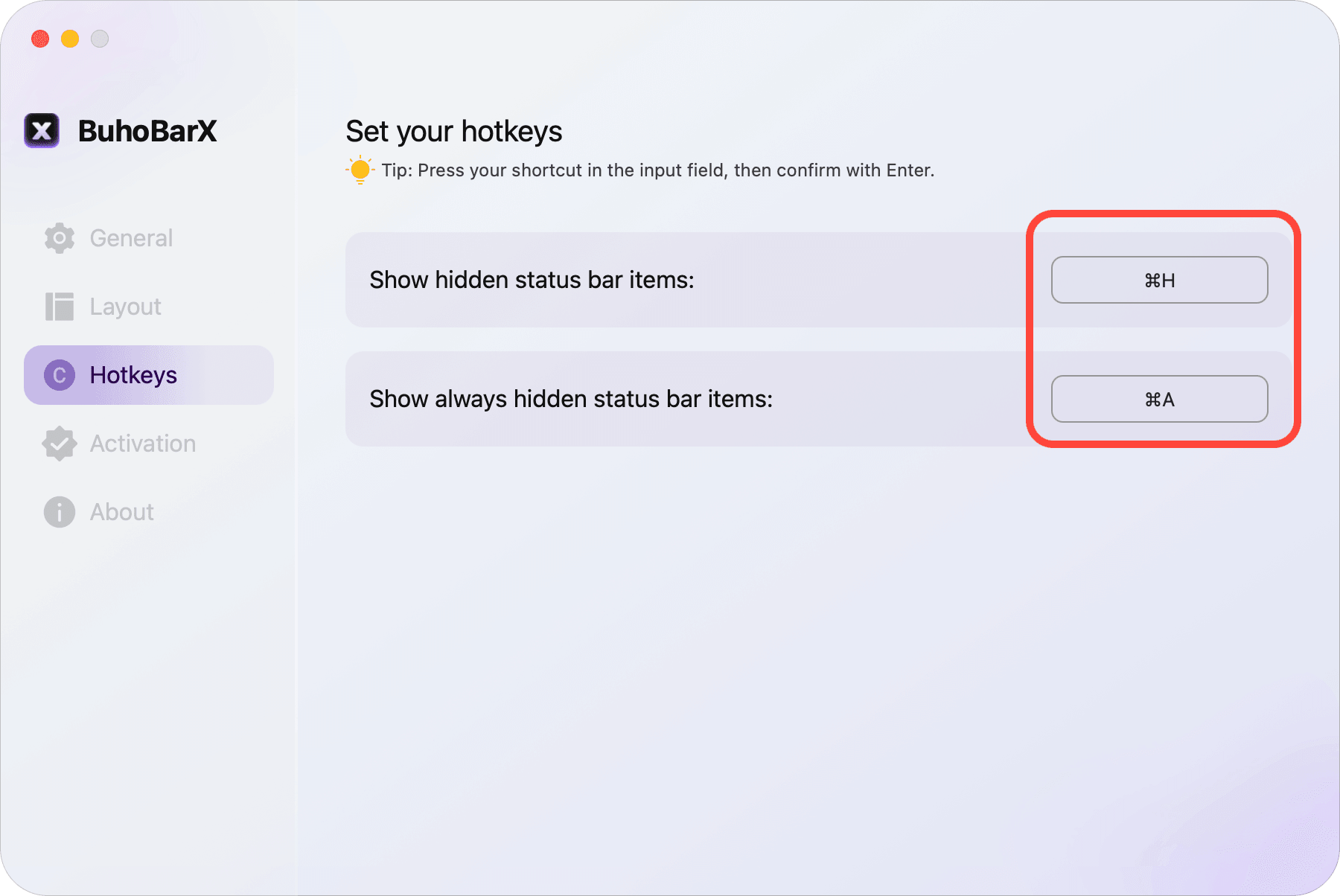
BuhoBarX lets you set up custom hotkeys for:
- Showing hidden menu bar apps.
- Showing always hidden menu bar apps.
Activation Settings
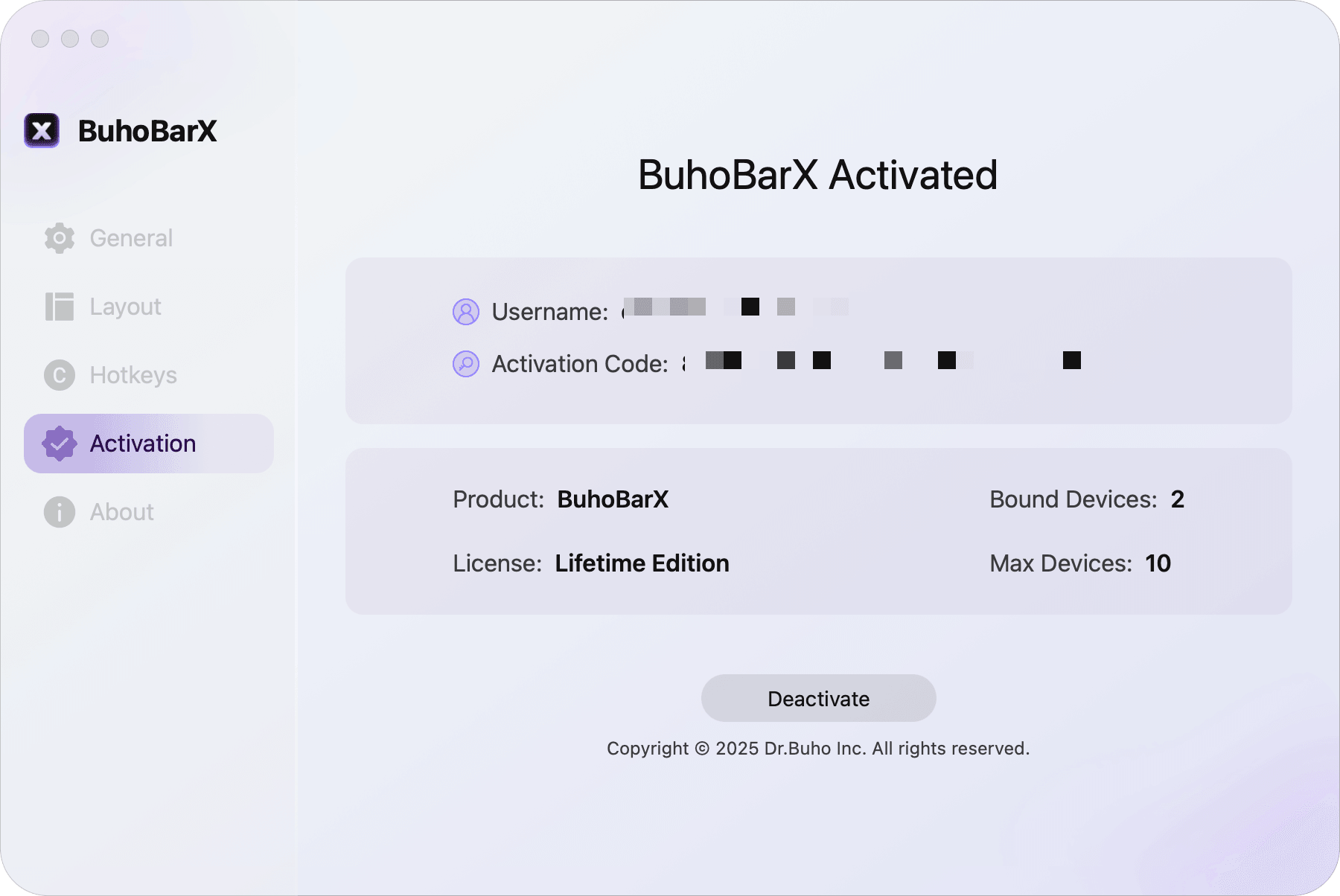
If your copy of BuhoBarX isn’t activated, you can purchase a license code to unlock the full version.
Once activated, you’ll see your activation details, including your username, license plan, bound devices, and maximum number of devices.
To deactivate a device, click Deactivate, then confirm your action.
About BuhoBarX
Here, you can check which version of BuhoBarX you’re using and quickly access links to our company information, privacy policy, and terms & conditions.