How to restore the Launchpad on Mac with BuhoLaunchpad
Let's guide you through the process of restoring the native Launchpad on your Mac after macOS Tahoe 26 using BuhoLaunchpad:
To better personalize BuhoLaunchpad to your specific requirements, open BuhoLuanchpad > right-click the mouse > Settings to customize your settings.
Launchpad Import
Seamlessly migrate your existing Launchpad layout and folders from previous macOS versions, so you can pick up right where you left off.
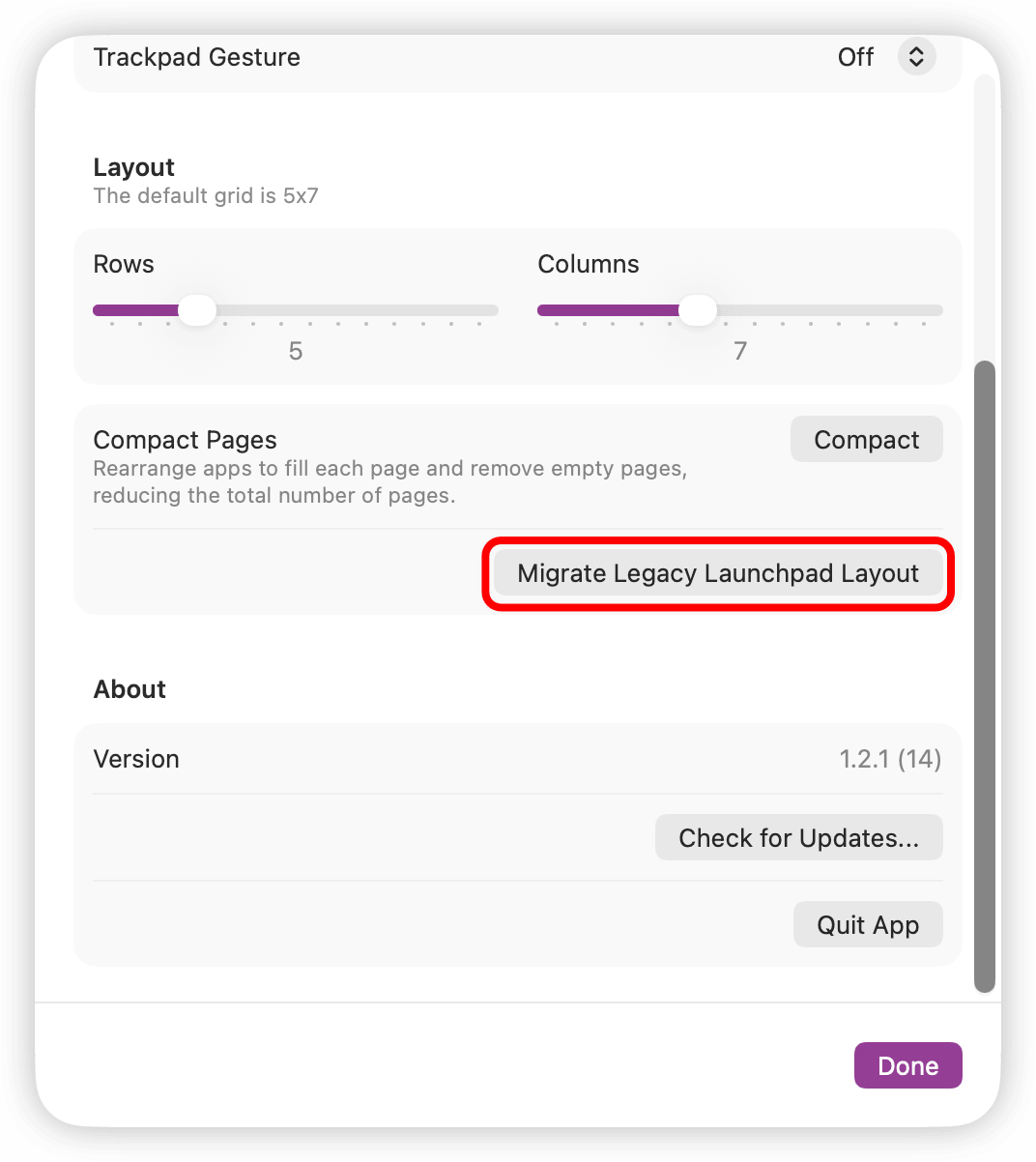
Once you open BuhoLaunchpad’s settings using the steps above, scroll down and click “Migrate Legacy Launchpad Layout”. Follow the on-screen instructions, and you’ll be able to transfer your Launchpad layout.

Customize App Layout
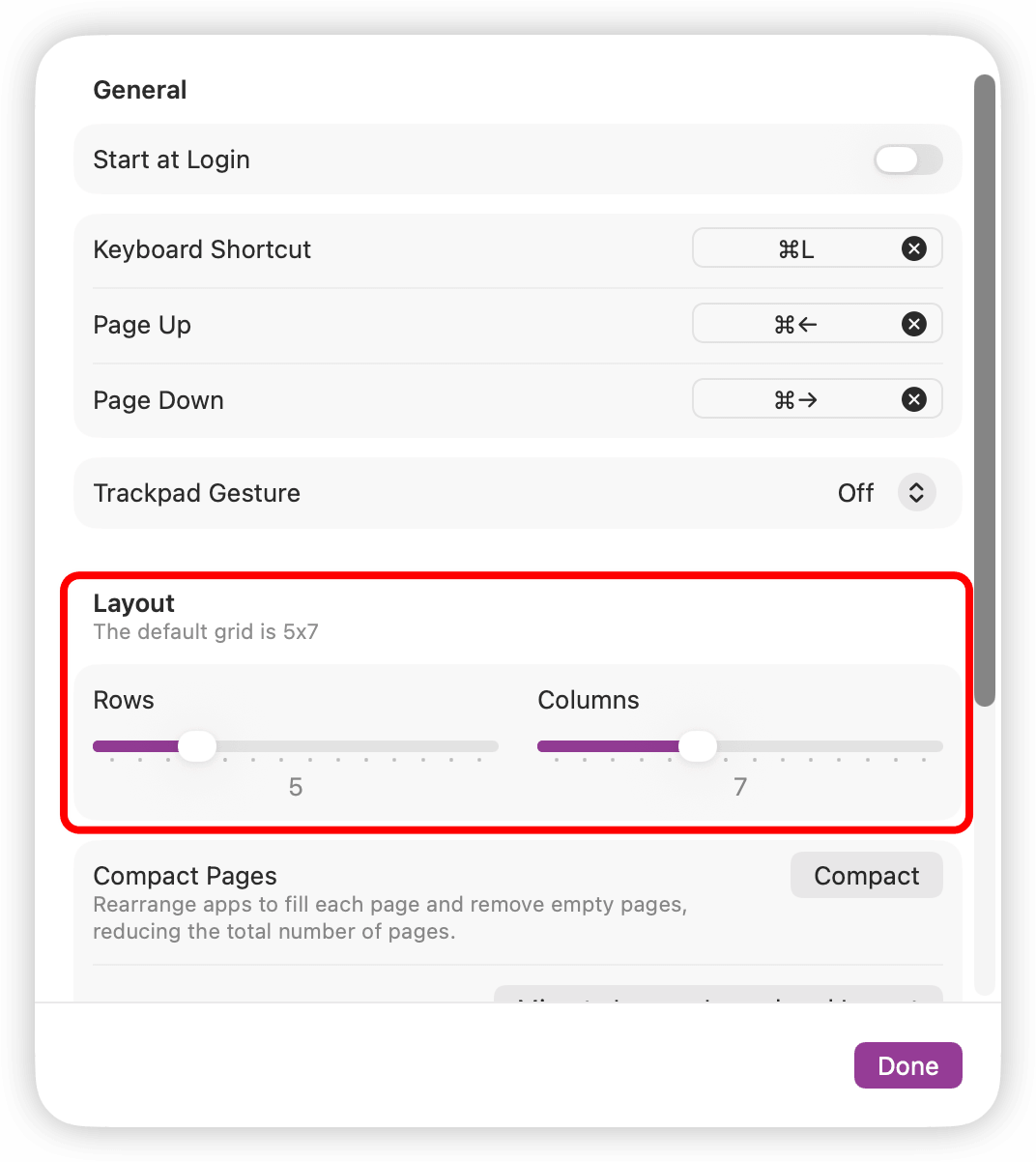
Under "Layout", slide to choose the number of "Rows" and "Columns" you want. As you adjust the sliders, the preset size preview updates in real time until it matches your ideal layout. Additionally, the default grid is 5x7.
Summon Up with Trackpad Gesture
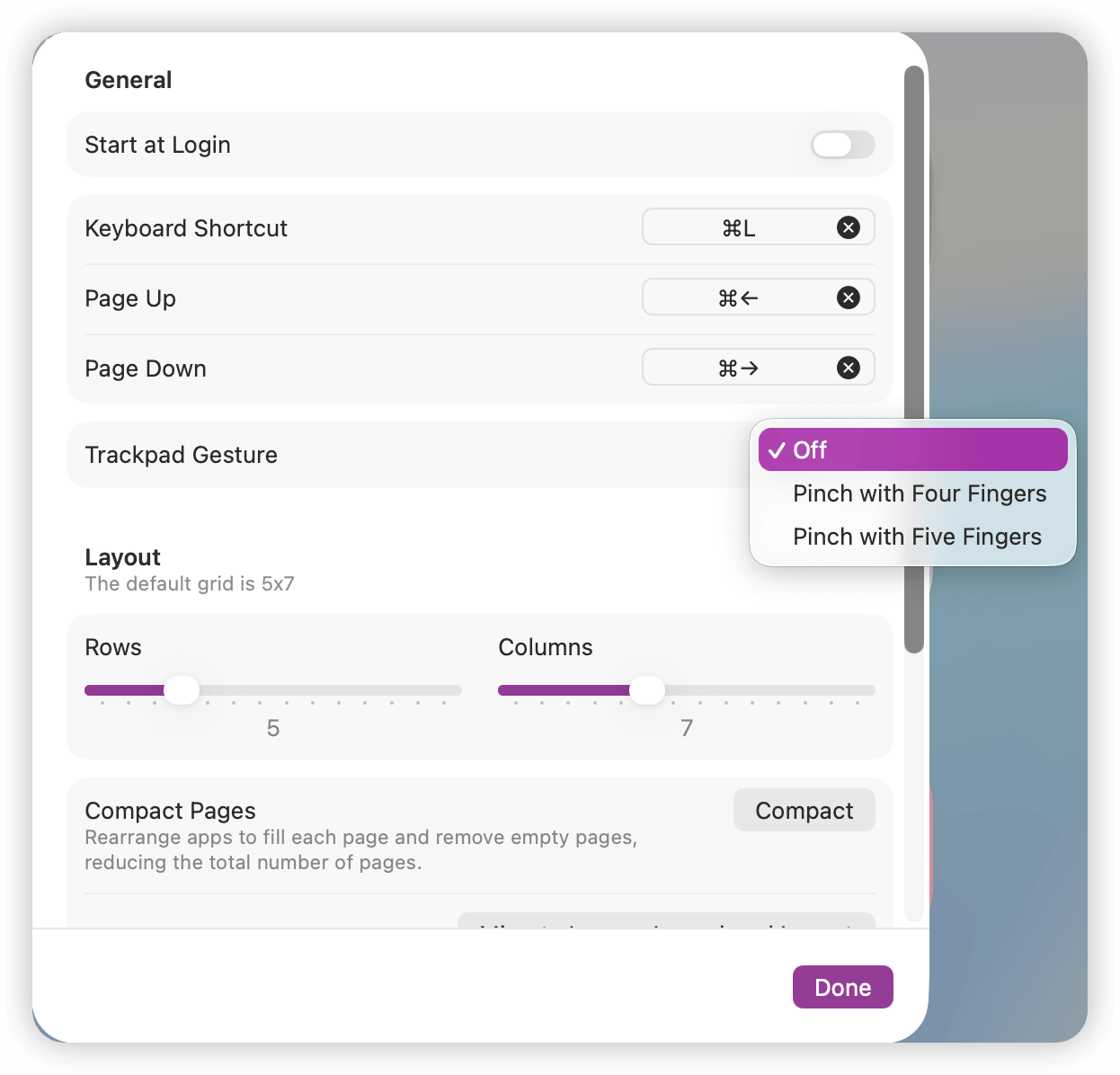
Open or dismiss BuhoLaunchpad instantly using familiar multi-finger trackpad gestures, bringing your app launcher to your fingertips in a moment. Nevertheless, we recommend you to set the Trackpad Gesture pinch with five fingers, in order to prevent conflict.

Keyboard Shortcut
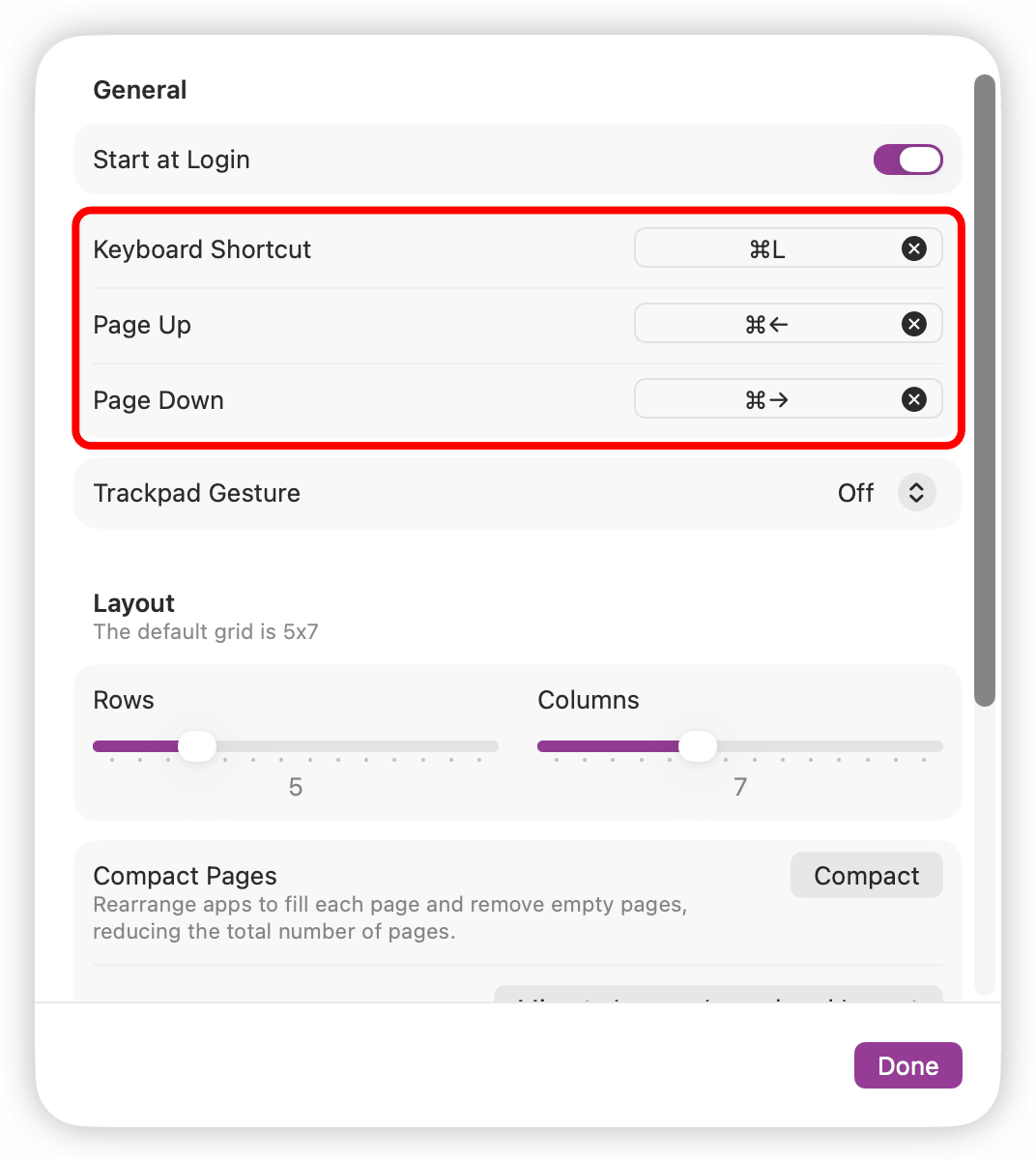
You can also use Keyboard Shortcut to open or close BuhoLaunchpad, and if you find it helpful, you can customize the shortcuts for flipping up and down in BuhoLaunchpad.
Ultimately, BuhoLaunchpad is dedicated to restoring the original and native Launchpad experience for you, and we will also update the software in real time based on your feedback. Welcome your valuable suggestions.