How to Uninstall BuhoLaunchpad
BuhoLaunchpad is designed to help you restore the native Launchpad on your Mac. If, for any reason, you want to remove it from your Mac, here are two methods you can use:
How to uninstall BuhoLaunchpad manually
- Quit BuhoLaunchpad.
- Open Finder > Applications.
- Locate the BuhoLaunchpad icon and drag it to your Trash.
- If you wish to completely remove its files, press Shift + Command + G to open the Go to Folder window.
- Paste ~/Library into the search box and press Return.
- Search for BuhoLaunchpad files in the following folders and move them to the Trash:
- Caches
- Logs
- Preferences
- Application Support
- Application Crashes
- Containers
- Empty the Trash.
Tip
If you only want to reset BuhoLaunchpad to its default state, there's no need to uninstall it. You can go to the Caches folder and clear all BuhoLaunchpad caches.
How to uninstall BuhoLaunchpad automatically
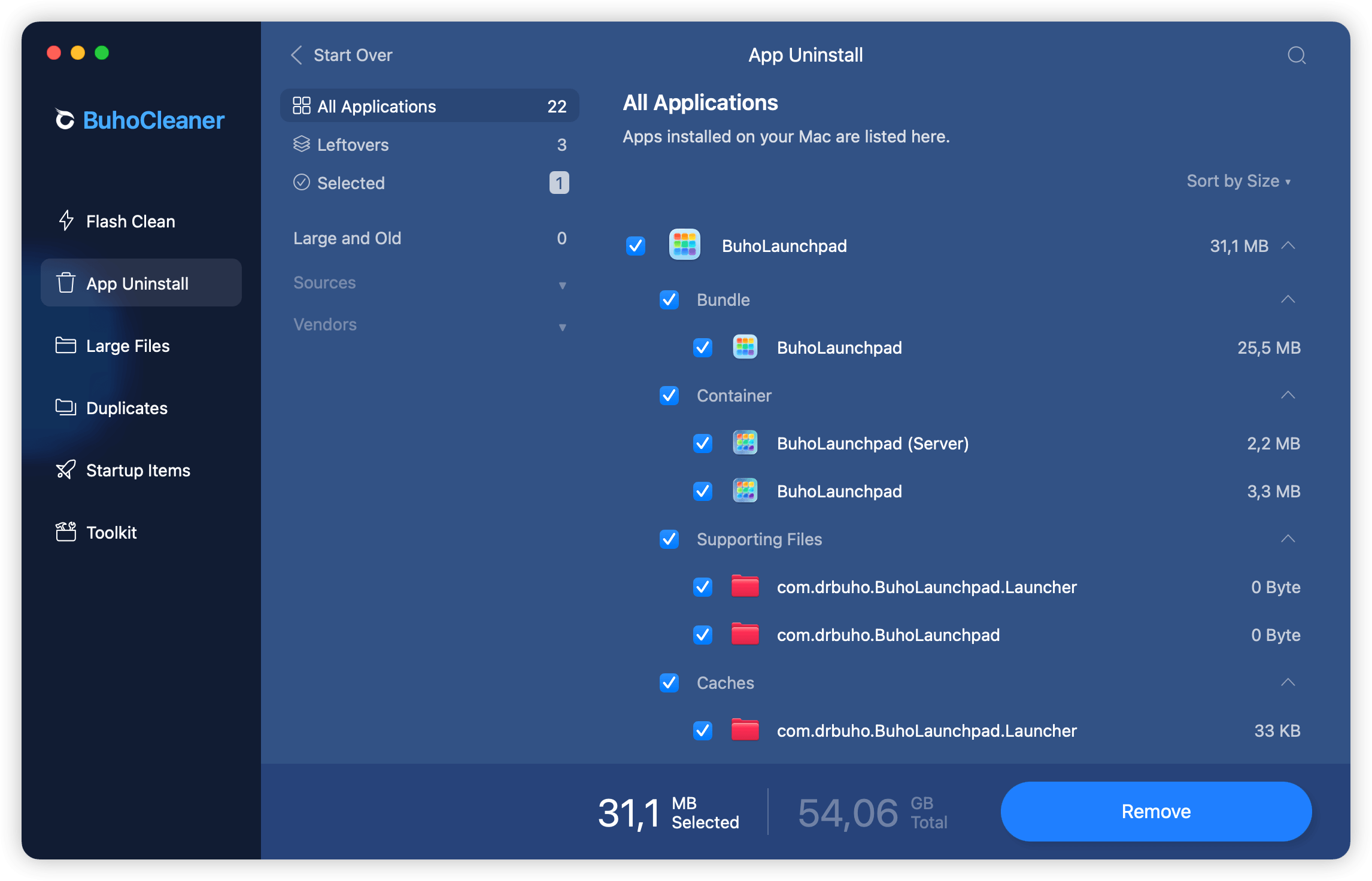
An alternative way to remove BuhoLaunchpad from your Mac is by using BuhoCleaner. This is a professional app uninstaller for Mac that can remove unwanted Mac apps, including stubborn ones, in just a few clicks.
Here's how it works:
- Download, install, and launch BuhoCleaner on your Mac.
- Click App Uninstall to find all installed apps on your Mac.
- Locate and select BuhoLaunchpad, then click the Remove button.
- If BuhoLaunchpad is running in the background, you may be asked to quit it first.