AirDrop Stuck on "Waiting"? 9 Quick Solutions

AirDrop stuck on “Waiting”? Here’s how to fix it on iPhone, Mac, and other Apple devices. Step-by-step solutions included.
Recently, a user shared that his AirDrop kept saying “Waiting” but never actually connected. This happened on both his and his wife's iPhone 11s. Even though both phones showed up as available, the transfer never moved forward, and the receiving device didn’t get any prompt to accept.
What’s frustrating is that this issue isn’t limited to iPhone-to-iPhone transfers. The same thing can happen when sending files from an iPhone to a Mac, iPad, or other Apple devices.
If you’ve run into this yourself, you’re definitely not alone. The good news is that in most cases, it’s fixable. Let’s walk through why AirDrop gets stuck on “Waiting” and what you can do to get it working again.

How to Tell if AirDrop Is Actually Transferring
Before jumping into fixes, it’s worth making sure AirDrop is truly stuck and not just slow.
- If you tap “Accept” and see a circle gradually filling up, the transfer is already in progress.
- If it just sits on “Waiting” with no movement at all, then it’s likely stuck.
Why Does AirDrop Get Stuck on “Waiting”?
There are a few common causes behind this issue:
- Devices are too far apart or blocked by walls
- Wi-Fi or Bluetooth is turned off
- VPNs or firewalls are interfering
- Personal hotspot is enabled
- Network settings are corrupted
- AirDrop visibility is restricted
- Screen Time or parental controls are blocking it
- Focus mode or Do Not Disturb is on
- iCloud syncing issues
- iOS bugs or temporary glitches
How to Fix AirDrop Stuck on “Waiting”
1. Keep Devices Within Range
AirDrop depends on Bluetooth to find nearby devices and Wi-Fi to transfer files. If your devices are too far apart, the connection may never fully establish.
Try keeping them within about 10 feet (3 meters), with minimal obstacles in between. It also helps to position them facing each other.
2. Restart Wi-Fi
A quick Wi-Fi reset can fix a surprising number of AirDrop issues. It clears temporary glitches and refreshes the connection.


- Open Control Center and turn off Wi-Fi
- Wait about 10 seconds
- Turn Wi-Fi back on
If that doesn’t help, you can reset your network settings:


- Go to Settings → General → Transfer or Reset.
- Tap Reset → Reset Network Settings.
3. Turn Off VPN
If you’re using a VPN, it might be blocking the peer-to-peer connection AirDrop needs.


To check:
- Go to Settings → General → VPN & Device Management.
- Disconnect any active VPN.
- Restart your device and retry.
4. Disable Personal Hotspot
When Personal Hotspot is on, it can take over your Wi-Fi connection and interfere with AirDrop.


To turn it off:
- Open Control Center.
- Tap Personal Hotspot.
- Turn off “Allow Others to Join”.
5. Enable AirDrop Visibility
If your device is set to “Receiving Off” or “Contacts Only,” it may block incoming transfers, especially from people not in your contacts.


To fix this:
- Open Control Center.
- Long-press the connectivity panel.
- Tap AirDrop.
- Choose “Everyone for 10 Mintures” (or “Everyone” on older iOS versions).
6. Check Screen Time Restrictions
Sometimes AirDrop is disabled through Screen Time settings without you realizing it.


Here’s how to check:
- Go to Settings → Screen Time → Content & Privacy Restrictions → Allowed Apps.
- Make sure AirDrop is turned on.
7. Turn Off Focus Mode
Focus modes like Do Not Disturb can prevent your device from being discoverable or receiving prompts.
To disable it:
- Open Control Center.
- Tap Focus.
- Turn it off.
8. Restart iCloud Sync
In some cases, AirDrop issues are tied to iCloud syncing problems. Signing out and back into your Apple ID can refresh things and clear conflicts.
9. Fix iOS System Bugs
If none of the above solutions work, the issue may be caused by a system-level glitch.
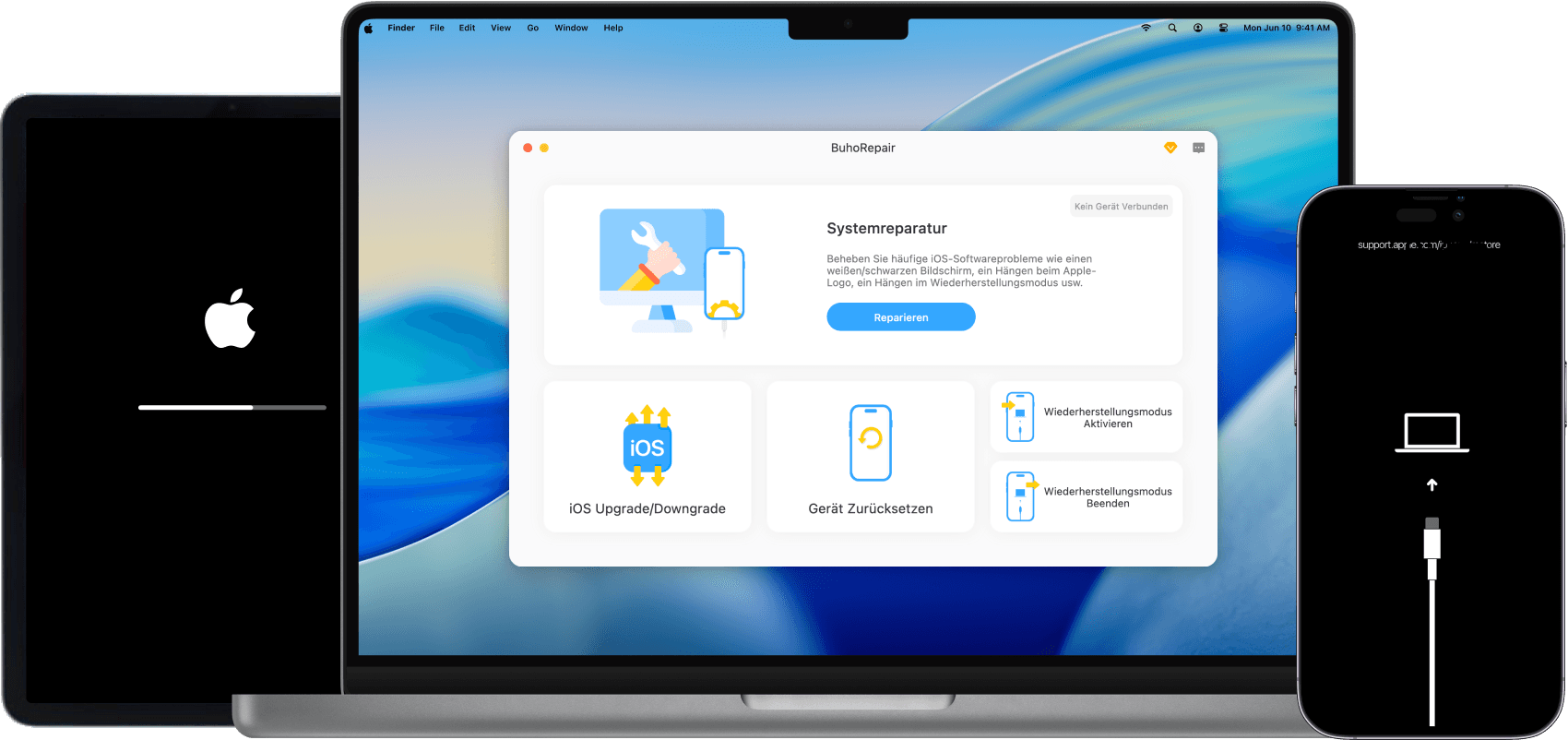
In that case, you can use an iOS system repair tool like BuhoRepair to help restore normal functionality without erasing your data.
- Download and install BuhoRepair.
- Connect your iPhone to your computer.
- Open BuhoRepair, select System Repair → Standard Repair.
- Follow on-screen instructions to enter recovery mode and complete the process.


Conclusion
When AirDrop gets stuck on “Waiting,” it’s usually due to connection issues, settings conflicts, or minor system glitches. While it can feel random and frustrating, most of these problems are easy to fix once you know where to look.
By going through the steps above, you should be able to pinpoint the cause and get AirDrop working smoothly again—whether you’re transferring files between iPhones, Macs, or other Apple devices.
Cassie has been writing about technology for her entire career life - over 5 years. She enjoys diving into how Apple products work and then breaking it down in a way anyone can understand.