

5 Fixes for Find My iPhone Erase Pending (2025)

When you’re stuck at the erase pending status, try the methods to get your iPhone connected to the internet. Alternatively, you can take other measures to erase your iPhone.
When you lose your iPhone, you can put the device in Lost Mode and send an erase command. Everything seems smooth until you get stuck at the “Find My iPhone erase pending” status. You can wait until your lost iPhone is turned on, connected to the computer, and erases automatically. But what if it still refuses to execute the erase command?
In this post, we’ll delve into the common reasons behind he "Erase Pending" status. Accordingly, we’ll provide detailed steps to help you erase your iPhone.
What Does Erase Pending Mean on Your iPhone?
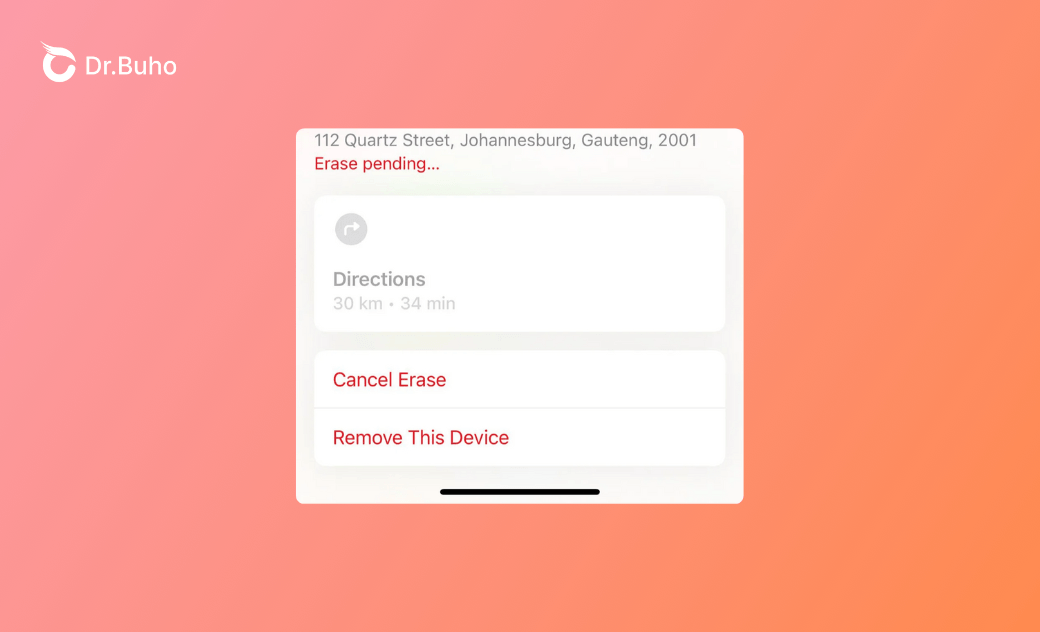
An “erase pending” status indicates that you’ve sent an iPhone’s remote erase command from your iCloud account, but the device is not connected to the internet or is offline now. Your data will be erased as soon as the stolen or lost iPhone is online and connected to the network.
Why Does It Say Erase Pending on Find My iPhone?
This can happen for various reasons. Normally, if your iPhone remains offline or the thief prevents it from connecting to the network, your lost device won’t receive the erasing command, and the data could still be accessible. Here, we’ve summarized several causes of iPhone erase pending.
- Your iPhone is turned off or not connected to the internet.
- Your iPhone is using a weak or unstable internet.
- Your iPhone is screen locked, so it can’t connect to WiFi or cellular data.
- If the battery on your iPhone is run down, it cannot receive the Find My iPhone erase command.
- Sometimes, when your iPhone has a large amount of data, it may take a longer time to receive the iPhone remote erase command.
How to Erase Your iPhone When Find My iPhone Erase Is Pending?
No matter whether your iPhone is by your side or not, you can try to erase your iPhone. Notably, do not remove your device from your Apple account while the erase process is pending. This is because this action could cancel the erase command.
Monitor Your iPhone’s Status
If your iPhone is lost and offline, continue to monitor the device’s status in Find My iPhone. You should track whether your iPhone has come online. The erasing process will begin as soon as your device is connected to the network. By regularly checking the device’s status, you can know if it is reconnected to the internet and begin the erasing process.


Here is how to check your iPhone’s status on another device.
- Navigate to iCloud.com/find and sign in with your Apple ID.
- You might be asked to enter a verification code sent to a trusted device. If you lost your only trusted device or can’t get the code, select the Find Devices button instead of entering a code.
- Under the “All Devices” section, select your lost iPhone. Now, you can check the current status of your device.
- If it’s online, you’ll see its location on the map. If it’s offline, you’ll see the last known location. If the device is in the “Erase Pending” status, it means the erase command has been sent but not yet executed.
- Continue to check back to see if the device has come online and started the erase process. If the device is online but not sending its location, it might show “Not sharing location • Online”.
Contact Apple Support
If your lost iPhone keeps going offline or is not connected to the internet, you may need to reach Apple Support. Visit a local after-sales service store, and they may have more advanced diagnostic tools and technical methods to get you out of the problem. They can check the status of the erase command and troubleshoot more specific issues. However, before asking them for assistance, you may need to provide the evidence to prove that you’ve lost your iPhone.
Ensure a Stable Internet Connection
If you seek to erase your iPhone remotely after selling it to others, you can ask the buyer to ensure a stable internet connection. As mentioned, the remote erase relies on a stable network connection. You can instruct the buyer to turn on the iPhone and connect it to Wi-Fi or cellular data. Besides, tell the buyer not to use the device when you’re sending the iPhone erase command. By doing so, it will prevent interruptions. And then the new owner can set up the device as his or her own.
Unlock and Erase Your iPhone with an iPhone Unlocker
However, things could be more challenging if the screen of your iPhone is locked. No matter whether your iPhone is lost or being sold, it cannot connect to the network anymore. Therefore, your device cannot receive the erase command and wipe automatically. In this case, the priority is to unlock your iPhone.
When using iPhone unlocking tools like BuhoUnlocker, you can erase the iPhone while unlocking the device. After removing the screen passcode, all sensitive data, like photos, contacts, and important data, will be erased. This solution works when you’re able to reach the new owner or buyer. Ask them to install the latest version of BuhoUnlocker, and then they can unlock and erase the device in minutes.
Step 1. Free download BuhoUnlocker and launch it on a computer. Connect the iPhone to the computer.
Step 2. On the main interface, choose the Unlock Screen Passcode option to get started.


Erase iPhone with iTunes or Finder
If you can reach your iPhone, erase it with iTunes or Finder. This is always your alternative solution when the remote erase command cannot be executed. Many Apple users would like to take this measure when their iPhones are offline, facing a weak or unstable internet connection, or are encountering technical issues. When restoring your iPhone on a computer via iTunes or Finder, you don’t need to rely on a network. It’s a secure and reliable way to erase your device and return it to its original settings.


For Mac Users:
- Open Finder and connect your iPhone to the computer.
- Select your iPhone and click on the “Erase All Content and Settings” in the window.
For Windows Users:
- Connect your iPhone to the computer via a USB cable.
- Ensure you’ve installed the latest version of iTunes and launch it.
- When iTunes detects your iPhone, select it and tap on the “Restore iPhone” under the “Summary” tab.
Conclusion
You may need to use Find My iPhone to remotely erase your iPhone if it is stolen or sold to someone else. When your device is turned on and well-connected to the internet, it can execute the erase command and wipe the device automatically.
However, if your iPhone is offline, not connected to the internet, or even screen locked, it will be stuck at the “Find My iPhone erase pending” status. Wait for a while and keep checking the status of your iPhone. If it’s still offline, reach out to Apple Support and prove that your iPhone is lost. Instead, if you can reach the buyer, you can also instruct them to take other measures to erase your device.
Living in Chengdu, Kelly is an Apple technician focused on Mac, iPhone, and iOS repairs. Meanwhile, he's also a columnist at Dr.Buho, with a simple mission to help fix Apple things that are with software or hardware glitches.



