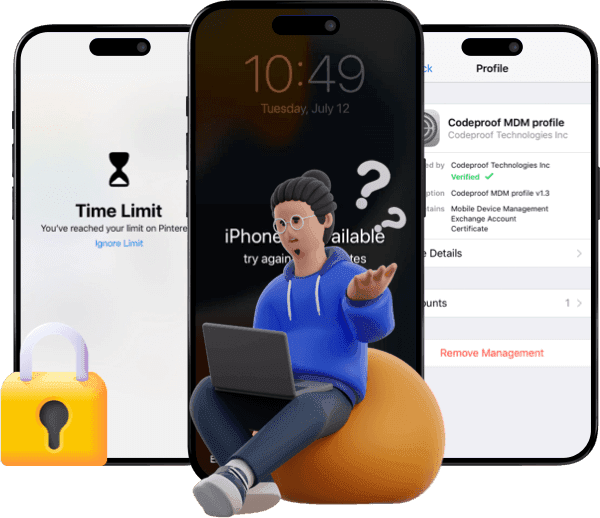
iPhone Unavailable Not Connecting to iTunes? 10 Fixes

If your iPhone is unavailable but cannot be detected by iTunes, find the fixes here or restore your device with other methods.
When your iPhone is unavailable or disabled after too many wrong passcode attempts, you may seek to connect it to iTunes to restore it. However, when you connect the iPhone to your computer, iTunes doesn’t respond to your iDevice in any way.
What makes your unavailable iPhone not show up in iTunes? What can you do to restore your iPhone? Find the possible reasons and proven solutions in this article.
Why Is iTunes Not Detecting Your iPhone?
Here are the reasons why iTunes fails to detect your unavailable iPhone.
- You’re using a faulty USB cable to connect your iPhone to the computer. Or the USB ports are multifunctional.
- You didn’t follow the right steps to enter the Recovery Mode.
- You are not using the latest version of iTunes.
- Your iPhone is running a newer version of iOS than what your version of iTunes supports.
- Apple Mobile Device USB driver isn’t installed properly.
- There are system issues within your iPhone or Mac.
- Antivirus software may interfere with iTunes, preventing it from recognizing your iPhone.
What to Do If Your Unavailable iPhone Is Not Showing Up on iTunes?
Considering the possible reasons, we’ll demonstrate how to get your unavailable or disabled iPhone connected to iTunes. Additionally, there are alternative methods to restore your unavailable iPhone.
Check Your USB Cable and Ports
Have you connected your iPhone to various USB or Lightning cables and different ports on your computer? You’d better use an Apple-certified USB cable to connect your iPhone to the computer. Over time, you may damage the USB cables or ports. A faulty or loose connection can prevent communication between the iPhone and the computer. Therefore, check both USB cables and ports as below:


- Inspect the cable to see whether there is damage.
- Ensure you’ve securely plugged in the cable.
- Try a different cable or port if there is any problem.
Restart Your Computer
Usually, a simple reboot of your computer can resolve system glitches and issues. In this process, you close all running apps and background processes. With a fresh start, software drivers and components are all well loaded.
- Click on the Apple logo and select “Restart” from the menu.
- Initiate the restarting process.
- Try again.
Enter the Recovery Mode Again
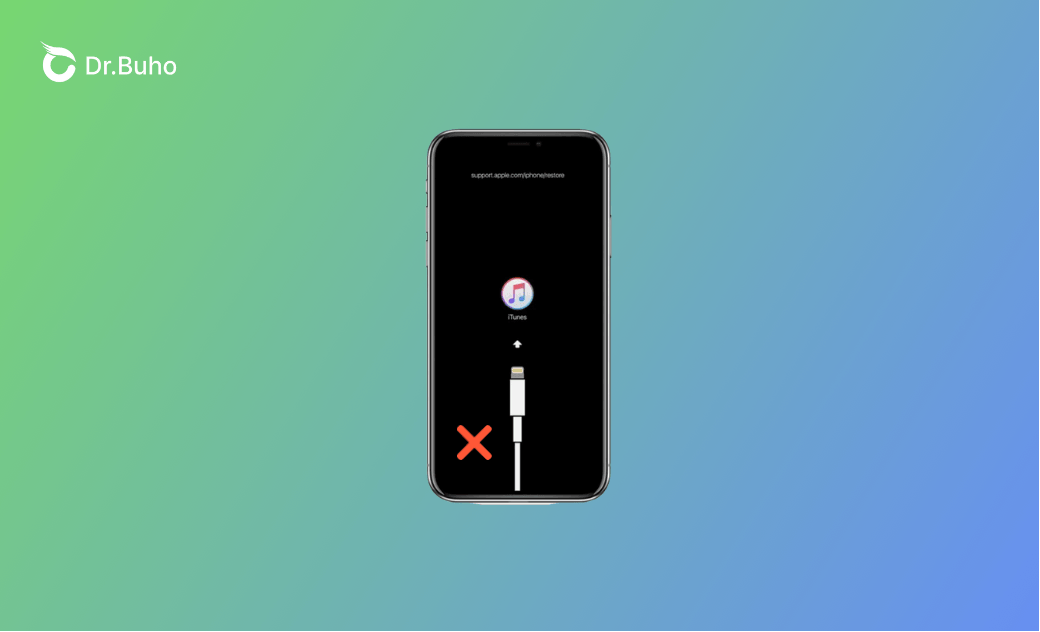
If your iPhone is not showing up in iTunes or Finder, enter Recovery Mode. The specific combination of buttons varies from one iPhone model to another.

- iPhone 8 and later: Press and release the Volume Up button, press and release the Volume Down button, then press and hold the Side button until you see the recovery mode screen.
- iPhone 7 and 7 Plus: Press and hold the Volume Down button and the Side button simultaneously until the recovery mode screen appears.
- iPhone 6s and earlier: Press and hold the Home button and the Top (or Side) button simultaneously until the recovery mode screen appears.
Use DFU Mode Instead of Recovery Mode
DFU Mode is another mode that can help you restore your iPhone. If iTunes still can't recognize your iPhone in Recovery mode, try the DFU mode.
What Is iPhone DFU Mode and How to Use It >>
Disable Security Software
Sometimes, security software like firewalls or antivirus programs can also prevent iTunes from detecting the iPhone. Security software is developed to protect your computer from potential threats, but it may also identify your iPhone as a harmful device. By disabling the security software for a while, you may rebuild the connection between your iPhone and Mac. Temporarily disable your antivirus software and try connecting your iPhone again.
Reinstall Apple Mobile Device USB Driver
Make sure the Apple Mobile Device USB driver is current and compatible with the iOS system configuration. This is due to the fact that the driver plays a crucial role in establishing the connection between your iPhone and the computer. Reinstalling the USB driver updates the driver files and creates a stable connection, hence syncing, updating, or fixing in iTunes.


- Connect your iPhone to the computer and open Device Manager.
- Go to “Universal Serial Bus Controllers” and locate the “Apple Mobile Device USB Driver”.
- Uninstall and reinstall it.
Update iTunes
What is the exact version of your iTunes? What operating system are you running on your computer? You should always ensure you’re using the latest version of iTunes. The newer version of iTunes is always compatible with the new Apple models. After updating iTunes, you’ll have the latest drivers as well. This can help resolve compatibility issues, allowing iTunes to better recognize your iOS devices. Here is how to update iTunes in Windows and Mac.


For Windows Owners:
- Open iTunes and click on “Help” from the menu bar at the top of the screen.
- Tap on “Check for Updates” to see if there is any update.
- For Mac Owners
- Launch iTunes and click on “iTunes” in the upper-left corner.
- Click on “Check for Updates” to check the updates.
Check iOS and iTunes Compatibility
Apple often updates the iOS system and iTunes, and newer versions always involve new changes and improvements. The iOS version of your iPhone should be compatible with the version of iTunes. For example, if your iPhone is working on a recent iOS version, but iTunes is outdated, your iPhone cannot show up in iTunes.
To find out whether your iPhone matches the current version of iTunes, compare the versions. You can find the compatibility information on Apple’s official support website. Or you can check the release notes of iOS and iTunes.
Unlock Your Unavailable iPhone with BuhoUnlocker
Another way to unlock your disabled iPhone is by using an iPhone unlocking tool like BuhoUnlocker. It’s an alternative method for removing your screen passcode, and it can fix various iOS screen lock issues in just a few minutes. In addition, as a professional iPhone passcode unlocker, BuhoUnlocker can also remove Apple ID, Screen Time passcodes, and MDM profiles.
- Free install BuhoUnlocker and launch it on your computer.
- Connect your iPhone to the computer.
- Click on the Unlock Screen Passcode option and read the notes before initiating the unlocking process.
- Download the firmware that matches your Apple model.
- Wait for a few minutes until it unlocks your iPhone.


Contact Apple Support
The last solution is to contact Apple Support. You may ask for assistance in the local store, so that you can confirm that’s your device.
Conclusion
Don’t feel discouraged if your iPhone is unavailable and there’s no option to unlock it with the passcode. We’ve listed nine proven ways to connect your iPhone to a computer. Since your iPhone is locked, most solutions need to be done on the computer side. If iTunes still fails to unlock your iPhone, you can use an iPhone unlocker like BuhoUnlocker to remove the screen passcode.
Robert is a tech-savvy fan who loves all things Apple. As a hobbyist of gardening and meditation, he is also a seasoned writer covering a wide array of Apple products, like iPhone, iPad, iOS, and more.