iPhone Unavailable Black Screen? 4 Proven Fixes

In this guide, we’ll explore 4 quick fixes to get out of the iPhone Unavailable black screen. As your iPhone is permanently locked, you need to take special actions to unlock your device.
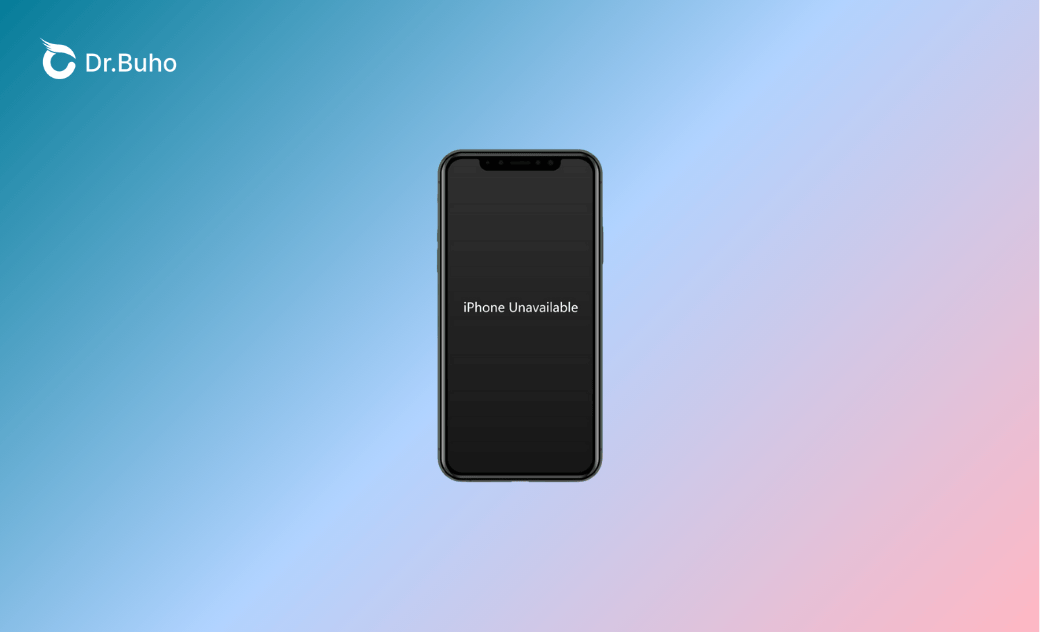
If you’ve tried to open your iPhone multiple times with the wrong passcode, you might get an empty black screen with a white “iPhone Unavailable” message. It appears you may have a disabled mobile device. And once it is disabled, all data on it is gone.
Now, refer to this article for various methods to restore your iPhone. If you have an iPhone backup, you can get your data back afterwards.
What Happens if an iPhone Is Unavailable?
The black screen says “iPhone Unavailable” because it activates the iOS security feature. This lock is often triggered after multiple incorrect passcode attempts.
At the beginning, there is also a timer, like “Try again in 1 minute”. Then it will extend up to hours. If you keep entering the wrong passcode, you will see the white “iPhone Unavailable” text on the black screen.
Related Article: How to Fix "iPhone Unavailable Timer Not Going Down" - 4 Ways
How Long Does the iPhone Unavailable Black Screen Last?
Now, you might wonder how long your device will be stuck on the “iPhone Unavailable” black screen. However, if there is no timer, the answer could be “permanent”. It often happens after you consecutively entering wrong passcode 10 times. And this requires a full erase of your iPhone to access it again.
Can a Force Restart Fix the iPhone Unavailable Black Screen?
Before connecting your iPhone to the computer, you might try force-restarting your iPhone. Unfortunately, this doesn’t work. Rather than a permanent security lockout after 10 failed passcode attempts, you can mainly force restart your iPhone to fix issues like a temporary software glitch, frozen process, or system crash.
How to Fix the iPhone Unavailable Black Screen
If you see a white “iPhone Unavailable” message on a black screen, with no timer or “Forgot Passcode” option, it suggests that your device is permanently locked. In this case, you’ll need to connect your iPhone to a computer to restore it.
Restore Your iPhone via iTunes or Finder
If you can force your iPhone into Recovery mode, you can restore it via iTunes or Finder. It allows your computer to detect your iPhone. And then you can click on the “Restore” button to download and install the latest iOS firmware. Like resetting your iPhone on the device itself, it overwrites the entire iOS system, including the screen passcode, apps, photos, and other personal data.


- Follow the steps to put your iPhone into recovery mode:
- iPhone 8 and later (including SE 2nd gen+): Press and quickly release the Volume Up button, and then the Volume Down button. Then press and hold the Side button until you see the recovery mode screen.
- iPhone 7 / 7 Plus: Press and hold the Volume Down and Side buttons until the recovery mode screen appears.
- Connect your iPhone to either a Windows or Mac computer by using a USB cable.
- Find your iPhone if it is detected by your computer.
- Click the “Restore” button; follow the prompts to complete the process.
Fix iPhone Unavailable Black Screen via BuhoUnlocker
If you’re unable to enter Recovery Mode on your own, or if your computer fails to detect your device, you can try using an iPhone unlocking tool. Among the most popular iPhone unlockers in 2026, you may consider giving BuhoUnlocker a try. It guides you through bypassing the security lock and downloading the Apple iOS firmware that matches your device.
This process removes the screen lock and erases all settings, apps, photos, and other data on your iOS device. Afterward, you can restore your device from a previous backup.
This method works even if your device is unresponsive or frozen. You don’t need a network connection or to enable the Find My feature. It also supports various iOS lock types, including 4- and 6-digit passcodes, as well as Face ID and Touch ID.
Step 1. Free download and install BuhoUnlocker on your computer. Connect the locked iPhone to the computer using a USB cable.
Step 2. Open BuhoUnlocker and choose the Unlock Screen Passcode mode from the main interface.

Step 3. Follow the onscreen instructions to put your iPhone into recovery mode.
Step 4. BuhoUnlocker will automatically detect your iOS version and ask you to download the matching iOS firmware.
Step 5. When the firmware download finishes, follow the onscreen instructions to unlock your device.
Unlock Your Locked iPhone Remotely with iCloud
If you’ve enabled the “Find My” feature, you can also try to erase your device remotely. With iCloud, you don’t need to access it or connect it to a computer. This is quite useful when you can’t operate your iPhone. By logging into iCloud’s official site in a browser, you can find your device and choose to erase your iPhone.
It’s like a remote factory reset that removes your screen passcode and restores your device to its initial setup state. With simple clicks, you can regain access. Despite unlocking an unavailable iPhone, it also works on a disabled, unresponsive, or lost iPhone. However, ensure that the device is connected to the internet and the Find My feature is enabled. After erasing your device with iCloud, you can set it up as a new device and restore it from a backup.


Here is how to erase your locked iPhone remotely via iCloud.
- Open a browser on your computer or a mobile device and navigate to the iCloud site.
- Sign in with your Apple ID and click on the “All Devices” option at the top of the window.
- Scroll down to find your locked iPhone and click on the “Erase This Device” option.
- Follow the on-screen instructions to erase your device.
Contact Apple Support
If you’re unable to unlock your iPhone, contact Apple Support for assistance. They can provide guidance based on your specific situation. Since you can’t access the device yourself, you may need their help to erase it remotely.
Due to Apple’s security policies, the process may involve data loss and Apple ID verification. If possible, bring your proof of purchase and visit a nearby Apple Store for further support.
How to Avoid the iPhone Unavailable Black Screen
By the end of the post, we’ll show you some tips to prevent the iPhone Unavailable black screen from happening again.
- Keep your screen clean to prevent touch glitches or wrong inputs.
- If you’re likely to forget the screen passcode, use Face ID or Touch ID instead. This can minimize wrong entry risks.
- Regularly back up your device via iCloud or iTunes. This can help you restore your device if you have to wipe the data.
Bottom Line
It’s frustrating to see your iPhone stuck on a black screen with the “iPhone Unavailable” message. In this situation, you’ll need to use tools like Finder, BuhoUnlocker, or iCloud Find My to erase your device.
No matter which method you choose, it will result in data loss. To prevent this from happening again, make sure to back up both your passcode information and your device regularly.
Cassie has been writing about technology for her entire career life - over 5 years. She enjoys diving into how Apple products work and then breaking it down in a way anyone can understand.