How to Turn Off Restrictions on iPad With or Without Passcode

Looking for a way to turn off Restricted Mode on your iPad? You’re in the right place. This guide shows you how to remove iPad restrictions quickly—even if you don’t know the Screen Time passcode.
iPads are popular with families, especially those with young children, for both entertainment and schoolwork. To keep kids safe from inappropriate content and control how they use their devices, parents can enable restrictions for apps, features, and content.
If you now need to remove those restrictions—whether your child no longer needs them or you bought a used iPad with limits still enabled—keep reading.
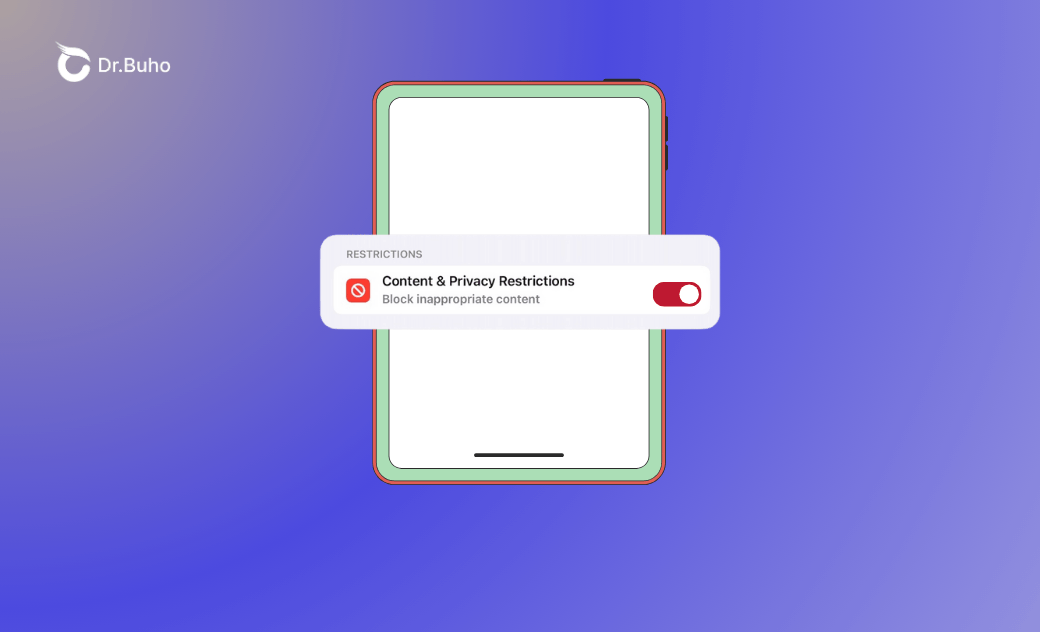
What Are iPad Restrictions?
Restricted Mode on an iPad limits access to certain content, apps, and privacy settings. It’s mainly used for parental control or to reduce distractions.


Here’s what you can restrict on an iPad:
iTunes & App Store Purchases
Prevent app installs or deletions, block in-app purchases, and require a password for purchases in the App Store, iTunes, or Books.Allowed Apps
Choose which built-in apps your child can use. Restricted apps will be hidden from the Home screen.Content Restrictions
Block or limit access to websites, apps, games, books, and explicit music, movies, or TV shows.Privacy Settings
Prevent changes to privacy-related settings such as contacts, calendars, and passcode options.
How to Turn Off Restrictions on iPad (With the Passcode)
Restrictions are usually set with good intentions, but there are times when turning them off makes sense. If you know the Screen Time passcode, you can easily restore full access to your iPad.
These steps also apply to turning off Parental Controls or Screen Time, since they’re part of the same settings.
Turn off restrictions on iPad (iPadOS 12 or later)
- Open the Settings app.
- Tap Screen Time.
- Select Content & Privacy Restrictions.
- Enter the Screen Time passcode.
- Toggle off Content & Privacy Restrictions, or disable specific limits.


Disable Restricted Mode on older iPads (iPadOS 11 or earlier)
- Open Settings.
- Tap General.
- Select Restrictions.
- Tap Disable Restrictions or turn off specific restrictions.
- Enter the restrictions passcode.


How to Turn Off Restricted Mode on iPad Without the Passcode
If you forgot the passcode or you’re not the person who set up the restrictions, you’ll need another approach. Don’t worry—there are still options.
Remove iPad restrictions with BuhoUnlocker (no data loss)
One of the easiest ways is to use a third-party tool like BuhoUnlocker. It’s an all-in-one iOS unlocking tool that can remove Screen Time restrictions, unlock iPad screens, bypass MDM restrictions, and remove Apple ID locks.
If you don’t remember the restrictions passcode, BuhoUnlocker can remove it for you—without erasing your data.
Here’s how it works:
Step 1. Download and install BuhoUnlocker on your Mac or Windows PC.
BuhoUnlocker is lightweight, secure, and installs in under a minute.
Step 2. Connect your iPad to the computer using a USB cable.
If prompted, tap Trust on your iPad and enter the device passcode.


Step 3. Launch BuhoUnlocker and choose Remove Screen Time Passcode.

Step 4. Click Bypass Now and wait for the process to complete.

Turn off iPad restrictions using an Apple ID
If you know the Apple ID used to set up Screen Time, you can disable restrictions by turning off the Screen Time passcode.
On older iPads, you can’t change the restrictions passcode directly—you must turn off restrictions first, then set them up again.
Steps for newer iPads:
- Open Settings.
- Tap Screen Time > Change Screen Time Passcode.
- Select Turn Off Screen Time Passcode.


- Tap Forgot Passcode?.
- Enter your Apple ID and password to disable Screen Time and remove restrictions.


The Bottom Line
iPad restrictions are useful for managing content, apps, and purchases—especially for children—but they’re not always needed forever. When it’s time to restore full access, you now know how to turn off restrictions on your iPad.
If you’ve forgotten the restrictions passcode, BuhoUnlocker lets you remove those limits safely, even without the passcode or Apple ID.
Cassie has been writing about technology for her entire career life - over 5 years. She enjoys diving into how Apple products work and then breaking it down in a way anyone can understand.