iOS 26.3 Unable to Load Photos? 7 Fixes Here

Is your iPhone not loading photos as usual? Figure out the possible reasons and fixes in this article.
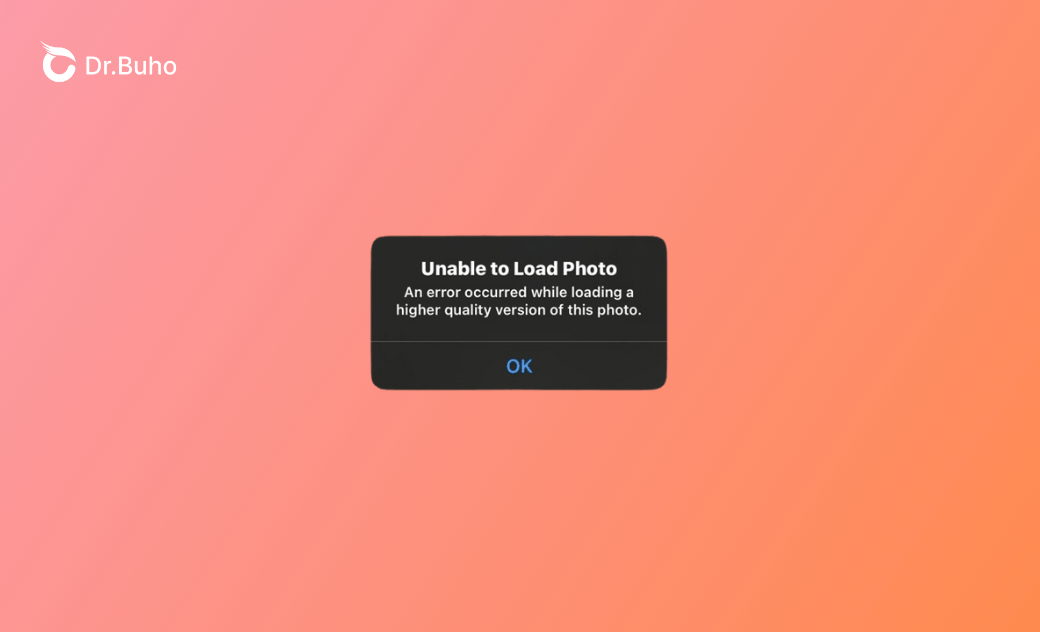
Recently, some iPhone users reported that a lot of photos were not loading after updating to iOS 26.3. They found exclamation marks on the corners of these photos, and they couldn’t share them or do anything with them. When clicking on these exclamation marks, it indicated that it was unable to load the photo.
You might tried to get it right by restarting your device, but only to find it didn’t work at all. In this post, we’ll figure out the causes of photos not loading and provide several methods for your reference.
Why Are My iPhone Photos Not Loading?
If you have encountered the same issue where your photos or videos on your iPhone are not loading when you click on them, explore the reasons here. Possibly, it’s because of internet connections, device storage, iCloud optimization settings, or iOS glitches.
- Full photos are stored in iCloud, and only thumbnails are stored on your iPhone. It requires the internet to load original images.
- The network is poor or unstable, which interrupts downloads from iCloud.
- There isn’t sufficient internal space on your iPhone to download full-resolution images.
- There are syncing issues with iCloud. The server might delay when you are uploading or downloading photos.
- Your iPhone encounters glitches because of a low battery, overheating, or post-update issues.
- Your iPhone has suffered from iOS bugs or issues.
7 Fixes for Photos Not Loading on iPhone
iPhone photos often fail to load due to iCloud storage optimization, network issues, or device constraints. Fixes address each cause directly for quick resolution.
Improve Network Connection
In most cases, the reason behind the photo loading issue is the network connection. This is because if you’ve enabled “iCloud Photos” and “Optimize iPhone Storage”, you can only see the small local previews. However, the full-resolution images are still in iCloud. If your network is slow, unstable, or blocked, you might stop downloads.


Check your network connection and switch to a stronger or more stable one if possible. Alternatively, you can change to cellular data or remove problematic VPNs. This can provide your iPhone with a clean path to Apple’s server, allowing it to download and load the full images as you want.
Cool Down Your iPhone
When your device gets too hot, it may stop fetching and loading images from iCloud. This could happen when you put your device directly under the sun, or you’ve been using your iPhone for a long time. It might lead to a loading issue even if you can see the thumbnails. If your iPhone is overheating, take the following measures to cool it down.
- Remove the case and put it in the shade.
- Close the intensive applications for a while.
- Lower the brightness.
- Power off for a while.
Fix iCloud Thumbnails Issue
If you only store iCloud thumbnails instead of full‑resolution images, you may find your iPhone unable to load photos. The full-resolution photos are stored in iCloud, so you need an internet connection to download them. If these thumbnails are missing, corrupted, or failing to sync, you cannot link to iCloud and download the originals there. Therefore, you can try to repair the iCloud thumbnail issue and rebuild the thumbnail index.


- Ensure you have a strong and stable Wi-Fi network connection.
- Ensure you have enough iCloud and iPhone storage.
- Go to Settings and click on your name. Then click on iCloud and Photos.
- Toggle “iCloud Photos” or “Sync this iPhone” off.
- Wait a while, then toggle it back on. Sync the images again and rebuild the iCloud thumbnails.
Charge Your iPhone
If the iPhone battery drops low, which is like under 20-30%, your iPhone will activate the Low Power mode. To save energy, it will restrict background processes such as iCloud syncing and photo loading.
If the battery is low, charge your iPhone. This can quickly remove the limits and let the Photos app resume the loading process.
Free Up Internal Storage
Despite a strong and stable network connection, you should also have enough internal storage on your iOS device. As the full images are still waiting in iCloud, you should ensure enough internal storage to get them. If there isn’t enough internal storage, you might fail to fetch original images. This can cause loading errors or timeouts, even with a good internet connection. Here are several tips for freeing up internal storage.
- Delete large apps on your iPhone
- Clear Messages attachments.
- Remove temporarily or redundant cached data or files.
To free up internal storage on your iPhone, you can:


- Launch Settings and navigate to General and iPhone Storage.
- Check what apps have taken up a large amount of internal space, such as photos, videos, apps, or cached files.
- Review the redundant media files or redundant ones and delete the ones that you don’t need anymore.
Fix iCloud Syncing Issues
To get photos loading right, you should ensure a smooth process of syncing. You might face iCloud syncing issues due to weak internet, low battery mode, low data mode, full storage, or software glitches. As a result, it will prevent the Photos app from requesting and displaying images from iCloud. To fix the iCloud syncing issues, you can refresh the iCloud Photos.


- Open Settings and click on your Apple ID.
- Scroll down to the bottom to tap on the Sign Out button.
- After signing out of iCloud, restart your device.
- Sign in back and toggle iCloud Photos on.
Fix iOS System Issues
If you fail to resume the photo loading process with the mentioned measures, your iPhone might encounter some iOS issues. This often occurs after you upgrade to iOS 26. It doesn’t matter if you don’t know the reason, as you can use third-party tools like BuhoRepair to fix the photo loading issue. More importantly, it won’t lead to data loss.
Besides, BuhoRepair can repair many other app-related issues, such as app crashes, frozen background processes, or image rendering issues. You can run BuhoRepair on a Windows or Mac computer and fix the image loading issue with simple clicks.
- Free install BuhoRepair and launch it on your computer.
- Connect your iPhone via a USB cable and select the System Repair mode from the dashboard.
- Choose the Standard Repair mode and click on the Repair Now button.
- Follow the instructions to download the matching firmware package and repair the photo loading issue in minutes.


Conclusion
It’s common to see the iPhone “unable to load photos” error. In most cases, this is a result of the iCloud syncing issue. Basically, it requires a stable network, enough battery, and sufficient internal storage. Considering these prerequisites, you can figure out several methods to resume the function.
If the photo loading issue still exists, you may need to repair the iOS system issue. With BuhoRepair’s Standard Repair mode, you can fix various app issues without data loss. Despite fix photo loading issue, it can also fix app crashing or app suddenly stops working issues. This is especially workable when you’ve just updated to iOS 26.3.
Living in Chengdu, Kelly is an Apple technician focused on Mac, iPhone, and iOS repairs. Meanwhile, he's also a columnist at Dr.Buho, with a simple mission to help fix Apple things that are with software or hardware glitches.