7 Fixes for "iPhone Screen Won’t Turn Off"

Learn how to fix an iPhone screen that won’t turn off with simple methods. Here, you’ll find possible reasons and 7 effective solutions.
It’s common to see your iPhone screen not turning off. For several reasons, the iPhone screen may not turn off when on a call, locked, or after receiving a notification. Sometimes, you may even find that it doesn’t turn off while charging. This can be bothersome because it may disrupt normal use and even drain your battery.
In this post, we’ll find out why your iPhone screen is not turning off. By identifying the reasons, you’ll see how to fix the issues and get your iPhone back to normal.
Why Does My iPhone Screen Stay On?
The “iPhone screen won’t turn off” issue may be caused by settings tweaks, software glitches, or hardware faults. Before taking action, let’s figure them out first.
- The Auto-Lock is set to “Never” or for a long duration.
- You’ve enabled the “Always On Display” mode.
- Your iPhone is in Low Power mode because it’s out of or almost out of power.
- Your iOS system is out of date and might encounter glitches, bugs, or issues.
- Some background processes, apps, notifications, or modes can keep your screen awake.
- Your iPhone is overheating, which leads to temporary freezes and prevents your iPhone from shutting down.
- Your screen or the light sensor is damaged, so your iPhone fails to detect inactivity.
How to Fix the "iPhone Screen Won’t Turn Off" Issue
In this section, we’ll showcase 7 ways to fix an iPhone screen that won’t turn off. Continue reading to learn how to resolve the issue step by step.
Check Screen and Sensor Damage
First, check whether there is damage to your screen or the sensors. The proximity sensor and ambient light sensor can find out whether your iPhone is idle, facing down, or in a pocket. If these sensors are broken by drops, water, poor screen repair, or debris, your iPhone may believe you’re still using your iOS device. And in this case, your iPhone screen will keep staying on.
Here are some tips for checking your sensors and screen.
- The proximity sensor is located near the top front, which is around the earpiece or Dynamic Islands. You can check if there is any damage.
- Clean debris with a microfiber cloth.
- Remove cases or phone protectors to clean your iPhone.
- Force restart your iPhone to see whether the problem is resolved.
Cool Down Overheating
Overheating of the iOS device may trigger its native management system; hence, it can further break sleep functionality, such as Auto-Lock and proximity sensor detection.
In particular, if your device exceeds the safe operating temperature, which is usually above 95°F or 35°C, it will be plunged into a high-temperature mode that bypasses inactivity timers and keeps the screen on. In most cases, you will find a temperature warning on your screen.
To cool down your iPhone, you can place it in a cooler environment. You can make it away from sunlight or cases and stop using it for about 10-15 minutes. Wait for a few minutes to allow internal temperature to normalize and restore full Auto-Lock functionality.
Change the “Auto-Lock” Settings
If you’ve set Auto-Lock to “Never” or for a very long time, your iPhone screen will stay on until the power button is pressed. You can switch off the “Never” button or change it to a shorter interval - like 30 seconds or 1 minute. Afterwards, your iPhone will sleep after becoming inactive. Here is how to change the “Auto-Lock” Settings.


- Launch Settings and navigate to Display & Brightness.
- Click on Auto-Lock, and cancel “Never” or select a shorter duration.
- If it greys out, disable the Low Power Mode first in Settings.
Disable Always On Display
For those on the iPhone 14 Pro and later series, check if you have turned on the “Always On Display” mode. This mode is designed to override the normal Auto-Lock behavior to prevent a full shutdown. When it is enabled, your iPhone screen will always be on, even during periods when the device is idle or locked. This makes it easy to view the time, notifications, widgets, and wallpaper right on the display without waking it. You can turn it off in Settings.


- Launch Settings and navigate to Display & Brightness.
- Select Always On Display and toggle the switch off.
Quit the Low Power Mode
The Low Power mode might be triggered if its battery is less than 20%. When the Low Power mode is activated by a low battery, it will limit display brightness, refresh rates, and background activity to conserve power. However, it will also interfere with standard inactivity detection, preventing the screen from fully powering down. Again, you can disable the Low Power mode on your iPhone.


- Launch Settings and navigate to “Battery”.
- If you’re running newer iOS versions, you should navigate to the “Power Mode” instead.
- Toggle off the Low Power Mode switch and restart your iPhone.
Stop Background Processes
Some apps, background processes, notifications, or system features like CarPlay and Continuity Camera can prevent your display from entering sleep mode. This is because these processes or apps signal ongoing activities, such as streaming audio or responding to external inputs, so that iOS might assume the user is operating on the screen. In this case, it can continuously trigger wake events or keep the device in an “active” state.
You can forcefully quit apps via App Switcher: Swipe up from the bottom and pause, and then swipe apps away.
Besides, you can disable the refresh of background apps in Settings.


- Go to Settings and navigate to General.
- Find Background App Refresh and set it to Off.
- Meanwhile, mute notifications temporarily.
Fix iOS System Issues without Data Loss
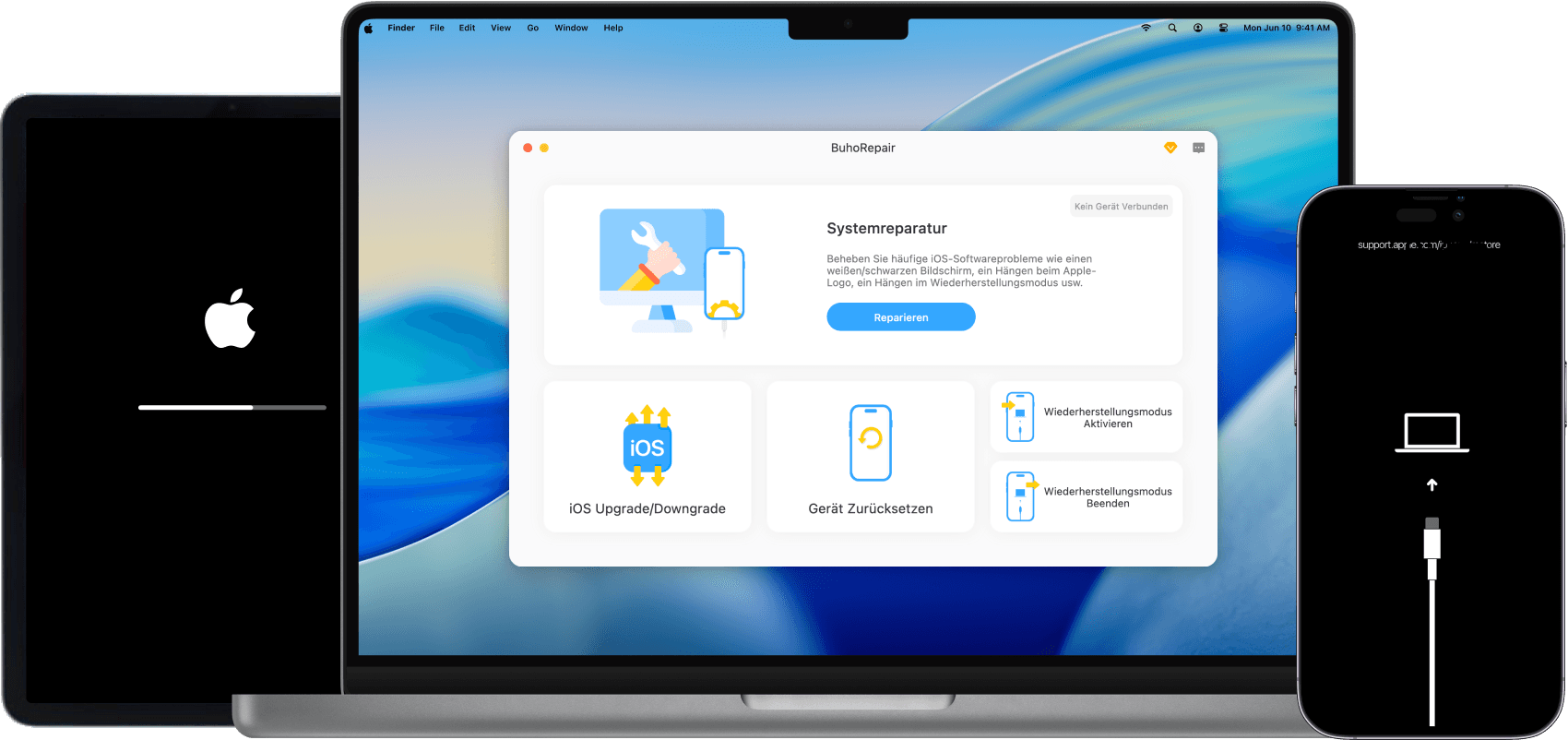
If the methods above don’t fix the “iPhone won’t turn off” issue, it’s likely a system-related problem, especially for users who recently updated to iOS 26.3. Don’t worry, you can use a professional iOS system repair tool like BuhoRepair to fix common iOS issues. From an iPhone not turning off to an iPhone not turning on, BuhoRepair can repair various iPhone problems without data loss.
In addition, BuhoRepair allows you to enter or exit recovery mode, upgrade or downgrade iOS, and reset your device to quickly resolve persistent software issues.
Here is how to use BuhoRepair to make your iPhone turn off as usual.
Step 1. Free download BuhoRepair and open it on your computer.
Step 2. Connect your iPhone to the computer and choose the System Repair mode from the main interface.


Step 4. Follow the on-screen steps to put your iPhone into recovery mode and get it repaired.
Conclusion
Don’t feel upset when your iPhone screen isn’t turning off. By checking hardware faults and Settings, you can address most misconfiguration issues and hardware issues. Besides, if your iPhone suffers from iOS system issues, you can also use BuhoRepair to repair the issues without data loss. Remember to keep your iOS updated and optimize settings for smooth performance.
Wendy is a tech enthusiast with a deep passion for all things iPhone, iPad, and Mac. Wendy is always on the lookout for Apple products and is committed to providing Apple users with some of the latest information and useful tips.