

Mac Stuck on "Preparing to Copy"? 10 Ways to Fix It

Mac stuck on "Preparing to copy"? Discover 10 proven fixes to speed up file transfers instantly.
Mac users like you have probably seen the frustrating “Preparing to copy…” message when transferring large files, especially those over 100GB. You can cancel this progress window if you want, but the files won’t actually copy. This issue can also happen when restoring a local library copy via Time Machine.
In this post, we’ll explain why your Mac sometimes gets stuck on “Preparing to copy…” and go through solutions for the “Mac stuck on Preparing to” problem.
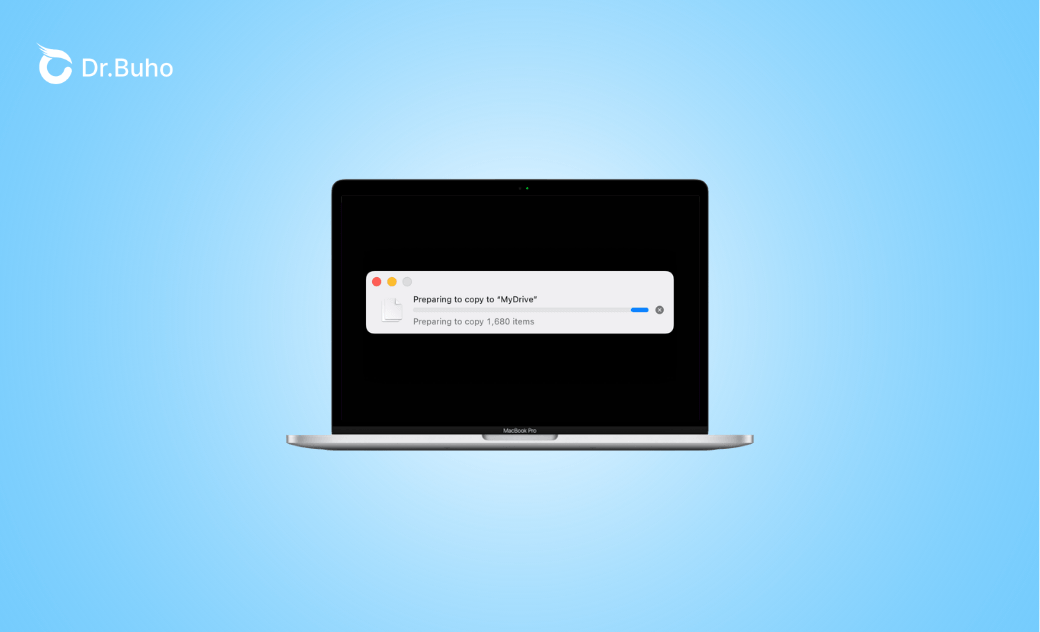
Why Is My Mac Stuck on Preparing to Copy?
The main reasons for the “Preparing to copy” issue usually involve file size, permissions, or integrity. Here are the common causes:
- macOS’s search system scans and catalogs metadata from thousands of files in large libraries before copying.
- Your Mac may not have enough RAM, disk space, or CPU. Temporary cache space may also be insufficient.
- File system issues or file corruption.
- Complex metadata, such as iPhoto Libraries’ resource forks, ACLs, and extended attributes.
- macOS bugs.
- File format incompatibilities.
- Finder glitches.
- Permission restrictions on the source or target folders.
10 Fixes for Mac Stuck on Preparing to Copy
Based on the reasons above, here are practical solutions you can try.
1. Check File Integrity
If a single file stalls during copying, try copying it to another location to see if it works.
2. Restart Finder
If Finder is glitching or acting up, restarting it can fix temporary errors.
3. Restart Your Mac
A simple restart often refreshes the system, clears memory leaks, and resolves temporary glitches. Before restarting, check running apps and background processes by pressing Cmd + Tab and quitting them with Cmd + Q.


- Click the Apple menu in the top-left corner of your screen.
- Select Restart.
4. Check and Free Up RAM
Before copying, macOS uses RAM as a buffer to scan files, build file lists, and cache data. If your Mac runs out of memory, the copy process can stall. Freeing up RAM gives the system space to hold these buffers and metadata.
To check memory usage via Activity Monitor:

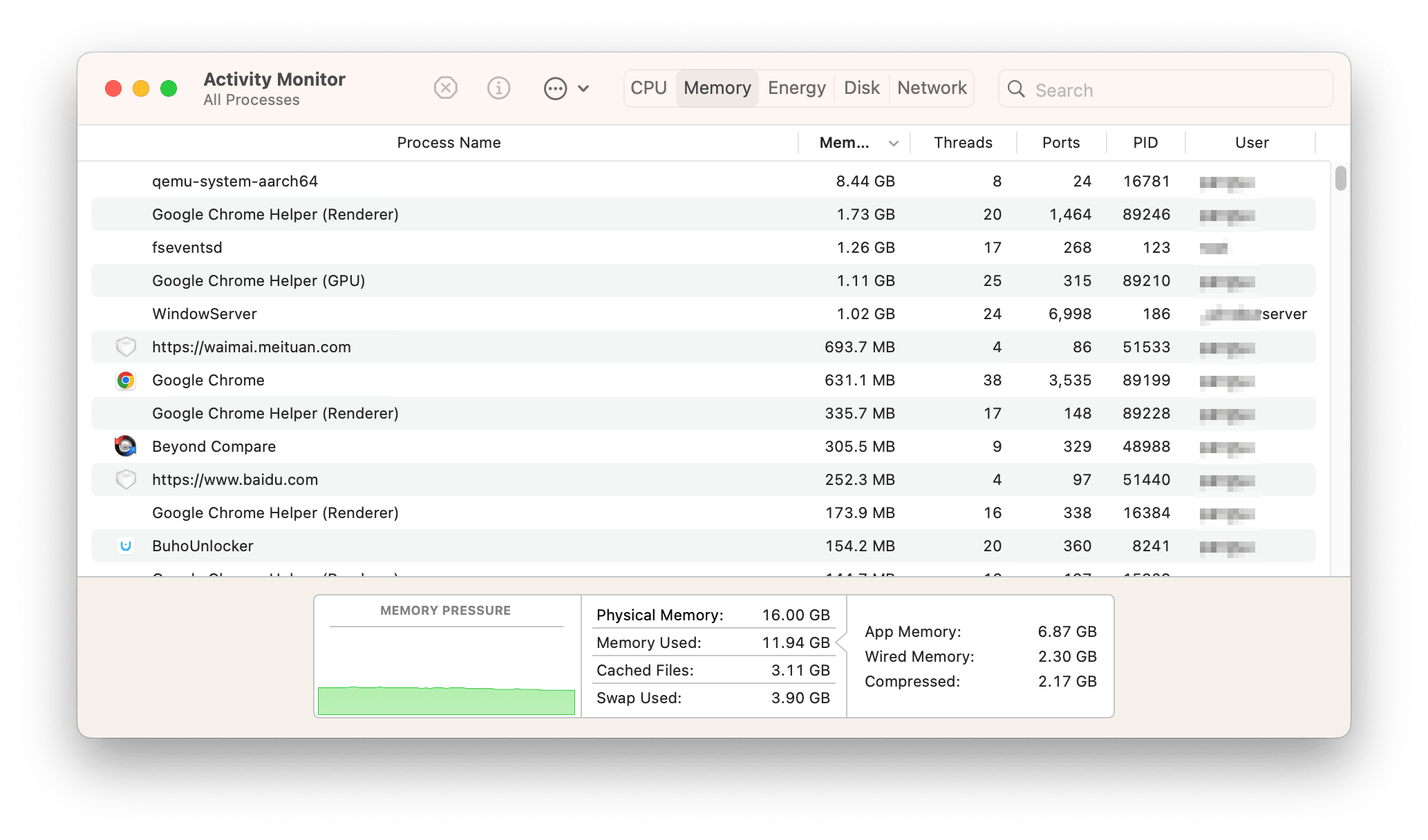
- Open Spotlight and search for Activity Monitor.
- Click the Memory tab to see which apps or processes are consuming RAM.
- Highlight the memory-hogging processes and quit them.
Factors like multiple apps running, large programs, system caches, or temporary files can increase RAM usage. You can use a Mac memory cleaner like BuhoCleaner to free up memory in one click:
- Download BuhoCleaner and open it.
- Click ToolKit > Free Up RAM.
- Click Start to free up RAM.


5. Clear Disk Space
Even with enough RAM, Finder requires disk space to scan files, build a copy queue, cache metadata, and create buffers. A nearly full disk can stall the copy process.
You can free space by emptying the Trash and using BuhoCleaner to delete caches, junk files, old installers, duplicate files, large files, and uninstall apps with their leftovers:


- Open BuhoCleaner and click the Scan button.
- View the scan results and remove the ones you no longer need.
- Navigate to other cleaning models like App Uninstall to free up more space on your Mac.
6. Reduce CPU Load
High CPU usage (over 80%) can extend preparation time from minutes to hours because macOS struggles to scan directories, calculate checksums, read metadata, and build the transfer queue. To lower CPU load:


- Open Activity Monitor, then switch to the CPU tab.
- Find apps consuming high CPU, select them, and click the Quit button.
Also, it's recommended to pause Time Machine backups during transfers:
- Go to System Settings > General > Time Machine.
- Click the close button next to the backup progress bar.
7. Check Folder Permissions
macOS can hang if it cannot read the source or write to the destination due to access restrictions or ownership mismatches. Ensure both folders have Read & Write permissions via Get Info:


- Select source and target folders, right-click on them, and click Get Info.
- Check Sharing & Permissions.
- Click the lock to authenticate and apply permissions to enclosed items.
8. Run First Aid in Disk Utility
If the above methods fail, check for disk issues. Finder pre-scans disks for file integrity, permissions, disk space, and filesystem consistency. Corrupted journals, orphaned inodes, bad sectors, or APFS/HFS+ damage can stall copying.


- Open Disk Utility via Spotlight.
- Select your drive from the sidebar, then click First Aid > Run.
- Repeat for both source and destination drives.
9. Boot in Safe Mode
Safe Mode can clear caches and extensions safely, helping your Mac resume transfers faster.
For Apple Silicon Macs (M1/M2/M3+):
- Shut down your Mac.
- Press and hold the power button until “Loading startup options” appears.
- Select your startup disk, hold Shift , and click Continue in Safe Mode.
- Log in normally.
For Intel Macs:
- Shut down your Mac.
- Turn it on and immediately hold Shift.
- Release at the login screen and log in normally.
10. Update macOS
Finally, updating macOS can fix bugs causing the issue, especially on outdated systems.


- Open System Settings.
- Go to General > Software Update.
- If an update is available, download and install it.
Conclusion
It’s common for a Mac to get stuck on “Preparing to copy” in Finder. Since this happens during the pre-scan phase, the main culprits are low disk space, file corruption, permission issues, cache problems, or disk errors. Fixing these before starting the transfer usually resolves the problem quickly.
Jerome is a passionate enthusiast of all things Apple. He is expertise in crafting tech-related articles, with a portfolio of more than 100 articles covering various Apple products like the iPhone, iPad, and Mac.



