

Photos Taking Up Too Much Space on Mac? 8 Fixes

Find the reasons why Photos takes up too much space on your Mac. Meanwhile, you will find several ways to free up Photos space on your Mac.
Recently, some Mac users found that the Photos app was using up all the storage on their Macs. If you don’t need to store the photos on your Mac or if you just want to free up space in Photos, you’ve come to the right place.
In this post, we’ll learn how to avoid Photos from taking up too much space on your Mac computer. By doing so, you’ll have more storage space to run other applications.
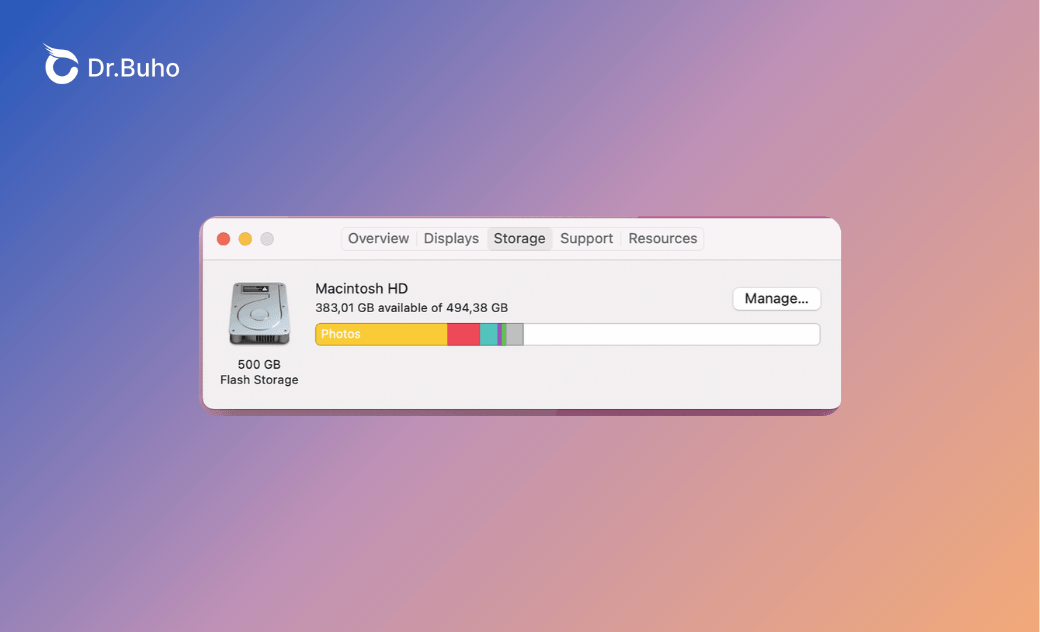
Why Are Apple Photos Taking Up So Much Space on My Mac?
Before exploring the proven methods, we’ll learn why Photos is taking up too much space on your Mac if you’ve turned on iCloud.
- Your photos and videos are saved in high-resolution, original, or uncompressed versions.
- The live photos and burst sequences have also consumed too much space. For example, a live photo includes a 3-second video and image files, while burst sequences involve over 10 photos in a single press.
- You’ve enabled the Raw images on your iPhone. Normally, RAW files are 10-40x larger than compressed JPEGs.
- The recently deleted photos can also take up storage space. Normally, photos will be kept for 30 days before permanent deletion.
- Over time, there are many Cloud Photos Library caches, such as thumbnails, metadata, and recently reviewed images.
- It’ll add local storage after downloading the shared photos and videos from family or friends.
- Sometimes, your Mac fails to merge duplicates, especially after imports or restores.
- If photos are shared in iMessage conversations, they will be stored in both Photos and Messages.
8 Ways to Free Up Photos Space on Your Mac
In this part, we’ll learn demonstrate several ways to free up Photos space on your Mac.
Disable Full-Resolution Originals
Check if you’ve enabled the full-resolution originals. If yes, disable it. By replacing original photos with compressed ones, you can dramatically reduce the storage space Photos takes up.
The photos are still in high resolution in iCloud, while your Mac only downloads the full-quality version when you open a specific image. However, if you want to view your photos in full quality, it’s best to connect to the internet.


- Open the Photos app on your Mac.
- Navigate to Settings and click on iCloud.
- Select “Optimize Mac Storage” instead of “Download Originals to this Mac.”
Delete Duplicate Photos
Chances are that your Photos Library is filled with duplicate photos and videos. These files can consume a large amount of space on your Mac. Normally, you can locate them in Utilities and manually review, delete, or merge them over there. However, it could be time-consuming to do so.
Instead, you can use BuhoCleaner to identify and delete duplicate photos in your Photos Library. This professional Mac cleaner claims to offer a duplicate scanner to work with the Photos app. With simple clicks, you can easily find and remove duplicates.
- Free install BuhoCleaner and open it on your Mac.
- Click the Duplicates mode in the sidebar.
- Scan and select the duplicate photos in the Photo Library.
- Tap on the Remove button to initiate the process.


Convert Live Photos & Bursts
Live Photos and burst sequences take up much storage space, as each Live Photo includes a 3-second video and a still image, while burst mode captures 10+ full-resolution images in a single press. If you convert Live Photos to still images, you only retain the lightweight photograph.


- Navigate to Live Photos.
- Turn off Live Photo.
- Duplicate and keep the still versions.
Similarly, you can review the burst sequences, select the best shots, and delete the redundant ones.
- Open the Burst stack.
- Select one or two best shots.
- Make a selection, and delete the rest.
Disable Storing RAW Images
If you don’t need to edit and modify photography, you’re suggested to save standard JPEG files instead of uncompressed RAW files. This is because each uncompressed RAW file is 10 to 40 times larger than a standard JPEG one. In other words, a single photo can consume 25 to 75 MB instead of 5 to 7 MB. To disable RAW images on your iPhone, follow these steps: launch Settings and navigate to Camera and Formats. By doing so, you can prevent enormous files from flooding your library.


For existing RAM images, you can export them to an external drive by clicking on File and then Export, and selecting to export the original RAW files.
Empty Recently-Deleted Photos & Videos
Normally, the deleted photos and videos can be kept in Trash for 30 days before they are permanently removed. Before these media files are permanently deleted, they can occupy the same disk space as they did in the Photo library. It’s time to check the recently deleted files, especially when you’ve deleted several large 4K videos or RAW images.


- Open Photos.
- Click “View” and “Show Recently Deleted”.
- Click “Delete All” to permanently erase them.
Clear iCloud Photo Library Caches
To help users quickly access photos, the Photos app will keep the local copies of high-resolution thumbnails, metadata, and preview renders. However, these cached files will accumulate over time, occupying a significant internal space on your Mac. To delete redundant cached files, you can:


- Choose Preferences under the Photos.
- Uncheck iCloud Photos.
- Restart your Mac and re-enable it in Photos.
It’s noted that this is the only safe way to clear iCloud Photos Library cached files. You should not manually delete files from the Photos Library via “Show Package Contents”. Apple confirms that these “previews” and “originals” are essential to Photo’s features. Tampering with them may corrupt the entire Library.
Delete Shared Album Downloads
The photos and videos you add from shared albums to your library can also occupy internal space on your Mac. These downloads silently accumulate and persist long after viewing. To delete shared album downloads, you can:


- Launch Photos, and find the photos and videos you downloaded from Shared Albums.
- Select the items to delete.
- Empty the recently deleted files by following the steps mentioned above.
Break the iMessage Double-Save Cycle
The images you’ve received in Messages will also be automatically saved to the Photos app and the Photos Library. The copies of the same image will consume both the disk space of the Photos app on your iPhone and Mac. By stopping it from saving to Photos, the images in Messages won’t be shared to your Mac. They remain only in Messages, unless you manually choose to save the specific ones.


- Click on the Settings tab on your iPhone.
- Navigate to Messages.
- Disable the option - Save Captures to Photo Library.
Conclusion
It’s straightforward to free up Photos space on your Mac. You can start from these built-in methods. Some quick solutions include deleting full-resolution RAW originals, converting Live Photos to still images, stopping the saving of RAW files, and emptying the Recently Deleted album. Besides, you can take steps to clear iCloud caches.
If nothing works, try to use Mac cleaning tools like BuhoCleaner to locate and delete duplicate images and videos in the Photos Library. Especially, this works when you’ve used Photos for a long time.
Jerome is a passionate enthusiast of all things Apple. He is expertise in crafting tech-related articles, with a portfolio of more than 100 articles covering various Apple products like the iPhone, iPad, and Mac.



