

5 Fixes for "Steam Taking up Too Much Space on Mac"

Is Steam taking up too much space on your Mac? Don’t worry. You can free up Steam storage by uninstalling large games, clearing incomplete downloads, handling purgeable data, and removing hidden files. Keep reading to explore 5 effective ways to reclaim disk space.
If you enjoy playing games on your Mac, chances are you’re using Steam. While the Steam app itself doesn’t take up much space, the games and leftover files it creates can quickly eat up your storage.
Recently, many users reported that Steam was taking up tens or even hundreds of gigabytes on macOS, especially after stopping downloads of large games like War Thunder. Even worse, some found that uninstalling Steam didn’t free up the space at all.
If this sounds familiar, you’re not alone. In this guide, we’ll explain why Steam takes up so much space on your Mac and walk you through 5 proven ways to stop it from happening.
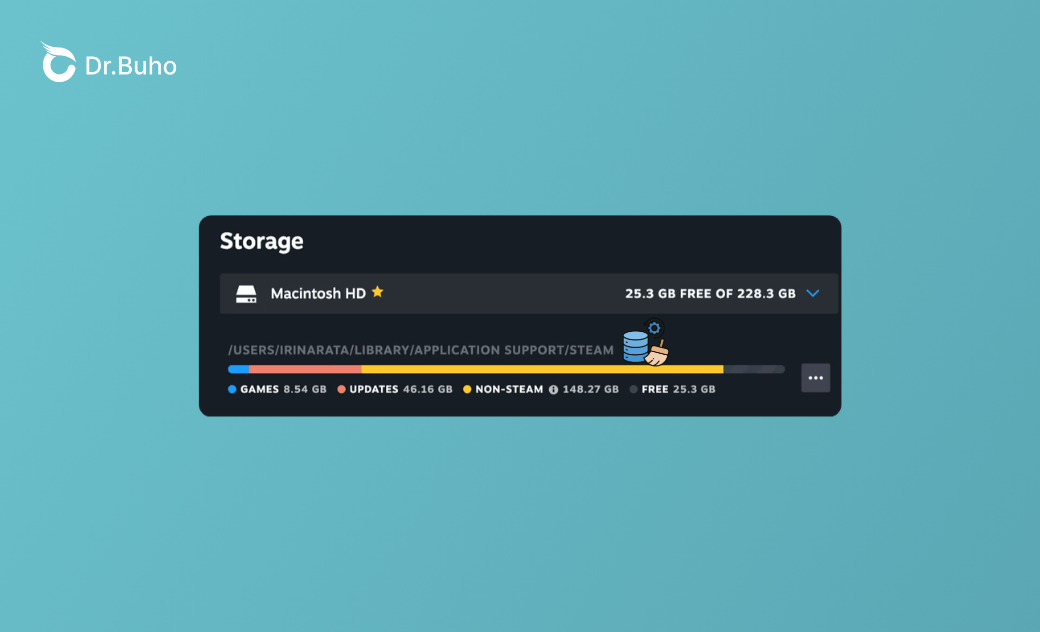
Does Steam Take up a Lot of Space on Mac?
The Steam app itself is fairly small, around 200 MB. However, once you start downloading games, storage usage can increase dramatically.
Even if a game download is paused or canceled, Steam often leaves behind temporary files and caches, which can add up to dozens of gigabytes. Over time, these hidden files make Steam look far more storage-hungry than it actually is.
Why Does Steam Take up So Much Space on Mac?
Steam can consume excessive disk space for several reasons:
- You downloaded large games (for example, War Thunder is over 57 GB).
- Canceled or failed downloads leave behind large temporary files.
- Steam doesn’t account for macOS purgeable data when calculating free space.
- Hidden cache folders in
~/Libraryaren’t shown in macOS Storage settings. - On Apple Silicon Macs, Rosetta translation caches can grow unexpectedly large.
How to Stop Steam from Taking up Too Much Space on Mac
Even if you’ve already uninstalled Steam, leftover files may still be occupying your storage. Below are the most effective ways to fully reclaim that space.
1. Uninstall Large Steam Games Properly
Large games are the biggest storage hogs. If you no longer play certain titles, uninstall them completely.
Do this instead of dragging files to Trash:
- Open Steam > Library.
- Right-click the game you no longer need and select Uninstall.
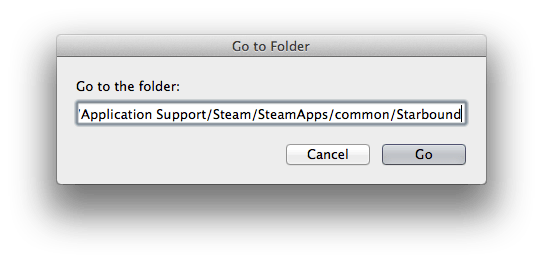
- In Finder, go to:
~/Library/Application Support/Steam/steamapps/common/ - Delete any remaining game folders.
- Empty the Trash and restart your Mac.

2. Clear Incomplete or Canceled Game Downloads
Canceled downloads often leave massive files behind.
These are usually stored in hidden folders:
~/Library/Application Support/Steam/steamapps/downloading/~/Library/Application Support/Steam/steamapps/temp/
How to remove them:
- Open Finder and press Command + Shift + G.
- Paste:
~/Library/Application Support/Steam/steamapps. - Delete the contents of the downloading and temp folders.
- Empty the Trash and restart your Mac


3. Clear macOS Purgeable Data
Steam ignores macOS “purgeable” storage, which includes Time Machine snapshots and system caches. This can make your disk look full even when space is technically available.
Option 1: Boot into Safe Mode
- Restart your Mac and hold Shift while booting.
- Safe Mode automatically clears many cache files.
- Empty the Trash.
- Restart normally.
Option 2: Disable “Optimize Mac Storage”
- Go to System Settings > Apple ID > iCloud.
- Uncheck Optimize Mac Storage.
This often frees up 20–100 GB instantly and makes the space visible to Steam.
4. Delete Steam Leftovers and Hidden Caches
Uninstalling Steam alone does not remove all related files. Leftover caches, shaders, and update files can take up 10–70 GB.
You can remove them manually, but it’s time-consuming. A faster option is using a Mac cleanup tool like BuhoCleaner.
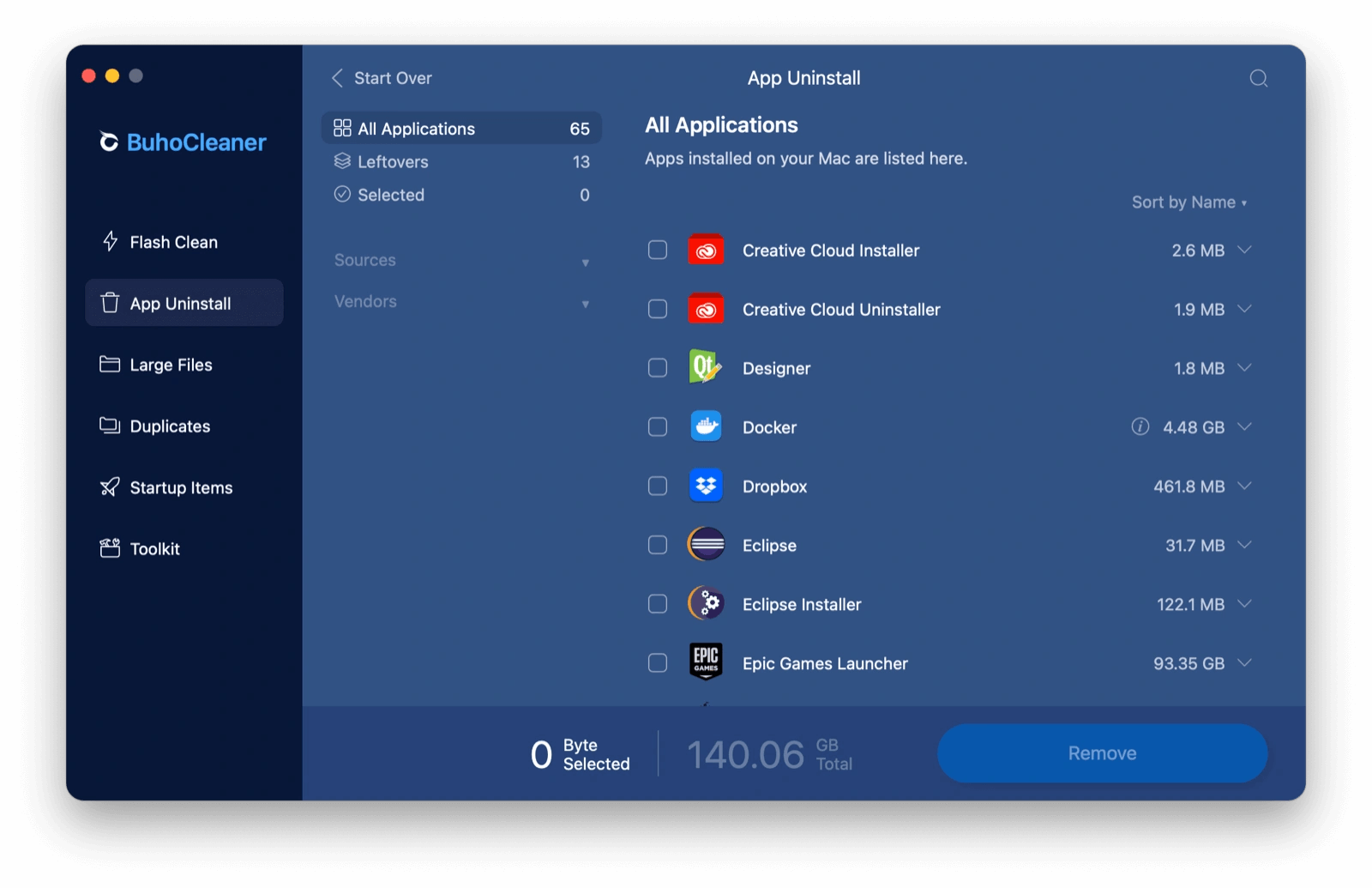
Here's how to clear Steam cache on your Mac using BuhoCleaner:
- Download, install, and open BuhoCleaner.
- Choose App Uninstall and click Scan.
- Select Steam and all leftover files.
- Delete them, empty the Trash, and restart your Mac.

5. Reduce Rosetta Translation Cache Size (Apple Silicon Macs)
On Apple Silicon Macs, Rosetta 2 creates cached translations for Intel-based Steam games. These caches can grow extremely large over time.
Clear Rosetta Cache via Terminal
- Open Terminal.
- Run:
sudo rm -rf /Library/Apple/usr/libexec/oah/ sudo rm -rf ~/Library/Caches/com.apple.rosetta/
- Enter your admin password.
- Restart your Mac.
Conclusion
Steam itself doesn’t take up much space—but games, incomplete downloads, hidden caches, and system data can quickly fill your Mac’s storage.
By following the 5 methods above, you can safely reclaim a large amount of disk space and prevent Steam from bloating your system again. If you want the fastest, one-click solution, tools like BuhoCleaner can save you a lot of time and effort.
Robert is a tech-savvy fan who loves all things Apple. As a hobbyist of gardening and meditation, he is also a seasoned writer covering a wide array of Apple products, like iPhone, iPad, iOS, and more.



