

Unable to Download macOS Tahoe 26.6.2? Here's the Fix

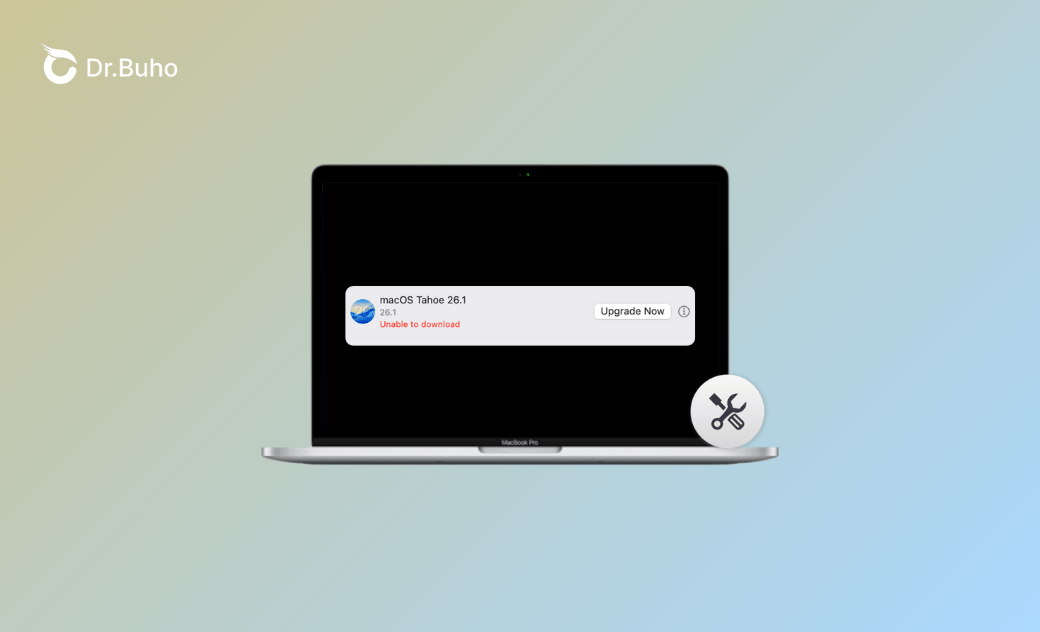
Unable to download macOS Tahoe 26.6.2? This post explains all possible causes and offers practical workarounds to help you get the latest macOS version.
Since the release of macOS Tahoe 26.6.2, many users, especially those with newer Apple Silicon devices such as the M3, M3 Pro, and M3 Ultra, have reported download errors, installation failures, and update loops. If you're excited to try out the new version but find it unable to download macOS Tahoe, this post can be the guide.
This guide explains the most common reasons why macOS Tahoe won’t download and offers step-by-step fixes. Let’s dive in!
Unsupported Mac Hardware
Apple regularly updates its macOS support matrix, and older Mac models may not be eligible for the latest macOS updates. If your Mac isn’t on the official list of supported devices, it won't receive the macOS Tahoe update, and even if you manage to download it, the installation will not proceed.
Supported Apple Silicon Macs:
- MacBook Air (2020 and later)
- MacBook Pro (2020 and later)
- iMac (2020 and later)
- Mac mini (2020 and later)
- Mac Studio (all models)
- Mac Pro (2019 and later)
Supported Intel-Based Macs:
- MacBook Pro (16-inch, 2019)
- MacBook Pro (13-inch, 2020, Four Thunderbolt 3 ports)
- iMac (Retina 5K, 27-inch, 2020)
Insufficient Free Storage Space
One of the most common and least obvious reasons for being unable to download or install a new macOS is simply not having enough free space. If you receive the error message ‘macOS Tahoe cannot be installed on Macintosh HD,' or ‘macOS Tahoe cannot be installed on this computer, ’ this could be the reason.
To avoid and troubleshoot this scenario, it’s best to treat the official space requirement as a minimum and aim for significantly more, around 25–40 GB of truly free space before starting the Tahoe upgrade. Cleaning large caches, uninstalling unused applications, and emptying the Trash can make the difference between a smooth one-shot update and a frustrating cycle of failed downloads.
However, if you want an effortless Mac cleaning experience instead of hunting for files manually, BuhoCleaner is such a dedicated Mac cleanup tool that can reclaim tens of gigabytes in just a few clicks. It’s capable of removing system junk, app caches, old logs, large files, etc., and it includes a duplicate finder and app uninstaller, so you can spot and delete space hogs without digging through folders one by one.


Apple’s Software Update Servers Under Heavy Load
Another frequent cause of macOS Tahoe download failures is congestion on Apple’s own update servers, especially in the first days after a major release. When millions of Macs check for updates at roughly the same time, the result can be slow download speeds, progress bars that sit at ‘Preparing…’ or ‘Calculating…’, and installers that seem to hang indefinitely.
If you suspect this is the case, the most effective workaround is patience and timing: try checking for updates during off-peak hours, such as late at night or early in the morning, when server load is lighter.
Inconsistent or Unstable Network
An unstable network connection can also prevent you from successfully downloading macOS Tahoe. If your Wi-Fi signal is weak or if there are interruptions during the download, it can cause the process to freeze, fail, or restart. Always make sure you are under a good network before downloading a new system.
Low Battery Power
Have you checked the battery power on your Mac, especially if you’re using a MacBook? macOS has a built-in safeguard that requires your Mac to be at least 50% charged before starting an upgrade or installation. This is to ensure that the system doesn't run out of power mid-update, which could result in data corruption or an incomplete download or installation.
To avoid low battery power, it’s suggested to keep your Mac plugged in while updating to avoid any interruptions during the installation process.
Software Update Misfunctioning
In most cases, Software Update works smoothly. However, if the update service gets stuck, fails to communicate properly, or if the update catalog becomes corrupted or outdated, the system might fail to fetch the available update or keep spinning without starting the download.
To fix this, you can reset the Software Update catalog by using Terminal, which will clear any potential issues with the update service:
- Open Terminal from Finder > Applications > Utilities.
- Enter the following commands, followed by Return and your admin password:
sudo softwareupdate --clear-catalog
sudo softwareupdate --reset-ignored


- Restart your Mac. Go back to System Settings > General > Software Update and try downloading macOS Tahoe again.
Conclusion
If you're struggling with being unable to download macOS Tahoe 26.6.2, several factors might be at play, ranging from hardware compatibility to network issues. Thankfully, most of these issues can be resolved with a few simple steps. Whether it’s clearing up storage space, ensuring your battery is charged, or dealing with hardware incompatibility, this guide has you covered.
Robert is a tech-savvy fan who loves all things Apple. As a hobbyist of gardening and meditation, he is also a seasoned writer covering a wide array of Apple products, like iPhone, iPad, iOS, and more.



