4 Best Mac Window Managers for 2026 (Free & Paid)

In this post, I’ve picked my top 4 Mac window managers for 2026. These tools can seriously boost productivity for coders, designers, and anyone who constantly juggles multiple apps.
Does your Mac screen always end up packed with apps and windows? Sure, macOS gives you Mission Control and Split View, but once you’re dealing with multiple browsers, editors, docs, and design tools, those built-in options start to feel pretty limited.
That’s why window managers exist. Instead of wasting time manually resizing and dragging windows around, you can let these apps handle layouts for you and turn your Mac into a much more efficient workspace.
In this article, I’ll walk you through the top 4 Mac window managers of 2026, explain what each one does best, and help you figure out which one fits your workflow.
What Is a Window Manager on Mac?
On macOS, a window manager is essentially the system that controls how app windows behave on your screen. It handles tasks such as opening, closing, resizing, moving, and arranging windows, often through keyboard shortcuts or drag-and-drop actions.
Most window managers run quietly in the background. Once they’re set up, they don’t interrupt your workflow—they just make managing windows faster, cleaner, and far less annoying.
Below, I’ll break down the four Mac window managers I recommend for 2026 and explain how each one can help you stay productive.
Rectangle
Rectangle is a free, open-source window manager for Mac. It lets you snap, resize, and reposition windows using simple keyboard shortcuts or by dragging them to the edges of your screen. You can quickly lock windows into halves, quarters, thirds, or full-screen layouts.


Key Features:
- Drag windows to screen edges or corners to snap them into halves, quarters, thirds, or full screen
- Fully customizable keyboard shortcuts
- Works well with single or multiple monitors
- Precise resizing options like center thirds or edge-only moves
- Handy menu bar access for layouts
My Review:
Rectangle is easily one of the best free window managers you can get on macOS. Whether you’re using one screen or juggling multiple monitors, its shortcuts make it effortless to clean up a messy desktop in seconds. I especially like how fast it feels once you memorize a few hotkeys (like Cmd + Option + Arrow keys).
That said, if you need complex layouts, advanced animations, or app-specific rules, Rectangle may feel a bit limited. For most users, though, it’s an excellent starting point—and honestly, it’s more than enough for everyday work.
Moom
Moom is a paid window manager, and it’s all about deep customization. Compared to Rectangle, it gives you much finer control over window sizes, positions, and layouts. You can even save specific layouts for different workflows, like coding or design.


Key Features:
- Hover palette on the green title-bar button for quick window actions
- Custom grid system with adjustable gaps
- Save and restore complex window layouts
- Powerful shortcuts for chained actions (resize → move → center)
- Supports snapping, drop zones, and hover modes
My Review:
Moom consistently gets high marks, and for good reason. If you care about precise control and tailored layouts, it’s fantastic. The hover palette and saved layouts make it easy to turn a chaotic screen into a well-organized workspace in seconds.
It really shines for developers, designers, and heavy multitaskers. The downside? There’s a learning curve. Casual users might find it overkill. But if you’re a power user, the one-time price of $10 is absolutely worth it.
Magnet
Magnet sits somewhere between Rectangle and Moom. It’s simpler than Moom but still more polished than most free tools. With a one-time purchase of $4.99, you can snap windows into halves, quarters, thirds, or other layouts using drag-and-drop or keyboard shortcuts.


Key Features:
- Snap windows into halves, quarters, thirds, sixths, or full screen
- Customizable keyboard shortcuts
- Quick access via the menu bar
- Supports up to six external displays, including vertical setups
My Review:
Magnet is a clean, straightforward window manager that just works. Drag a window to an edge or corner, and it snaps exactly where you expect. Compared to macOS’s native tools, it’s a huge upgrade.
That said, there’s no free trial, and its snapping zones aren’t as flexible as what you’ll find in Moom or Rectangle. Still, for under five bucks, it’s a solid choice if you want something simple and reliable.
Mosaic
Mosaic is designed for users who want more flexible and advanced layouts. It lets you drag windows to a layout bar at the top of your screen and snap them into preset or custom grids across one or multiple monitors.


Key Features:
- Snap windows using a layout bar at the top of the screen
- Create, save, and switch between custom layouts
- Keyboard shortcuts for fast positioning and resizing
- Touch Bar support and adjustable gutters for precision
My Review
If snapping alone feels limiting, Mosaic is worth checking out. Its layout bar and custom presets make it easy to build complex window arrangements, especially if you’re constantly switching between apps like code editors and browsers.
On some Macs, Touch Bar integration is a nice bonus. The trade-off is that it takes time to learn, and performance can occasionally lag on very high-resolution displays. It’s best suited for power users who don’t mind a bit of setup.
Bonus Tip: How to Boost Overall Mac Performance
Window managers aren’t the only way to improve productivity. Menu bar apps can also help reduce clutter and make your Mac feel faster, especially if you’re running a lot of apps at once.
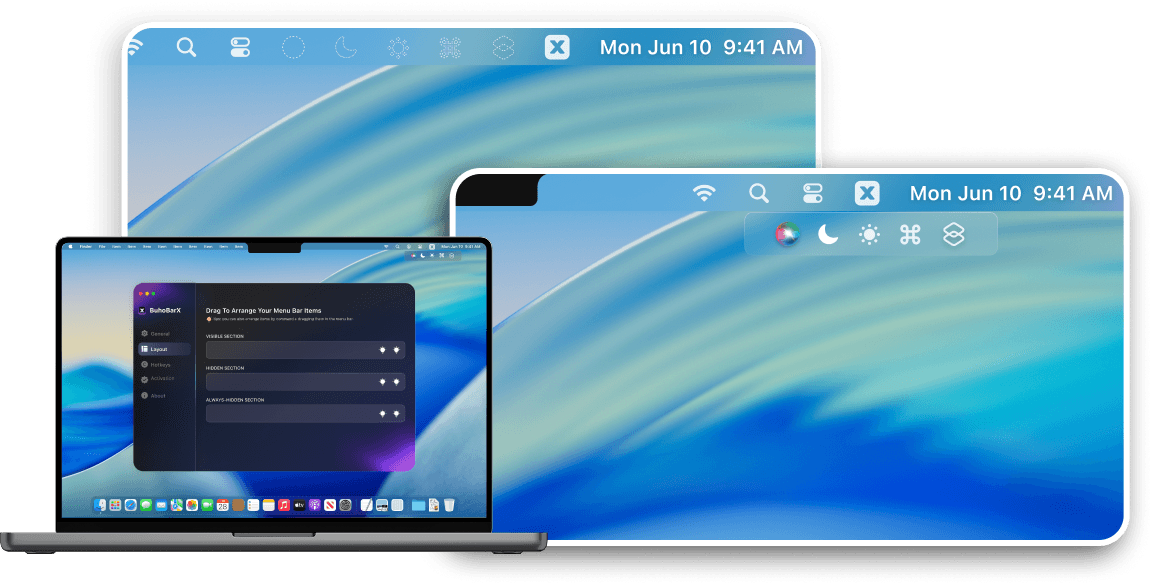
Apps like BuhoBarX let you reorder, hide, and space out menu bar icons, deal with notch issues, and set up quick shortcuts. It works on both Apple silicon and Intel Macs and pairs nicely with any window manager. Click the button below to give it a try.


Conclusion
If you want more control over how windows behave on your Mac, a dedicated window manager is absolutely worth using. In this post, I covered my top 4 picks for 2026: Rectangle, Moom, Magnet, and Mosaic. They’re either free or inexpensive and work great on single- or multi-monitor setups.
If you’re also looking to clean up your menu bar and squeeze a bit more productivity out of your Mac, tools like BuhoBarX are worth checking out too. Combined, these apps can make your Mac feel faster, cleaner, and far more pleasant to work on.
Clare has been captivated by the world of Apple products since the launch of the iconic iPhone in 2007. With a wealth of experience, Clare is your go-to source for iPhone, iPad, Mac, and all things Apple.