iOS OTA Updates: What You Need to Know

Should you update iOS via OTA or iTunes? If you want to know how to perform, block, or delay iOS OTA updates, this guide walks you through everything step by step.
Updating iOS doesn’t always mean plugging your iPhone into a computer. With iOS OTA (Over-the-Air) updates, you can install new iOS versions directly on your device using Wi-Fi or cellular data. No cables, no iTunes—just a few taps in Settings.
That convenience is great, but it also comes with some trade-offs. If you’re not ready to update, the constant red badge on the Settings app can feel hard to ignore. So how do OTA updates really work, and when should you use—or avoid—them?
In this guide, we’ll walk you through what an iOS OTA update is, whether it’s safe, how to install or block OTA updates, and what “Delay OTA” actually means. By the end, you’ll know exactly which option fits your situation best.
What Is an iOS OTA Update?
An iOS OTA update is Apple’s way of delivering software updates wirelessly.
What Does “OTA” Mean?
OTA stands for Over the Air. Instead of downloading iOS on a computer, your iPhone or iPad downloads the update directly from Apple’s servers using Wi-Fi or mobile data. Once installed, you get the latest iOS version, security patches, or performance improvements.
This system allows Apple to roll out fixes and new features quickly to millions of devices worldwide.
Is an iOS OTA Update Safe?
Yes—Apple designs OTA updates with security in mind. Each update is protected by digital signatures, encryption, and integrity checks. These safeguards ensure that only authentic Apple firmware can be installed on your device, protecting you from tampered or malicious updates.
Do You Really Need OTA Updates?
For most users, yes. Regular updates help keep your device secure, smooth, and compatible with newer apps. OTA updates typically include bug fixes, security patches, performance optimizations, and sometimes new features that improve everyday use.
Are There Any Risks?
While OTA updates are generally reliable, they aren’t completely risk-free:
- A poor network connection can interrupt the update
- Limited storage may cause the installation to fail
- Some updates may conflict with older apps or hardware
- In rare cases, a failed update can leave the device unresponsive or cause data loss
That’s why it’s always a good idea to prepare before updating.
How to Update iOS Using OTA
Before you start, make sure your device is ready:
- Battery is at least 50% (or plugged in)
- Enough free storage space
- A stable internet connection


To update:
- Open Settings.
- Tap General > Software Update.
- If an update is available, follow the on-screen instructions to download and install it.
OTA Update vs. iTunes Update: Which Is Better?
Both methods work—but they suit different needs.
Updating via iTunes (or Finder on macOS) is often more stable, especially if your iPhone is low on storage. The update files are downloaded to your computer, which reduces the load on your device and makes backups and recovery easier.
OTA updates, on the other hand, are faster and more convenient. However, because they rely on network stability and incremental downloads, they can sometimes fail in the background without clear warnings.
In short:
- Choose OTA Update for speed and convenience
- Choose iTunes Update for stability, backups, and troubleshooting
What Is iOS OTA Blocking?
Some users prefer not to update right away—or at all. When an update is available, iOS shows a red badge on the Settings app as a reminder. If your phone is connected to Wi-Fi and charging, that reminder can become persistent.
Blocking OTA updates is a way to stop those prompts.
Is It Safe to Disable OTA Updates?
You can block OTA updates, but there are downsides. By doing so, you may miss security fixes, performance improvements, and new features. Over time, this can increase security risks, reduce battery efficiency, or cause app compatibility issues.
How to Remove the Red Badge Notification
If the badge is already there, deleting the downloaded update file can clear it:
- Open Settings > General.
- Go to iPhone Storage.
- Tap Software Update.
- Select Delete Update.
How to Block Future OTA Updates
Turn Off Automatic Updates
This is the simplest option.


- Go to Settings > General > Software Update > Automatic Updates.
- Turn off Download iOS Updates and Install iOS Updates.
Use a Removable tvOS Beta Profile
Some users use a tvOS beta profile to prevent iOS update prompts by redirecting iOS to a tvOS update channel, where iOS updates are no longer offered.
- Download the tvOS beta profile using Safari.
- Open Settings and install the downloaded profile.
- Restart your device.
- Software Update will now show “Up to date.”
- You can remove the profile later via VPN & Device Management.
What Is “Delay OTA” in iOS?
Delay OTA is mainly designed for businesses and schools. By placing a device in Supervised mode, administrators can delay iOS updates for up to 90 days.


Key things to know:
- Only supports upgrading, not downgrading
- Requires Supervised mode
- No jailbreak or SHSH blobs needed
- The delay window is limited and controlled by Apple
Bonus Tip: Upgrade or Downgrade iOS with One Click
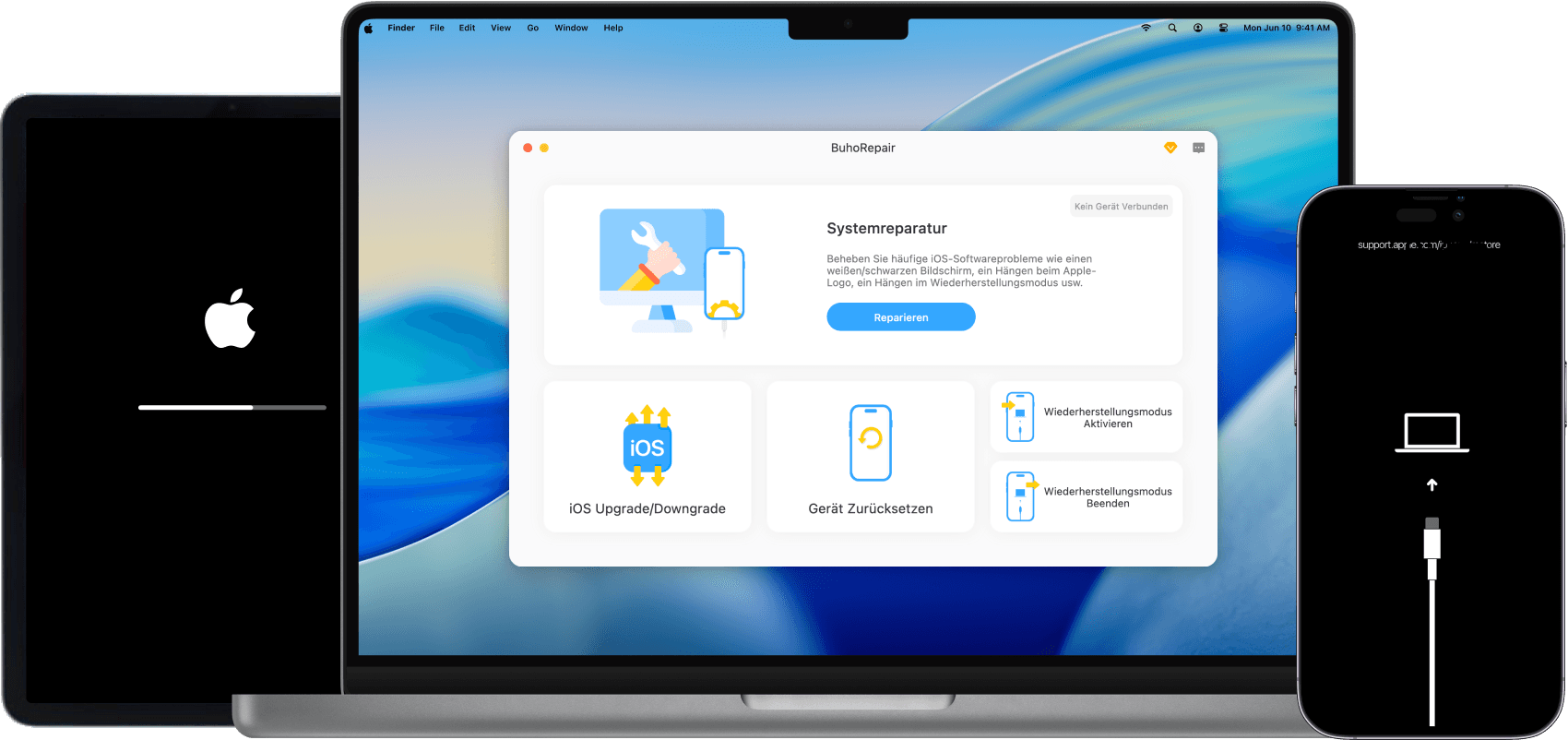
If you’ve disabled OTA updates but still want full control over your iOS version, a dedicated iOS system repair tool can help. One popular option in 2026 is BuhoRepair.


BuhoRepair lets you:
- Upgrade or downgrade iOS and iPadOS with one click
- Fix common system issues without data loss
- Avoid jailbreaks or complicated manual steps
It works with both older devices and the latest iPhone models.
Conclusion
iOS OTA updates are a fast and convenient way to stay up to date, especially if you prefer simplicity. iTunes updates offer more stability and control, making them a better choice when storage is tight or backups matter.
If update reminders are distracting, you can block OTA updates—but be mindful of the long-term trade-offs. And if you want maximum flexibility, tools like BuhoRepair give you another way to manage iOS versions safely and easily.
Jerome is a passionate enthusiast of all things Apple. He is expertise in crafting tech-related articles, with a portfolio of more than 100 articles covering various Apple products like the iPhone, iPad, and Mac.