[iOS 27] iPhone Software Update Stuck on "Install Now"

Is your iPhone stuck on the Software Update "Install Now" screen? Here’s how to fix it and get your iPhone updating again.
Updating to the latest iOS 27 usually takes 5–30 minutes. But sometimes, your iPhone might freeze during the process. You’ll see the Software Update “Install Now” screen with a spinning wheel that keeps spinning for hours.
So, what should you do when that wheel keeps spinning next to “Install Now”? Don’t worry—you’re not alone. This is a common iOS update issue, and in this guide, we’ll walk you through the possible causes and proven ways to get your update moving again.
![[iOS 27] iPhone Software Update Stuck on "Install Now"](/_next/image?url=https%3A%2F%2Fwww.drbuho.com%2Fstr-apiv4%2Fuploads%2Ffix_iphone_software_update_stuck_on_install_now_814a9f9744.png&w=3840&q=100)
Why Is My iPhone Stuck on the Software Update "Install Now" Screen?
If your iPhone or iPad freezes during an update, it’s usually caused by one or more of these reasons:
- A slow or unstable Wi-Fi connection interrupts the download.
- The battery is below 50%, and iOS pauses the update to prevent the device from shutting down.
- There isn’t enough free storage space on your device.
- Glitches or bugs in the iOS system interfere with the update.
- Data transfer conflicts occur when restoring from an old device.
- Apple servers are overloaded due to high traffic, especially during major iOS releases.
Understanding the likely cause can help you choose the most effective solution.
How to Fix an iPhone Stuck on Software Update "Install Now" Screen
Before trying any specific fixes, the first thing to do is a force restart. Often, this alone is enough to break the freeze and let the update continue.
iPhone 8 and later: Press Volume Up → Volume Down → Hold the Side button until the Apple logo appears.
If the update is still stuck after restarting, move on to the solutions below.
Fix 1. Check Your Network Connection
A stable internet connection is key. Your iPhone needs to talk to Apple servers to verify and download the update.
If your Wi-Fi keeps dropping or is too slow, your iPhone might freeze on “Install Now.” Try these steps:
- Move closer to your router or switch to a stronger Wi-Fi network.
- Use cellular data if Wi-Fi is weak.
- Temporarily disable any VPNs.
If these don’t work, you can reset network settings (note: this erases saved Wi-Fi passwords):


- Go to Settings > General.
- Tap Transfer or Reset iPhone > Reset.
- Select Reset Network Settings.
Fix 2. Charge Your iPhone
iOS requires at least 50% battery to install updates. If your battery is low, the update will pause automatically.
- Check your charging cable and port.
- Use an official Apple charger. Updates usually resume in 15–20 minutes after charging.
- If using MagSafe, ensure proper alignment.
Fix 3. Free Up Storage Space
Even with good Wi-Fi and a full battery, insufficient storage can prevent an update from installing. Most updates require at least 5–6 GB of free space.


To check available storage on your iPhone:
- Go to Settings > General > iPhone Storage.
- Make sure there’s enough free space.
If storage is low:
- Enable Offload Unused Apps to temporarily remove apps you don’t use often.
- Delete large apps like games and reinstall later.
- Remove unnecessary music, podcasts, photos, or videos.
- Clear Safari history and cached data.
Fix 4. Repair iOS System Glitches
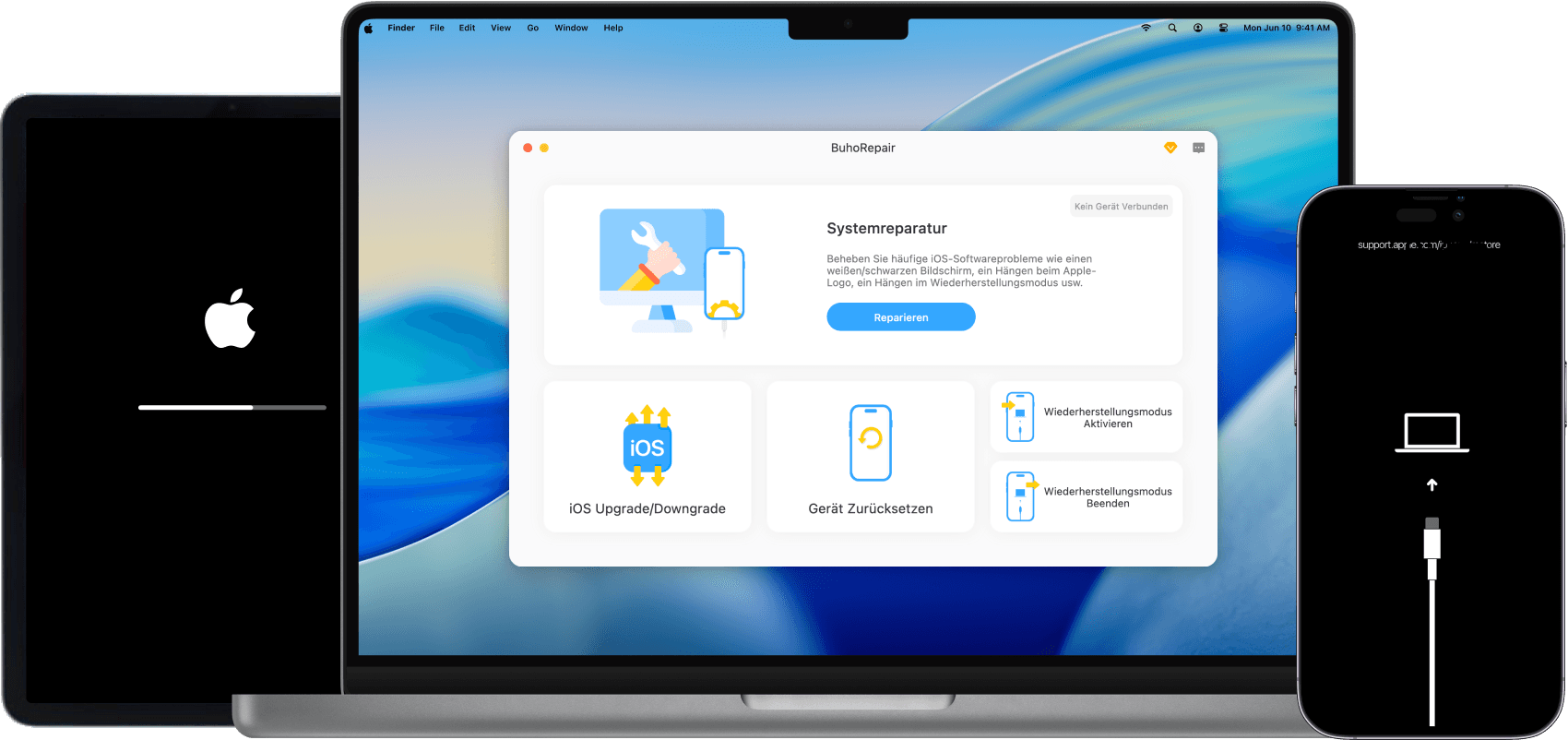
Sometimes the issue isn’t caused by the battery, storage, or Wi-Fi, but by a glitch in iOS itself. If the previous fixes don’t work, using an iPhone system repair tool like BuhoRepair can help. It refreshes and reinstalls iOS without losing your data.
Here's how to repair your iPhone with BuhoRepair:
- Install BuhoRepair on your computer and open it.
- Connect your iPhone and select System Repair.
- Choose Standard Repair and follow the instructions. This will fix the update freeze and bring your iPhone to the latest iOS.


Actually, BuhoRepair can do much more. It also fixes:
- iPhone black screen.
- iPhone freezing during "Check Update", “Preparing Update,” or “Verifying Update.”
- iPhone looping on the Apple logo
- Other common iOS system problems
Fix 5. Avoid Data Transfer Conflicts
If your iPhone is updating while also transferring large amounts of data, conflicts may occur. Storage, CPU, and network resources may compete, causing a freeze.
Here are some tips to avoid this:
- Force restart and complete the iPhone setup without restoring data.
- Update iOS first.
- After the update, go to Settings > General > Transfer or Reset iPhone.
- Tap Erase All Content and Settings if needed, then restore data from your backup.


Fix 6. Wait Out Server Overload
Sometimes it’s Apple’s servers that are overloaded, especially right after a new major iOS release. Millions of users request updates simultaneously, which can temporarily freeze downloads.
Tips to avoid server traffic issues:
- Wait 24–48 hours after a new release.
- Update late at night or early in the morning.
- Use BuhoRepair, iTunes, or Finder instead of OTA (Over-The-Air) updates.
Conclusion
If your iPhone gets stuck on the Software Update “Install Now” screen, don’t panic. From network issues to system glitches and data conflicts, there are six proven ways to resume your update.
Having an iOS system recovery tool like BuhoRepair makes the process even easier. It helps fix update problems and other iOS system issues quickly, safely, and without losing data, keeping your device running smoothly.
Wendy is a tech enthusiast with a deep passion for all things iPhone, iPad, and Mac. Wendy is always on the lookout for Apple products and is committed to providing Apple users with some of the latest information and useful tips.