6 Ways to Fix Your Lost iPhone Not Showing Up on Find My

Is your iPhone missing, but you fail to track it through Find My? Don’t feel upset as you can try 6 ways to locate or get back your lost iPhone.
It’s stressful to lose your iPhone, but thankfully, Apple’s “Find My” feature can help you locate it. This powerful tool enables you to track the device’s location, play a sound, or remotely erase it. However, things can get tricky if your lost iPhone doesn’t appear in the Find My “All Devices” list.
In this article, we’ll explore the possible reasons why you can’t find your iPhone in the Find My app, and we’ll explore proven ways to make your iPhone discoverable again to the Find My app.
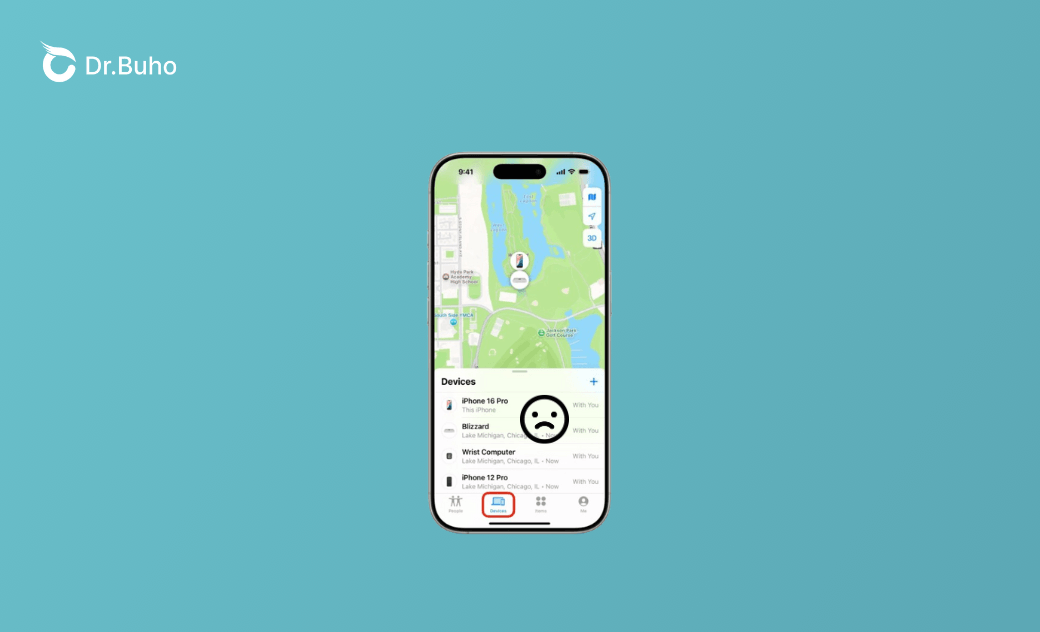
Why Isn’t My Phone Showing up on Find My?
Although you might have been signed in to iCloud on the device, it doesn’t mean you can 100% find your device on the Find My’s device list. There are some other requirements you should meet.
- You should enable Find My and Location Services in advance.
- If your iPhone’s battery is dead or very low, it might not send the location information.
- Your lost iPhone is offline or out of network connection.
- The Airplane mode is turned on, which might prevent you from making a network connection.
- Your iOS version is out of date.
- Your iPhone’s date or time is not set correctly.
- The Apple ID linked to the lost iPhone is different from the one signed in with the tracking device.
- Apple’s server is experiencing issues.
How to Make My iPhone Discoverable to Find My
If your iPhone is by your side and you just seek to test the feature, ensure you’ve enabled Find My, Location Services, Find My Network, and Send Last Location.
However, if your iPhone isn’t in your possession, wait until your iPhone appears in the Find My app or take other actions to erase your device.
Wait Until It’s Online
Find My app relies on an active internet connection to transfer your iPhone's location to Apple's servers. This is especially important for older Apple models. When your iPhone is offline, it cannot send its location data to the Find My service. Once your lost iPhone is reconnected to a WiFi or cellular data signal, it can update the location information again.
However, if your iPhone supports offline finding, you can also track your device via Find My even when it’s turned off. For iPhone 11 and later models (excluding iPhone SE models), the Find My app can locate the device for up to 24 hours after it’s powered off. Thanks to the Find My Network feature, it can use Bluetooth to update your iPhone’s location periodically. However, this means that you should enable the feature before your iPhone is lost.
Use Another Apple Device
To track your lost iPhone, make sure you sign in with the same Apple ID that was used on the missing device. Double-check the Apple ID you’re using and try again. If the iPhone still doesn’t appear, try signing in with the same Apple ID on another Apple device.
The Find My app is designed to work across all Apple devices linked to the same Apple ID, so you can use another iPhone, iPad, or Mac to locate your device. As long as your lost iPhone is online, you can still track it from any of these devices.


- Open the Find My app on another Apple device.
- Sign in with the same Apple ID used on the lost iPhone.
- Go to the People tab and refresh the location of the person you want to track.
- Switch to the Devices tab, then find and select your lost iPhone from the list.
Use iCloud.com
Alternatively, you can use the iCloud site to track the location of your lost iPhone. The Find My service is also integrated with Apple’s iCloud service.
By signing in to the same Apple ID on iCloud.com, you can access the same features in the Find My app. On the iCloud interface, you can locate your iDevices, play a sound, mark them as lost, and erase them. This makes it possible to track your stolen iPhone if you don’t have another Apple device.


- Go to iCloud.com/find and sign in with your Apple ID.
- Select your lost iPhone from the list of devices.
- You can play a sound, mark it as lost, or erase it.
Contact Your Carrier
Contact your iPhone carrier, as they may be able to help with network-related issues. Problems with your carrier’s network can prevent your iPhone from connecting to the internet. If your device shows as offline or keeps having network problems, ask your carrier to check the status of your account and connection.
Check Apple’s System Status Page
Check Apple System Status page to see if there are any issues with Find My or Location Services. This page provides real-time updates on the status of various Apple services, including Find My service.
If there are any issues or outages with Apple’s servers, you can find them on this page. By visiting the Apple System Status page, you can see whether the problem is coming from Apple’s end rather than your device. If the issue is caused by Apple’s servers, you’ll need to wait until everything is restored.


Report to Police
Lastly, you should report your lost iPhone to the police. Although this is usually the final step, it’s an important one, especially for protecting your personal data and information. Beyond simply helping you document the loss, the police may also assist in locating your device.
Be sure to bring documents that verify your identity and ownership, such as an ID card and proof of purchase. With this information, the police can register your device’s IMEI number in a national database. This allows authorities to flag your iPhone if it comes online or is taken to a carrier store.
Once your report is filed and officially recorded, the police can take further legal actions to help you track and recover your lost iPhone.
Bonus Tip: How to Erase Your iPhone with a Few Clicks
If you only need to erase your iPhone through Find My but the feature isn’t working, you can use an iPhone unlocking tool as an alternative. Tools like BuhoUnlocker can help you remove your screen passcode and restore your device to factory settings.
From entering recovery mode to downloading the firmware package, the software provides clear, step-by-step instructions, allowing you to erase your iPhone in just a few clicks. In addition to passcode removal, BuhoUnlocker can also help you remove Apple ID, Screen Time passcodes, and MDM profiles or restrictions. Click the button below to try it out for yourself.


Conclusion
In most cases, the main reason behind the “iPhone not showing up on the Find My app” issue is a poor network connection. If you’re sure that you’ve enabled the Find My feature on your lost iPhone, you can wait until the network is connected and your device appears on the device list. Considering the security of data and information, don’t wait over 24 hours. During this period, you can also use iCloud or another Apple device to track your iPhone.
Meanwhile, explore if there is anything wrong with Apple’s servers by checking Apple’s System Status Page. If you fail to track your iPhone after 24 hours, you’re advised to contact your iPhone carrier or even report it to the police. Hopefully, you can track your lost iPhone and get it back as soon as possible.
Robert is a tech-savvy fan who loves all things Apple. As a hobbyist of gardening and meditation, he is also a seasoned writer covering a wide array of Apple products, like iPhone, iPad, iOS, and more.