[iOS 26] Screen Time Not Working? 9 Helpful Fixes!

Having trouble with Screen Time on iOS 26? Try these 9 workarounds to fix common Screen Time issues and get it working again.
iPhone users have been reporting various Screen Time issues on the Apple Forums, with many looking for workarounds for these frustrating bugs.
If you’re dealing with similar problems, don’t worry. This post covers 9 ways to troubleshoot common Screen Time issues on iOS 26. Read on to find out what you can try.
Common Screen Time Issues on iOS 26
Here are some of the most common Screen Time issues reported by iPhone users. Check if any of them match what you’re experiencing.
- Cannot open or access Screen Time in Settings because it freezes.
- Screen Time keeps crashing.
- The Screen Time widget is blank or crashes without showing any information.
- The Ignore Limit option doesn’t work.
- Remote Screen Time limits don’t work as expected.
- Screen Time causes the Settings app to crash.
- Cannot make changes to Screen Time settings.
- Screen Time incorrectly locks access to banking apps or accounts.
These issues can range from minor annoyances to more serious problems. In some cases, users may be unable to access certain apps, while others may have trouble opening banking apps or completing transactions.
Possible Causes of Screen Time Issues on iOS 26
Here are some possible reasons why Screen Time may not work properly on iOS 26:
- iOS 26 bugs and issues.
- Compatibility issues: Conflicts between certain Screen Time settings, third-party apps, and the new iOS 26 system may cause unexpected problems.
- Sync issues: If you use Screen Time across multiple Apple devices, inconsistencies when syncing Screen Time data may cause problems.
How to Fix "Screen Time Not Working" Issues on iPhone
Now that you have a better understanding of the common Screen Time issues and their possible causes, let’s look at some workarounds you can try.
Fix 1: Force Restart Your iPhone
Sometimes, a simple force restart can clear temporary system glitches and fix minor software problems. The steps to force restart an iPhone vary depending on your iPhone model.
Fix 2: Change the Date Manually
Some users have reported that manually changing the date in Date & Time settings can temporarily fix certain Screen Time issues.
If you urgently need to access your apps, you can give this workaround a try:
- Go to Settings > General > Date & Time.
- Turn off Set Automatically.


- Change the date manually.
Fix 3: Turn Off Share Across Devices
As mentioned above, Screen Time sync issues between multiple devices may cause problems. If you use Screen Time across several Apple devices, try turning off Share Across Devices.


Fix 4: Turn Off App & Website Activity
If App & Website Activity isn’t working properly, turning it off and then turning it back on may refresh your Screen Time data.
This temporarily disables features such as Screen Time activity reports, Downtime, App Limits, and Always Allowed. After turning it off, wait a moment and then turn it back on to refresh the data.


Fix 5: Erase All Content and Settings
If Screen Time continues to malfunction, erasing all content and settings may help clear problematic settings or system issues. However, this will completely erase your iPhone, so make sure to back up your device before trying this method.
Here’s how:
- Back up your iPhone to your Mac.
- Go to Settings > General > Transfer or Reset iPhone > Erase All Content and Settings.


- After the reset is complete, restore your data from the Mac backup.
Fix 6: Update Your iOS
An iOS bug may be behind your Screen Time problems. Updating your iPhone to the latest available iOS version may fix known bugs and improve system stability.
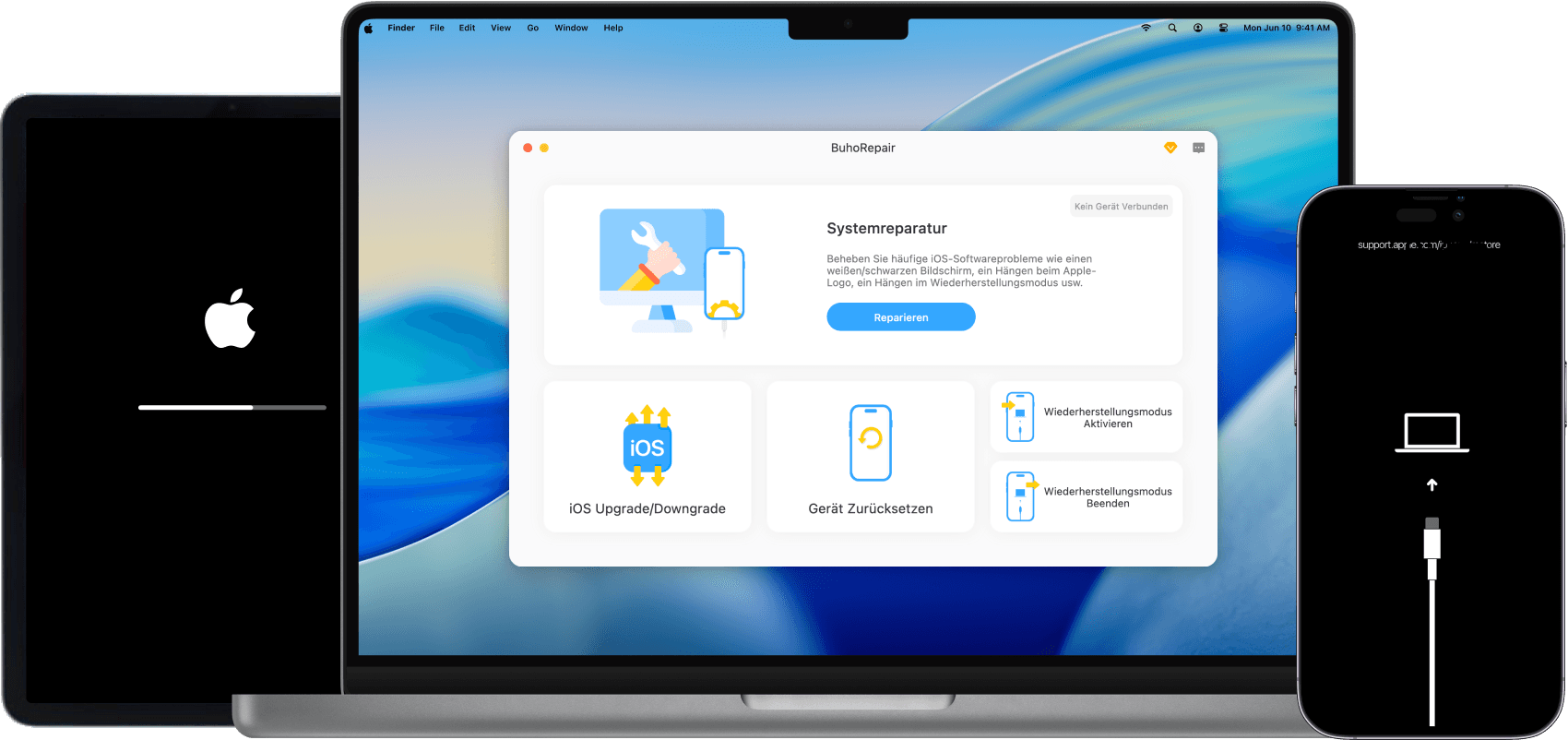
If no official update is currently available, you can wait for the next release. Alternatively, if you know what you’re doing and need to test a beta version, you can use BuhoRepair to install an available iOS version.
To check for available updates:
- Go to Settings > General > Software Update.
- If an update is available, tap Update Now and follow the onscreen instructions to download and install it.
Fix 7: Remove and Reset the Screen Time Passcode
Some iPhone users have reported that their Screen Time passcode doesn’t work or that the Ignore Limit option isn’t working properly. In this case, you can try removing the Screen Time passcode and setting it up again.
If you can’t access Screen Time settings to turn off the passcode, you can try a dedicated Screen Time passcode removal tool such as BuhoUnlocker. It can help remove the Screen Time passcode from your iPhone.
Here’s how:
- Download, install, and launch BuhoUnlocker.
- Connect your iPhone to your Mac with a USB cable.
- Click Remove Screen Time Passcode.


- Click Remove Now.

- Put your iPhone into Recovery Mode.
- Wait for the process to finish.
Fix 8: Sign Out of Your Apple Account and Sign In Again
Signing out of your Apple Account and signing back in may help refresh Screen Time settings and resolve certain sync-related issues.
Follow these steps:
Go to Settings > [your name], scroll down, and tap Sign Out. Enter your Apple Account password when prompted to confirm.


You can also try these additional workarounds:
- Turn off Downtime.
- Disable Low Power Mode.
- Reset your App Limits.
- Check Apple’s System Status page for service issues.
- Check the apps listed under Always Allowed.
Fix 9: Downgrade Your iOS
If Screen Time problems started after updating to iOS 26 and the other fixes didn’t work, you may consider downgrading to a previous iOS version.
A professional iOS downgrade tool such as BuhoRepair can make the process easier.
Here’s how:
Free download, install, and launch BuhoRepair.
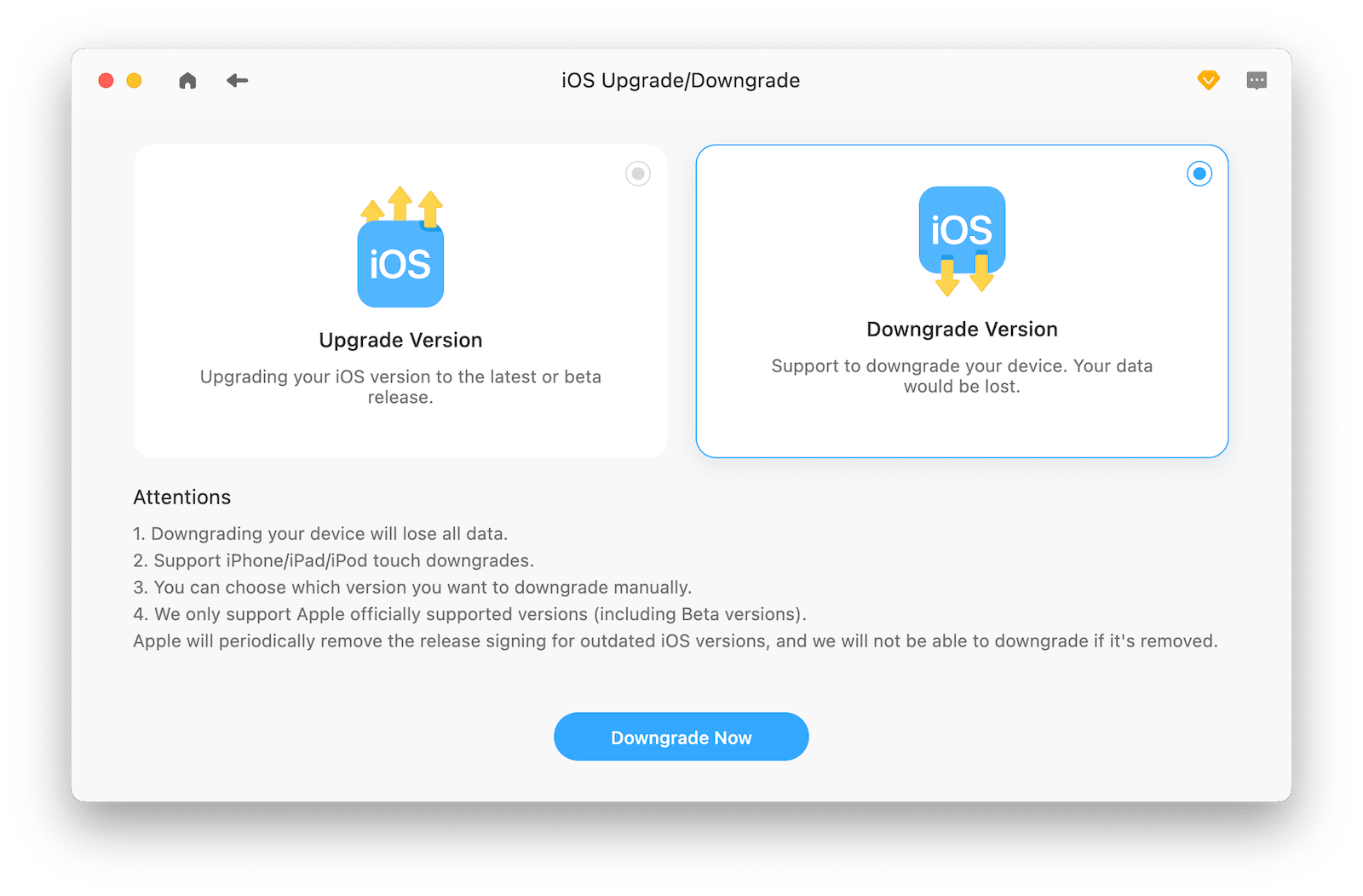
Click Upgrade/Downgrade iOS > Downgrade Version > Downgrade Now.
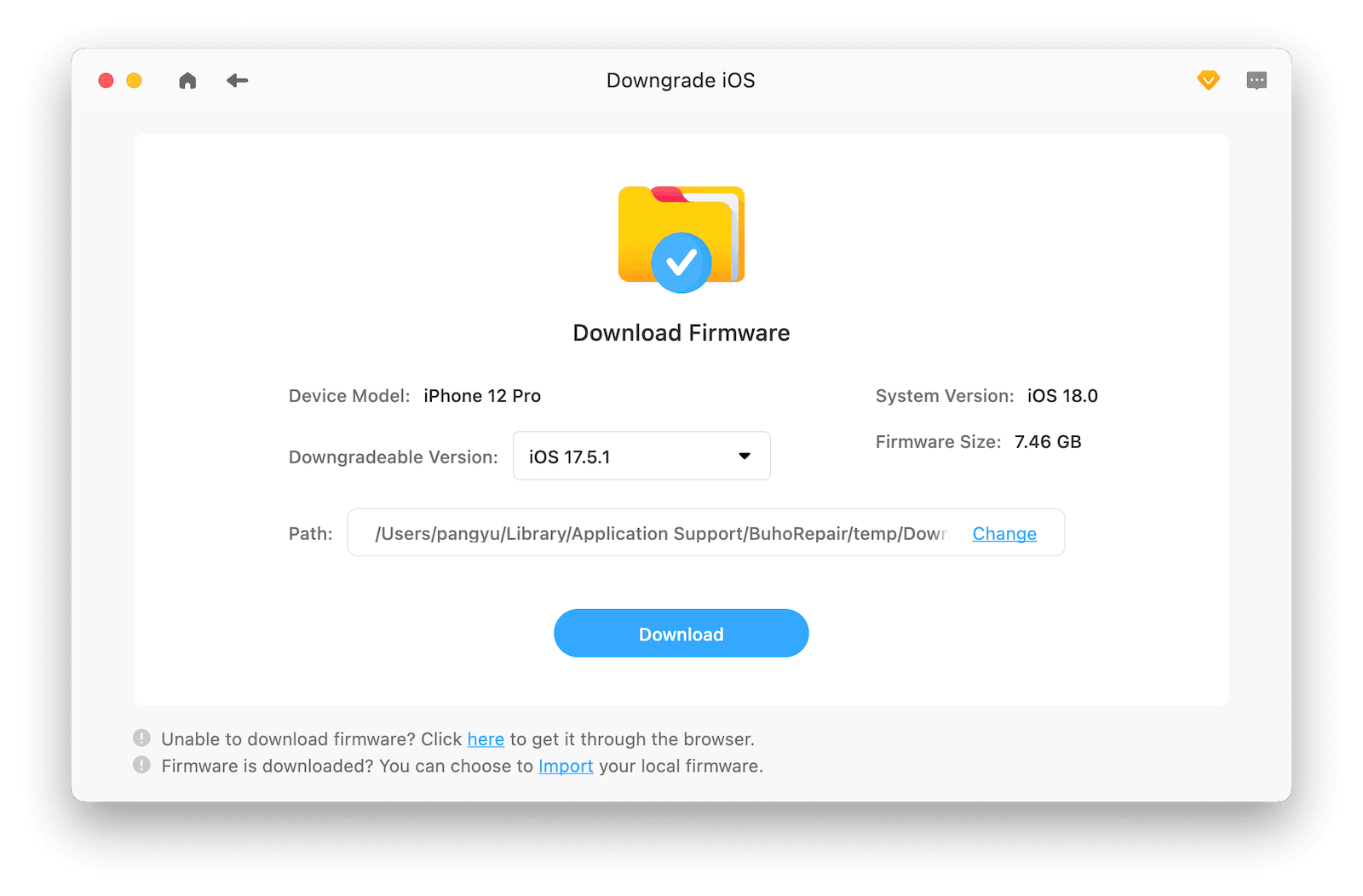
Select the iOS version you want to downgrade to and click Download.
Once the firmware download is complete, click Downgrade Now.
Wait for the downgrade process to finish.

The Bottom Line
Hopefully, one of these 9 fixes can help resolve your iOS 26 Screen Time problems. If you’re dealing with Screen Time issues, start with the simpler solutions, such as restarting your iPhone, checking your settings, or updating iOS.
To avoid similar problems in the future, keep your iPhone updated and make sure your settings are configured correctly. If the issue persists or you’re experiencing other iOS 26 problems, an iPhone system repair tool like BuhoRepair may also be worth trying.
Wendy is a tech enthusiast with a deep passion for all things iPhone, iPad, and Mac. Wendy is always on the lookout for Apple products and is committed to providing Apple users with some of the latest information and useful tips.