Tenorshare ReiBoot Review 2026: Here Are My Findings

I tested Tenorshare ReiBoot and wrote down this product review. Here, you’ll see how to make the best use of ReiBoot as well as its limitations.
After upgrading to iOS 26, I encountered a series of system issues. As I didn’t want to revert to the previous version, I chose to fix them myself using an iOS tool.
Among many popular choices, I picked Tenorshare ReiBoot. Based on my firsthand experience, I’d like to share how this iOS system repair tool helped me get out of trouble.
In addition to basic iOS system repair, I also tested its other main features. Keep reading the sections below to see whether it’s worth trying.

Enter or Exit Recovery Mode
Firstly, I tried to enter and exit the Recovery Mode. This is the only feature that doesn’t require a paid Pro version.
ReiBoot made it very easy to enter and exit Recovery Mode with just one click. Since I didn’t need to press any button combinations, it saved me a lot of time.
When I clicked the “Enter Recovery Mode” button, it immediately put my device into Recovery Mode.


And to exit Recovery Mode, I simply clicked the “Exit Recovery Mode” button. ReiBoot then safely brought my device back to normal.
This feature is especially helpful for users who have trouble entering or exiting Recovery Mode manually.
Fix iOS System Issues without Data Loss
When repairing iOS system errors, I always worry about data loss. However, Reiboot claims that its standard repair mode won’t cause data loss when fixing 150+ iOS system issues.
Therefore, I tried to test its standard repair mode when my iPhone was stuck on the black screen. This occurred when I was running too many apps at the same time. I could fix it by restarting my device, but it happened again when I was running several apps next time.


To fix the issue, I connected my iPhone to my computer, launched ReiBoot, and selected “Standard Repair.”
After reading the on-screen instructions, I clicked the “Download” button to get the latest firmware package for my device.


It was straightforward to walk through the whole process. Once it was completed, my device restarted automatically.
Then I checked whether all my data was still on my iPhone. And the good news is that everything remained intact.
Deep Repair Mode
Then I grabbed a test iPad. I haven’t used it for a long time, so it became completely unresponsive. I wanted to see how ReiBoot could work on more advanced iOS system issues.


I checked its backup because ReiBoot would erase all data on my device when utilizing the repair mode.
After connecting the iPad to my computer and launching ReiBoot, I chose the “Deep Repair” mode.
Then I downloaded the firmware and initiated the repair process. It took longer time to use the Advanced Repair mode to repair the system issue than using the Standard Repair mode. Luckily, it resolved the problem and restarted my device as before.
As expected, the Deep Repair mode required a full wipe of my device. Fortunately, this was an older iPhone, and I had an iCloud backup, so it was acceptable.
So if you’re unsure which repair mode to choose, start with Standard Repair. If it doesn’t work, ReiBoot will recommend switching to Deep Repair. In my case, instead of using Deep Repair, I preferred restoring my device with iTunes.
Nevertheless, as the Deep Repair mode would erase all data, it was equivalent to a factory reset through iTunes.
However, as expected, all data on the device was erased, highlighting the importance of backing up data before using this mode.
Repair iTunes Errors
It could also be frustrating when connecting my iPhone to iTunes. Fortunately, ReiBoot offered a quick solution.


I connected my iPhone to the computer and launched ReiBoot. As indicated, I chose the “iOS System Repair” option.
Then the software detected the iTunes error automatically and provided me with the instructions.
Then I chose the Standard Repair mode, because it wouldn’t erase my data. Within minutes, the repair was completed.
I tried to connect my iPhone to the computer again and launched ReiBoot. Then it worked out! iTunes quickly detected my device.
It fixed the connection issue quickly, though I felt it could have been even faster if I hadn’t had to connect my iPhone to a computer.
I didn’t understand why I had to connect my iPhone to the computer when I decided to repair the iTunes issue with Reiboot. It seemed that the software wouldn’t work without a connected device.
It suggested that this might be because the software was still attributing the problem to my device’s system issues rather than to iTunes errors. That’s why there wasn’t an option like ‘Repair iTunes Errors’ on the home screen. I was just wondering whether it would still work if the errors were caused by iTunes rather than the iOS system.
Upgrade or Downgrade iOS without Jailbreak
Finally, I downgraded and upgraded the iOS system with ReiBoot. Although it’s convenient to use the official way to upgrade the system on my device directly, I’d like to use ReiBoot as an alternative solution.

Then I selected the corresponding option and followed the on-screen instructions to complete the task. I didn’t need to jailbreak my device. The entire process was smooth, and it took about 10 to 15 minutes to complete the downgrade. This depended on the size of the firmware package.
While I can use ReiBoot to upgrade and downgrade the iOS system, I don’t think it’s a better alternative to the traditional method. I prefer to use it as an alternative when the official method fails.
My Thoughts and Insights About Tenorshare ReiBoot
After testing the main features of ReiBoot, I think it’s a trustworthy iOS system repair tool. If you just want to take a quick glimpse, enter or exit the Recovery Mode with ReiBoot. This is the only free version.
The real advantage emerges when there is a problem with your iOS system. The Standard Repair mode can fix most issues without data loss. If not, then consider using the Deep Repair mode. Since the advanced repair could erase all data, check the backup in advance.
Besides, although it’s not necessary to replace it with the traditional ways when I want to upgrade, downgrade, or reset my device, I’ll use it as an alternative method. It also makes sense when I forget the password or the traditional ways fail to work.
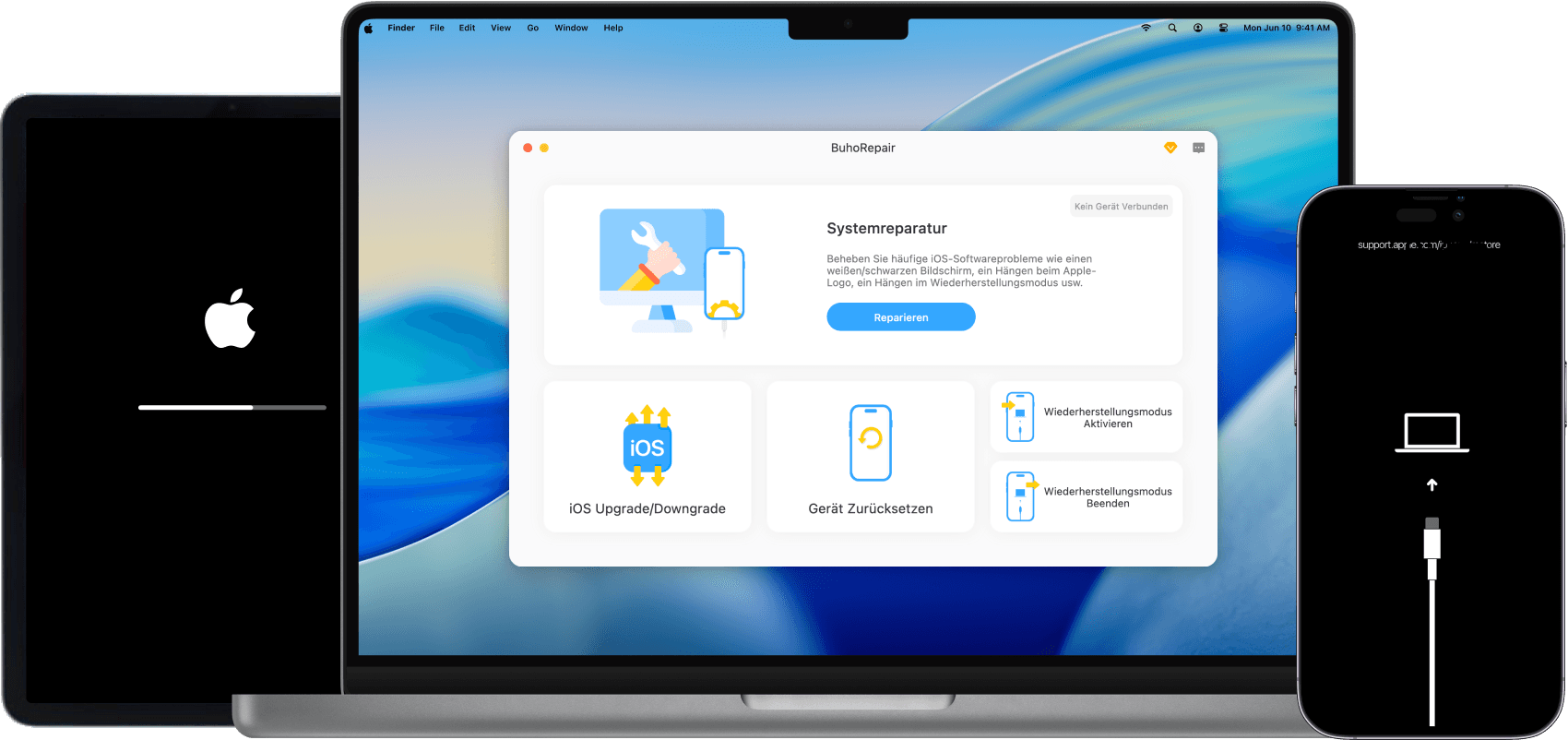
Why I Use BuhoRepair as an Alternative to ReiBoot?
Finally, I use BuhoRepair as an alternative to ReiBoot. Compared with ReiBoot, it offers a complete free trial for entering and exiting the Recovery Mode. Instead, ReiBoot limits the free exits to 5 users.


Although both toolkits offer almost the same repair features, BuhoRepair has a higher success rate when fixing iOS system issues and iTunes errors. In addition, its 24/7 technical support makes it more reliable and trustworthy, meaning I can get prompt feedback and effective assistance whenever I have questions about my device or the software.
Conclusion
After testing the main features of Tenorshare ReiBoot, I think it’s worth trying. After you connect your iDevice to the computer, the software will automatically detect any errors and provide the appropriate firmware for download. You can start from the Standard Repair mode, as it won’t lead to data loss. Besides, if you’re looking for a higher success rate and a reliable sales team, you can give BuhoRepair a shot.
Robert is a tech-savvy fan who loves all things Apple. As a hobbyist of gardening and meditation, he is also a seasoned writer covering a wide array of Apple products, like iPhone, iPad, iOS, and more.