- iOS 27 Installation
- iOS 27 Problems
iOS 27 “Indexing in Progress”: What It Means and How to Fix It

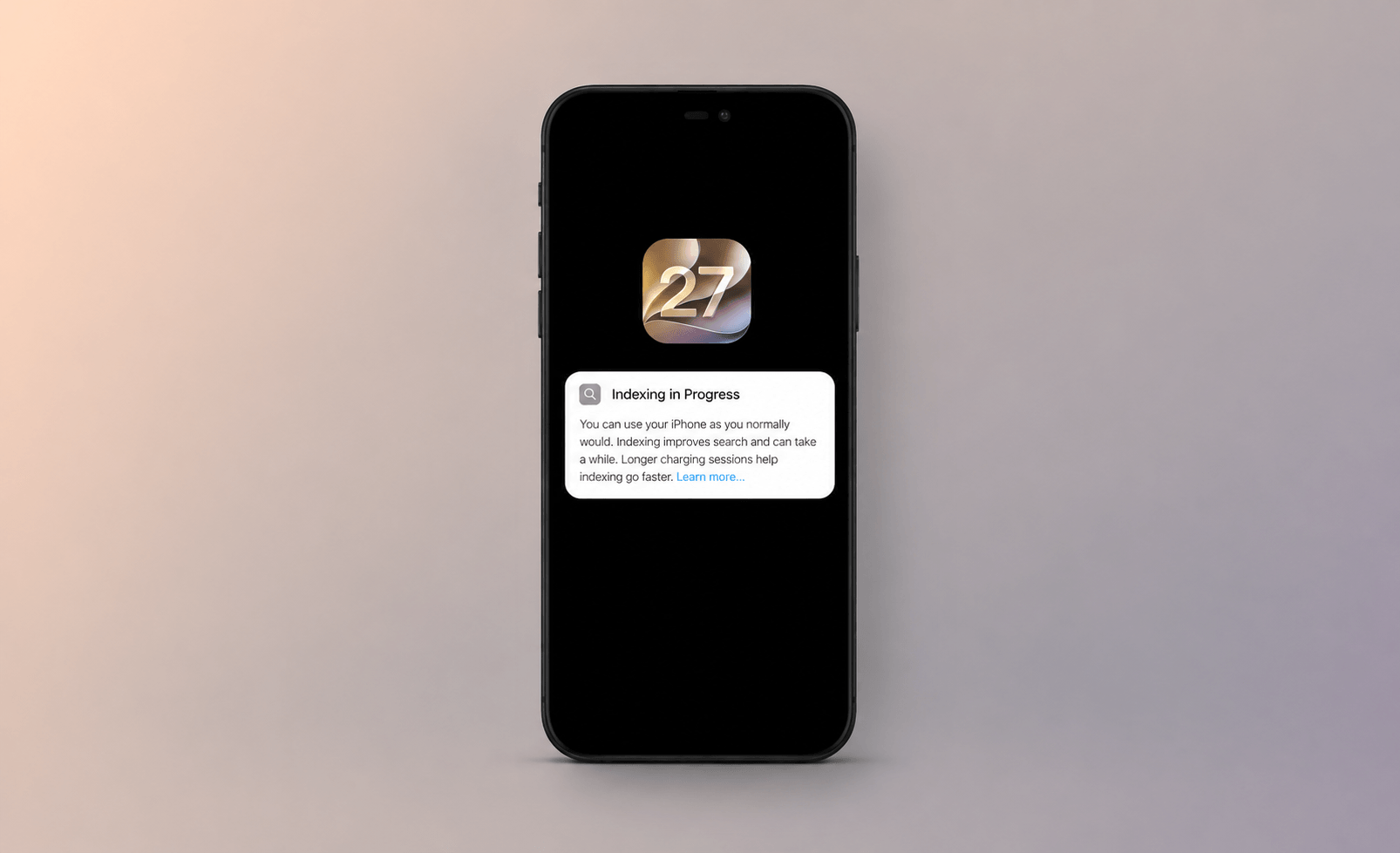
After updating to iOS 27, many users have noticed a message that says “Indexing in Progress.”
If you're wondering whether something is wrong with your iPhone, don't worry. In most cases, this is completely normal.
What Does "Indexing in Progress" Mean on iOS 27?


"Indexing in Progress" means iOS is rebuilding its search database in the background. The system scans content such as Photos, Messages, Mail, Files, Notes, and app data to improve Spotlight Search, Siri, and Apple Intelligence features.
Because iOS 27 introduces a redesigned search experience, indexing can take anywhere from a few hours to several days depending on how much data is stored on your device. During this time, some search results or AI-powered features may not work at full capacity.
Why Is Indexing Taking So Long?
The time required depends on how much data your iPhone needs to process.
Common factors include:
- A large photo and video library
- Years of iMessage history
- Multiple email accounts
- Large iCloud Drive storage
- Apple Intelligence features being enabled
- Limited charging time
Apple also notes that longer charging sessions can help indexing complete faster.
How Long Does "Indexing in Progress" Last?
There is no fixed timeline, but most users fall into one of these ranges:
| Time | Status |
|---|---|
| A few hours | Normal |
| 1–3 days | Common |
| 3–7 days | Slow but possible |
| More than 7 days | May indicate a bug or an unusually large data set |
Some beta users reported indexing finishing within hours, while others were still indexing after a week.
"Indexing in Progress" Stuck? Try These Fixes
If the message has been showing for several days, try:
- Keep your iPhone plugged in overnight
- Connect to a stable Wi-Fi network
- Make sure you have enough free storage
- Disable Low Power Mode
- Restart your iPhone
- Update to the latest iOS 27 version
How to Check the Actual Indexing Progress
Unfortunately, iOS 27 doesn't show a progress bar. If you have a Mac, you can check the real indexing percentage:


- Connect your iPhone to your Mac.
- Open the Console app.
- Enable Include Debug Messages.
- Select your iPhone.
- Search for: spotlight indexing progress
- Open Settings on your iPhone.
You should see a value such as:
PipelineCompleteness: 78%
This shows how much indexing has actually been completed.
Final Thoughts
If you're seeing "Indexing in Progress" on iOS 27, it usually means your iPhone is rebuilding its search database after the update. While some devices finish within hours, others may need several days depending on the amount of data stored.
If "Indexing in Progress" seems stuck, keep your iPhone charging and connected to Wi-Fi, and give it some time. In most cases, the message eventually disappears on its own, and everything returns to normal.
Robert is a tech-savvy fan who loves all things Apple. As a hobbyist of gardening and meditation, he is also a seasoned writer covering a wide array of Apple products, like iPhone, iPad, iOS, and more.