

Mac Migration Assistant Slow? Try These 7 Fixes

Have you spent too many hours transferring data with Migration Assistant? If Migration Assistant is running slowly on your Mac, try the proven tips in this post to speed it up.
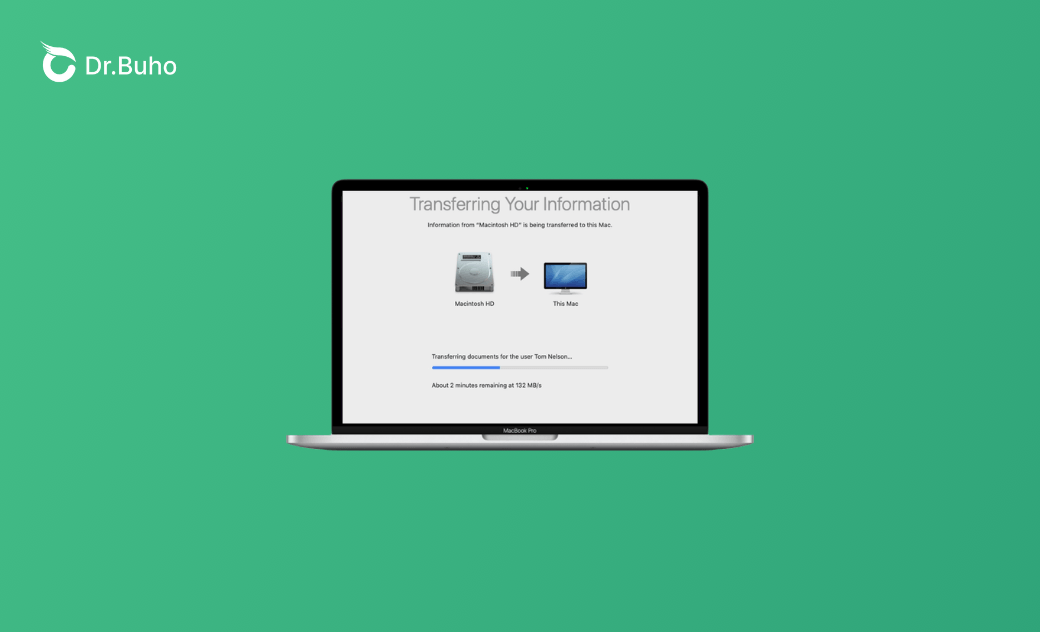
It’s frustrating to discover that Migration Assistant slows down while transferring data from your old Mac to a new one. After nearly eight hours, the remaining time may still be estimated at 40+ hours.
This isn’t typical behavior. In this post, we’ll explain why Migration Assistant can be so slow and walk you through practical fixes you can try right away.
How Long Is “Too Long” for Migration Assistant?
The duration of the Migration Assistant transfer varies from several factors, such as data size, file composition, connection type, software state, etc. Also, Apple notes that large migrations may pause or take all night due to indexing and verification.
When it comes to how long “too long” is for Migration Assistant, you can refer to the following situations.
- Less than 1 Hour: Small datasets (<50GB) via Thunderbolt or Target Disk Mode
- 2-6 Hours: 100-500GB if it’s wired or connected to medium Wi-Fi
- Overnight for 8-12 Hours: More than 1TB or millions of small files
- 24+ Hours: Too long, and it seems that Wi-Fi is throttling.
- 48+ Hours or Stalled: It’s a risk of failure. You’re suggested to switch to Time Machine or an SSD clone.
Why Is Migration Assistant So Slow?
If the transfer stalls or the duration exceeds 24 hours, check the reasons below.
- It’s “too far” between the source device and the target device, which weakens the signal.
- The network connection is weak or unstable.
- Overhead from millions of tiny files slows per-file processing far more than large videos.
- HDDs, Fusion Drives, or fragmented SSDs limit read speeds.
- The macOS or software is outdated, which causes compatibility.
- The background processes or activities interrupt the transfer.
- The connection cables are wrong and mismatched.
- The dataset is large. For example, it’ll take 24+ hours to transfer 1TB+ data.
How to Make Mac Migration Assistant Faster
In this section, we will introduce 7 proven ways to speed up Migration Assistant on your Mac.
Strengthen the Transfer Signal
Data transfer relies heavily on stable wireless bandwidth. If the original and target sources stay too far apart, the signal and the transfer speed will drop dramatically. It’s like from 200+ MB/s to 10-50 MB/s.
Place the source and target Macs within 10–15 feet of each other. Also, use a strong and stable Wi-Fi connection. If possible, you can switch to an Ethernet cable or Thunderbolt connection. Some users have reported that a stronger signal can switch the transfer from 24+ hours to less than 4 hours.
Use Correct Cables
If you want to speed up the transfer process, especially when you’re managing a large dataset, use a Thunderbolt 3/4 cable or mix Wi-Fi with Ethernet/Thunderbolt simultaneously. It’s said that a single Thunderbolt cable unlocks direct 500-1700 MB/s speeds. By swapping cables and disabling the conflicting network, you can ensure a stable and high-bandwidth pipe for even millions of small files.
Free Up Internal Storage
This pre-cleaning method is quite useful for your old Mac that stores 1TB+ files. Before initiating the transfer process, you can give your old Mac a thorough clean.
By deleting duplicated files, unwanted media files, system caches, app caches, and other redundant files, you don’t need to waste time transferring a large amount of unwanted data. On the other hand, it also requires free storage - ideally 20-30% of total capacity, to transfer data with Migration Assistant.
Mac cleaning tools for 2026, like BuhoCleaner streamlines the way of scanning for duplicates, large files, system caches, and app files. As Migration Assistant might choke on per-file overhead, it can dramatically decrease the transfer time.
Step 1. Free download BuhoCleaner on your Mac and open it.
Step 2. Click on the Flash Clean mode from the left menu.


Step 3. Wait for a thorough scan of your Mac and check the files you’d like to delete.
Step 4. Click the button to initiate the cleaning process.
Handle Small File Overhead
When Migration Assistant transfers millions of small files, such as caches, logs, or thumbnails, it incurs significant per-file overhead. As a result, transfer speeds may drop to 10–50 MB/s, even over a fast network connection.


- Delete caches by navigating to “~
/Library/Caches,~/Library/Logs” - Select all and move them to Trash.
- Empty the Trash.
Stop Background Interruptions
Processes such as Spotlight indexing, antivirus scans, iCloud syncing, firewalls, VPNs, or high CPU-consuming applications can compete for CPU and network bandwidth on both the source and target Macs. This can interfere with real-time verification, metadata updates, and overall resource allocation, potentially reducing transfer speeds from 500+ MB/s to a crawl.
Before transferring data via Migration Assistance, quit all apps and background processes. You can use Activity Monitor to close high-CPU processes.


- Launch Activity Monitor
- Click CPU, Disk tab, or Network columns to locate top-consuming processes.
- Select the “X” button to quit the processes.
Alternatively, you can use the BuhoCleaner Menu app to monitor and release CPU in real time.


Upgrade macOS
You may encounter compatibility issues if the source and target Macs are running different macOS versions. This mismatch can cause unexpected pauses and significantly reduce transfer speeds. Make sure both computers are updated to the latest version of macOS.
Recent macOS updates often include improvements to Thunderbolt performance, Wi-Fi bridging, and file verification processes. These optimizations can help the system handle large datasets and small-file transfers more efficiently.


- Use Time Machine to back up your source Mac.
- Click on the Apple menu and navigate to System Settings for Ventura+, or System Preferences on older macOS.
- Tap on General and find Software Update.
- If the update is available, click the button to initiate the process.
Manage Large Datasets
Normally, it may take up to 48 hours to transfer a 1TB+ dataset, even at 100+ MB/s. Rather than wait and risk failure due to timeouts or overheating, you can take the following measures to manage large datasets.
- Monitor transfer progress via Terminal.
- Split the data via Time Machine and save it to external SSDs.
- Selectively transfer while excluding bulk data like videos.
What Is the Fastest Way to Migrate from Mac to Mac?
The fastest way to migrate from Mac to Mac is to combine Migration Assistant with a direct Thunderbolt 3/4 cable. Instead of using a USB-C charging cable, you can achieve 500-1700 MB/s for 750GB in 20 minutes with a Thunderbolt 3/4 cable.
Here is a brief guide to using the Thunderbolt cable to transfer data from one Mac to another.
- Connect both Macs via the Thunderbolt cable.
- Enable the Thunderbolt Bridge in System Settings and Network.
- Disable Wi-Fi on your Mac.
- If needed, boot the source in Target Disk Mode (T key) and select it as the source for transferring apps and settings.
Conclusion
If Migration Assistant estimates that the transfer will take nearly two days, it is likely too long. The causes can range from an unstable connection to the total size and structure of the data being transferred.
Before starting the migration, it’s recommended to thoroughly clean your Mac using BuhoCleaner. If possible, consider using a Thunderbolt cable with Migration Assistant to ensure a faster and more stable transfer.
Cassie has been writing about technology for her entire career life - over 5 years. She enjoys diving into how Apple products work and then breaking it down in a way anyone can understand.



