

macOS Tahoe Stuck on “Checking for Updates”? 7 Fixes

If your Mac is stuck on “Checking for Updates” with a spinning wheel, this guide explains the possible causes and proven fixes.
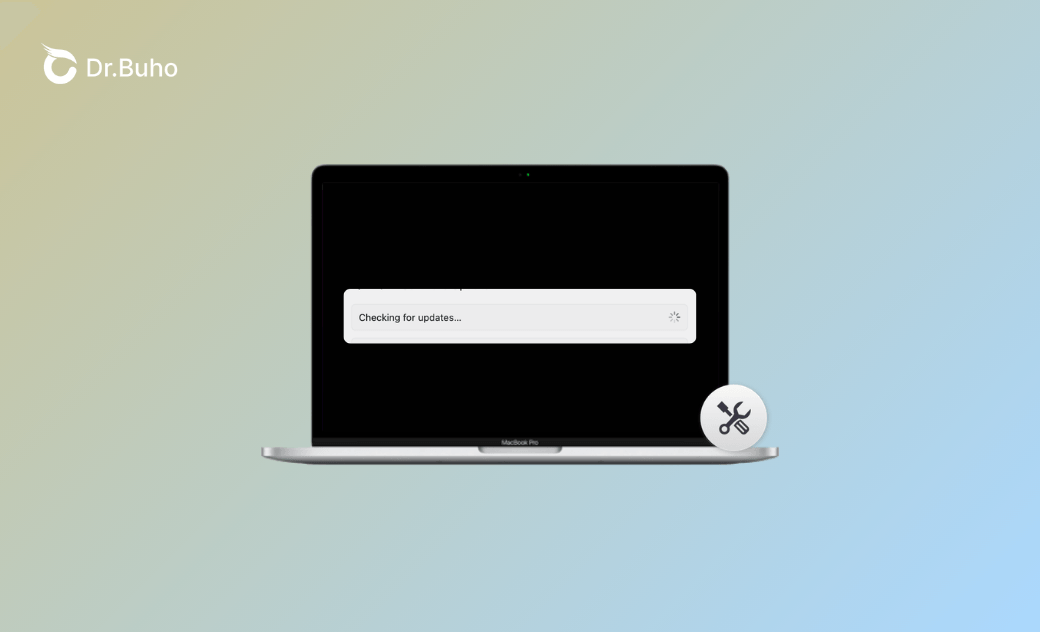
Recently, some users have found their Macs frozen on the “Checking for Updates…” screen while trying to update macOS Tahoe. If this happens to you, it doesn’t mean your Mac is updating in the background. It usually means the Software Update process is stuck and not responding.
How Long Should It Take My Mac to Check for Updates?
If your Mac is running normally and your internet connection is stable, checking for updates should take about 30 seconds to 2–3 minutes.
If it takes longer than 5–10 minutes, something is likely wrong.
The good news is that you can usually fix this issue yourself. Below, we’ll explain the most common causes and practical solutions.
Why Is My Mac Taking So Long to Check for Updates?
Here are the most common reasons:
- Your internet connection is slow or unstable. High latency can make it hard for your Mac to contact Apple’s update servers.
- Apple’s servers may be overloaded, especially right after a new macOS release.
- Temporary software glitches on your Mac.
- Corrupted update files.
- Not enough available storage space.
- Interference from a VPN, firewall, or security software.
- Heavy CPU or memory usage from other apps.
- An outdated macOS version or problematic NVRAM/SMC settings.
How Do I Stop My Mac from Checking for Updates?
If your Mac is stuck on “Checking for Updates,” you can try stopping the process.
First, close the Software Update window and wait a few minutes to see if it responds.
If it remains frozen, press Option + Command + Esc to open the Force Quit window and close the process.
If your entire system becomes unresponsive, press and hold the power button to shut down your Mac.
How to Fix Your Mac Stuck on Checking for Updates
After stopping the process, try the following solutions before updating again.
Boot into Safe Mode
Safe Mode helps rule out third-party login items, kernel extensions, and corrupted cache files that may interfere with Software Update. It loads only essential system components, clears certain caches, and performs a basic disk check.
After booting in Safe Mode, try checking for updates again.
On Intel Macs:
- Shut down your Mac.
- Turn it on and immediately hold the Shift key.
- Release the key when you see the login screen, then log in.
On Apple Silicon Macs:
- Press and hold the power button until “Loading startup options” appears.
- Select your startup disk.
- Hold Shift and click Continue in Safe Mode.
- Log in.
Check or Switch Your Network
A weak or unstable internet connection can prevent your Mac from reaching Apple’s update servers.
Try the following:
- Move closer to your Wi-Fi router.
- Restart your router.
- Turn off third-party firewall software.
- Disable VPN.
- Switch to a faster or more stable network if possible.
Free Up Disk Space
macOS updates require a significant amount of free space to download, unpack, verify, and install system files.
Make sure your Mac has at least 35 GB of available storage before updating.
You can manually remove large files, old installers, and unnecessary data. Alternatively, tools like BuhoCleaner can help you quickly locate and remove large caches, logs, duplicate files, and other hidden junk files. It also includes a menu bar monitor that lets you check CPU usage in real time.


Here's how:
- Download and install BuhoCleaner.
- Open it and click Flash Clean.
- Review the file categories.
- Select items to remove and start cleaning.
Check Apple’s System Status Page
When a new macOS version is released, millions of users may try to update at the same time. This can temporarily overload Apple’s servers.
You can visit Apple’s System Status page to check whether update services are experiencing outages or heavy traffic. If the issue is on Apple’s side, you may simply need to wait and try again later.


Delete Partially Downloaded Installers
Corrupted or incomplete update files can prevent future updates from working properly.
Remove the failed installer from Applications:
- Open Finder and go to Applications.
- Look for “Install macOS [version].app” (for example, “Install macOS Tahoe.app”).
- Move it to the Trash and empty the Trash.
(Optional) Remove leftover installation data:
If the update repeatedly fails, you may also check for leftover installation files:
- Open Finder.
- Click Go > Go to Folder.
- Enter / and press Enter.
- Look for a folder named macOS Install Data.
- If it exists and no update is currently running, move it to the Trash.
Close Resource-Intensive Apps
If your Mac is running heavy applications in the background, Software Update may slow down or freeze.
Close apps such as:
- Web browsers with many tabs
- Video editing software
- Virtual machines
To check resource usage:
- Open Applications > Utilities > Activity Monitor.
- Look for apps using high CPU or memory.
- Select them and click the X button to quit.


Reset NVRAM (Intel Macs)
Resetting NVRAM clears certain hardware-related settings that could interfere with updates.
On Intel Macs:
- Shut down your Mac.
- Turn it on and immediately press and hold Option + Command + P + R.
- Hold the keys for about 20 seconds.
- Release the keys and allow your Mac to start normally.


On Apple Silicon Macs, simply restarting the computer resets NVRAM automatically.
Conclusion
It’s fairly common for a Mac to get stuck on “Checking for Updates.” The cause can range from a poor internet connection and busy Apple servers to low storage space or background apps consuming too many resources.
In most cases, you can fix the problem by checking your network, freeing up storage, deleting corrupted installers, or booting into Safe Mode.
Before updating again, make sure to back up your Mac to prevent data loss in case something goes wrong.
Jerome is a passionate enthusiast of all things Apple. He is expertise in crafting tech-related articles, with a portfolio of more than 100 articles covering various Apple products like the iPhone, iPad, and Mac.



