I Tested TunesKit iOS System Recovery and Here Are My Findings

This TunesKit iOS System Recovery review is based on my first-hand experience. Read the post and find out whether it’s the right choice for your iOS system.
Last week, my iPhone was stuck in a boot loop after upgrading to iOS 26.5.
I then started looking for available iOS system recovery tools and decided to give TunesKit iOS System Recovery a try.
According to its website, the software can fix more than 150 iOS system issues, including problems that occur during or after iOS updates.
Since I was also considering using TunesKit iOS System Recovery as a regular troubleshooting tool for my Apple devices, I decided to test it more thoroughly.
In this hands-on review, I'll walk you through exactly how the software performed on my devices, from fixing common iOS system issues to upgrading and downgrading iOS versions.
Based on my first-hand experience, you'll be able to decide whether TunesKit iOS System Recovery is worth using for your own iPhone or iPad.

Fix 150+ iOS System Issues
First, I wanted to see whether it could fix the iOS 26.5 update issue. Since my iPhone was stuck in a boot loop, I connected the affected device to my computer and selected the appropriate repair mode.
The software stated that Standard Repair would not cause any data loss, so I decided to start with that option.


The other one was developed to repair severe iOS system issues, such as severe crashes and instability. You could reserve the Deep Repair mode only if the issue was severe. Besides, considering the possible data loss, you’d better back it up first.
After choosing the standard mode, I confirmed the device model and the iOS version. Then I followed the on-screen instructions to download and install the iOS 26 firmware package again.
Because the software was always up to date, I assumed it included the patches for the latest iOS firmware update.
After downloading the firmware package, I followed the steps to restart the device. Then I opened Settings to see whether it would enter a boot loop again.
The answer was “no.” I could use my phone as usual, and more importantly, the data was intact. It took less than 10 minutes to complete the repair.
Next, I grabbed an old iPad with a black screen. I tried to charge the device, but it would turn the screen back on after a while.
For this reason, I thought it was due to iOS system issues. Then I connected it to the computer and chose the Deep Repair mode.

Upon selecting the iPad model, I followed the on-screen prompts to access the recovery mode.
Then it showed the device details and the system version. After ensuring they were correct, I acquired the firmware package.
When the repair was completed, I launched my iPad, and its screen would never become black again.
Meanwhile, my data was lost. Considering this, the “Deep Repair” mode was like to perform a factory reset.
Although the software claims to repair the most common iOS system issues, it wasn’t able to repair physical hardware malfunctions, such as broken screens or damaged internal components.
And it might also fail to resolve deep-seated system corruption in all cases. And in these cases, I found it difficult to propose a money-back.
I tried contacting customer support, but their response took longer than the refund period. As a result, even if the software failed to resolve my issue, they could still deny my refund request because the refund window had already expired.
I didn't think this was reasonable, as purchasing the software should also include timely after-sales support.
Reset Devices
TunesKit iOS System Recovery combines two device reset options in a single interface. The first option, Standard Reset, restores the device's settings to their default state without erasing user data.
Under the Standard Reset mode, it would perform a full wipe, restoring my device to factory settings.

I tried both methods and found it easy and reliable to factory reset the iPhone with TunesKit. It simplified the way of entering the recovery mode and acquiring the firmware package.
Compared to standard recovery solutions, it would be easier to choose between preserving data and performing a clean wipe.
Although it claimed to repair black screens and bypass a disabled state, it didn’t apply to all cases. If the computer cannot identify your device, it cannot work as expected.
This was not a rare case - some users reported that the software might fail to recognize your device, even if the device could run as usual.
Enter/Exit the Recovery Mode
The free version of TunesKit iOS System Recovery was highly restricted. The mentioned features all required a full license.

However, the Enter/Exit Recovery Mode feature was an exception. With this tool, I didn't need to press a series of button combinations to put my device into Recovery Mode or exit it.
This can be a real time-saver when your device is stuck in a persistent boot loop or frozen on the Apple logo screen.
I tested this feature on both my iPhone and iPad, and it worked successfully on both devices. While I can't guarantee a 100% success rate in every situation, it's definitely worth trying.
If you're unsure whether to purchase the software, I recommend trying this feature first. It allows you to enter or exit Recovery Mode in just a few seconds and is available in the free version.
Upgrade/Downgrade iOS
In addition to fixing iOS system issues and resetting devices, TunesKit iOS System Recovery also supports upgrading and downgrading iOS versions.

Compared with using iTunes or Finder, TunesKit makes firmware and IPSW management much simpler.
The software automatically detects the correct Apple-signed firmware for your device and provides a straightforward way to upgrade or downgrade iOS without manually searching for IPSW files.
Having an iOS upgrade and downgrade tool can be especially useful during major iOS releases, as new versions may occasionally introduce bugs, performance issues, or app compatibility problems. If that happens, you can use the software to return to a previous iOS version that better suits your needs, provided Apple is still signing that firmware.
While the success rate depends on whether Apple still signs the specific firmware version for your Apple model, I think the tool is a highly efficient solution for managing system versions.
Why I Used BuhoRepair as an Alternative to TunesKit iOS System Recovery?
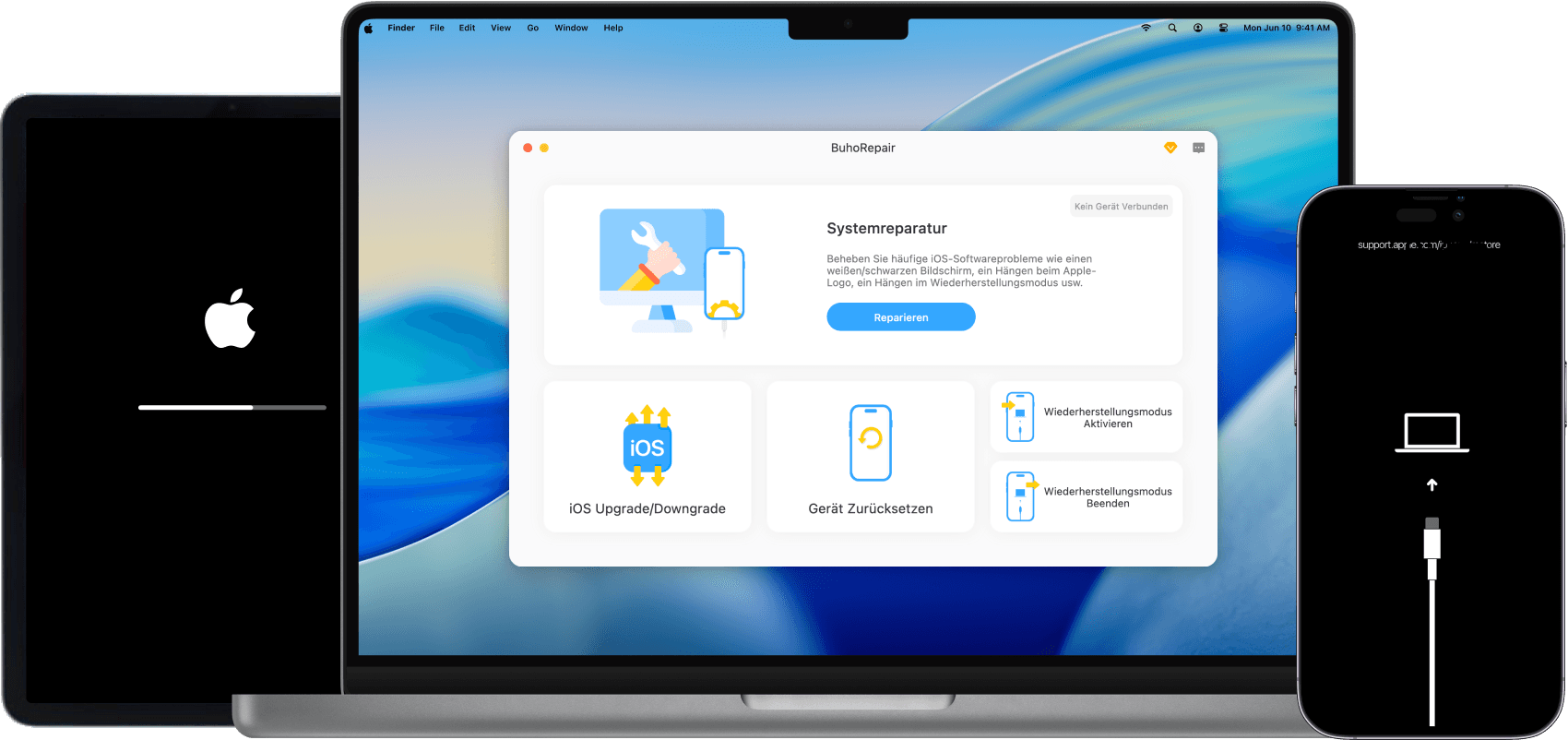
Considering the success rate and the customer support, I chose to use BuhoRepair as an alternative to TunesKit iOS System Recovery.
Like TunesKit iOS System Recovery, it also allows me to repair common iOS system issues without data loss, such as Apple logo loops, boot loops, black/white/blue/green screens, and frozen screens. With simple clicks, it can restore my iOS devices to full working order.


Compared with TunesKit, BuhoRepair often provides a more consistent and reliable recovery experience. And it has a higher success rate when fixing complex system errors.
Furthermore, BuhoRepair is often praised for its responsive and helpful customer support team. Having access to timely and professional assistance can make the troubleshooting process much less frustrating when dealing with iOS system issues.
Conclusion
TunesKit iOS System Recovery is designed to fix more than 150 iOS system issues. If you're dealing with a common iOS problem, you can try its Standard Repair mode, which is intended to resolve system-related issues without causing data loss.
However, if your system is facing a severe system issue, you’d better use BuhoRepair instead. BuhoRepair has a higher success rate and enjoys more reliable sales service. If you decide to select an iOS system recovery tool for long-term use, give BuhoRepair a try.
Clare has been captivated by the world of Apple products since the launch of the iconic iPhone in 2007. With a wealth of experience, Clare is your go-to source for iPhone, iPad, Mac, and all things Apple.