I Tried UltFone iOS System Repair, and Here Are Its Pros & Cons

In this UltFone iOS System Repair review, you’ll learn how UltFone fixes iOS issues without data loss, and upgrades and downgrades iOS with one click.
I’m an Apple enthusiast, interested in exploring valuable iPhone toolkits. After testing a group of popular iPhone unlocking tools in 2026, I’ve started to explore iOS system repair tools.
Last week, I dived into UltFone iOS System Repair. From repairing iOS system issues to downgrading from iOS 26.2, you’ll see what works, what doesn’t work, and if it’s worth your download and purchase.

Enter/Exit the Recovery Mode with One Click
I started with the free feature, which allows you to enter and exit recovery mode. I usually had to enter the recovery mode when I encountered iOS system issues or forgot the screen passcode. I need to put our iOS device into recovery mode and restore it via iTunes.
Usually, I would try to press a combination of buttons to access the mode, but this was complex and time-consuming. Then I turned to UltFone iOS System Repair, because it claimed to enter the recovery mode in one click.
After downloading and installing the software, I connected my device to the computer. On the home screen, I selected "Enter Recovery mode" and clicked the "Enter" button.


Waiting about 10 seconds, my device successfully accessed the recovery mode. Then I connected it to iTunes and waited until iTunes had detected my device.
Then I selected the Exit Recovery mode from the main interface and clicked on the Exit button. After another 10 seconds, my device automatically rebooted to the normal state.
Fix iOS System Issues without Data Loss
When my iPhone was running for several hours, it might slow down or become unresponsive. This issue had bothered me for a long period, because I didn’t want to reinstall the iOS system to fix the problem.
Then I opened UltFone iOS System Repair. What impressed me most was that it could fix more than the common 150 iOS system issues without data loss. With a simple click, it could detect the error and repair it at once.
Thus, I connected my iPhone to the computer when it was frozen again. On the interface of UltFone, I entered the iOS system repair module and chose the Standard Repair option.

It instructed me to download the matching firmware package. The package was up to 2.5 GB, so how long it would take to complete the download relies on the speed of my network.
When I finished downloading the firmware, I clicked the Start Repair button to let it complete the rest of the work.
It was amazing that my iPhone emerged fully functional with one click. And it was never frozen then. More importantly, all photos, apps, messages, and 4200GB of data were preserved. I didn’t need to restore from an iCloud or iTunes backup.
Technically, I could use iTunes to fix iOS system issues, but it would erase the data on my iPhone. But now, with the help of UltFone iOS System Recovery software, I can deal with most common iOS system problems without data loss.
Upgrade/Downgrade iOS with One Click
As iOS 26.2 has been released, it’s time to experience AI features and many new innovative features. Compared with traditional methods, it simplifies the process of upgrading and downgrading.
Here, I would show how UltFone helped me upgrade to iOS 26.2.
As the software detected my iPhone, I selected the iOS Upgrade/Downgrade mode from the interface and chose Upgrade System.


It listed out all the firmware versions that my Apple model could upgrade to, and I picked iOS 26.2 from the list.
Then I hit “Download” and “Initiating Upgrade. After several minutes, it completed the upgrading process, and my device rebooted.
In the following days, I used the new system for a while. It was stable and excelled in multitasking. Especially, I was impressed by the new design of the interface.
However, some issues appeared when I had finished installing applications. I started to encounter frequent crashes on these apps. I guessed it was because these apps were not compatible with the new iOS 26.2.
Meanwhile, the device became overheated after running for a long period and drained the battery in hours. I thought that at least there were some bugs within the new iOS 26.2, so I decided to downgrade to the previous version.
I knew it would be time-consuming to find a trustworthy firmware package and manually put it into my device.
I opened UltFone iOS System Repair again and followed the instructions to downgrade the iOS system. It was as simple as upgrading an iOS system
It was convenient that it had listed the firmware versions that Apple was still signing. I chose a version that I used to run. Making sure my device was well-connected to the computer, I completed installing the IPSW file within minutes.
After testing this function, I had to say UltFone has streamlined the way of upgrading and downgrading the iOS system. UltFone makes it much easier and more convenient to downgrade to a previous iOS version whenever I want to.
Reset iPhone with Anti-Data Recovery Mode
Finally, I put the Anti-data recovery mode to the test. It is different from a standard factory reset, and it’s like initiating a deep repair, because it will overwrite deleted data in storage partitions. This is useful when I decide to sell my device. Under the anti-data recovery mode, the buyer cannot recover the data via other advanced tools.
Before testing the mode, I backed up my data via both iCloud and iTunes. Then I connected my device to the computer.

From the main interface, I selected the “Anti-Data Recovery option. Following the instructions, I automatically engaged in the Deep Repair mode.
After acquiring the firmware that matched my iPhone model, I clicked to start the process. Within several minutes, the tool entered the recovery mode, flashed firmware, erased data, and overwrote the storage partitions.
Unlike standard factory resets that leave recoverable remnants in unallocated space, UltFone iOS System Repair ensures that all personal data and files become irrecoverable.
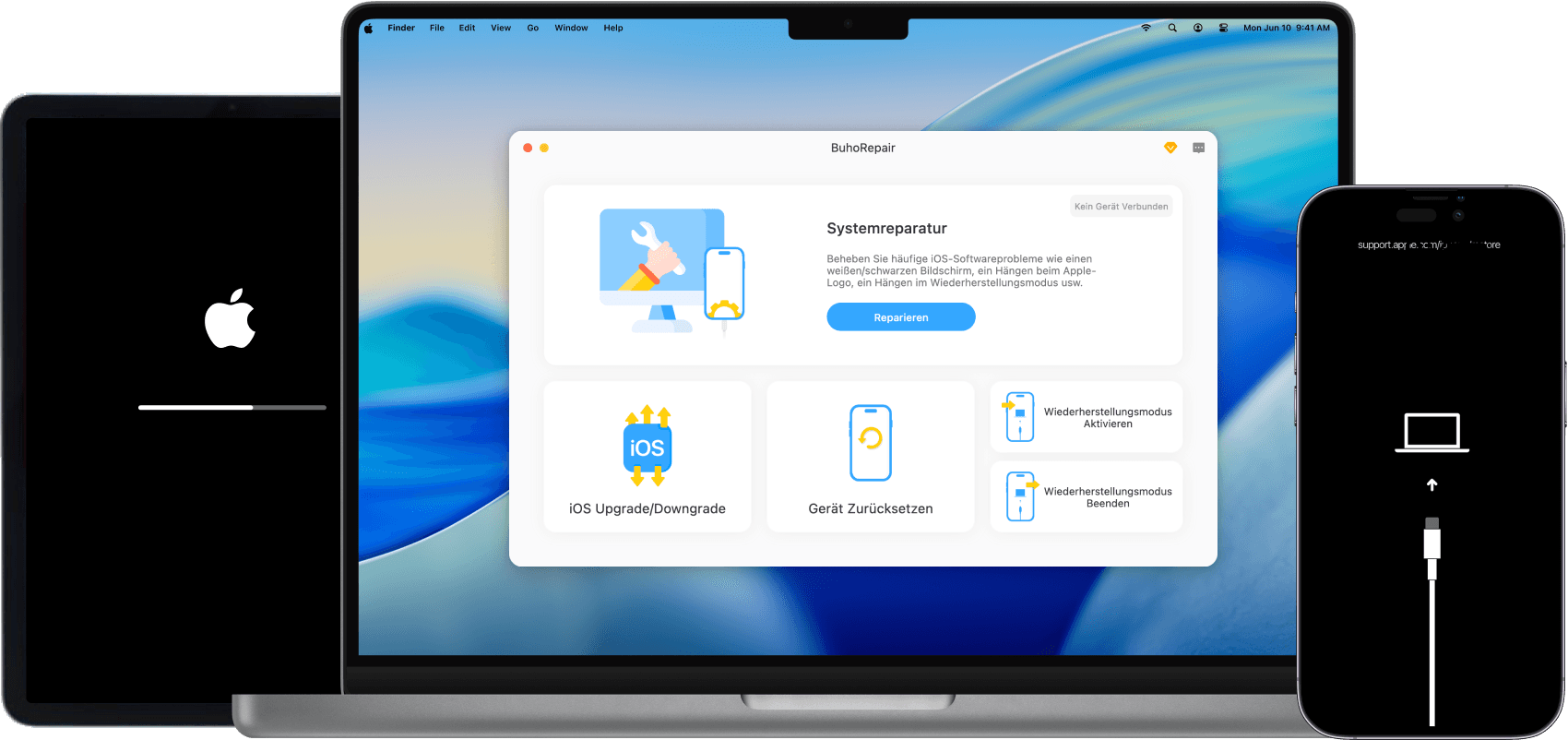
Why I Used BuhoRepair as an Alternative to UltFone iOS System Repair
While installing UltFone iOS System Repair on my MacBook Pro 2022, I ran into some issues: the software wouldn’t install properly, and when I tried to close it, it froze. These problems pushed me to look for a more reliable alternative.
I then decided to test BuhoRepair, a solution similar to UltFone. Both tools can fix common iOS issues, reset devices, and upgrade/downgrade iOS, but the main differences are pricing and support: UltFone starts at $35.95 per month, while BuhoRepair offers annual plans at $29.99 or a lifetime license for $39.99.


Since I needed stable software and reliable support, I ultimately chose BuhoRepair as my preferred solution.
Conclusion
It’s wise to give UltFone iOS System Repair a try. It provides IPSW files and firmware packages across all iOS versions, so you can use it to fix common iOS system issues without data loss and upgrade and downgrade iOS versions. More importantly, it offers an Anti-Data Recovery option, which is helpful when you want to sell your device.
Instead, if you don’t accept the price, you can also use BuhoRepair as an alternative. This popular iOS system repair tool offers similar core features to UltFone, but its price and customer support service are more competitive. Give both tools a try and select the one according to your needs.
Clare has been captivated by the world of Apple products since the launch of the iconic iPhone in 2007. With a wealth of experience, Clare is your go-to source for iPhone, iPad, Mac, and all things Apple.