

BuhoCleaner: Everything You Want to Know

Here's everything you want to know about BuhoCleaner: what it is, who it's for, what it can (and can't) do, how it stacks up against the competition, pricing, safety, and how to get started, all in one place.
Your Mac's storage is almost full. Again. So you go looking for the best Mac cleaning tools, and a name you haven't seen before keeps coming up: BuhoCleaner.
Trouble is, there isn't a ton of clear information about it. Is it legit? Is it worth paying for? What does it actually do that the free stuff doesn't?
That's exactly what this guide is for. No marketing fluff, just a straight-up look at what the app's good at, where it falls short, and whether it makes sense for you.
What Is BuhoCleaner?
BuhoCleaner is a Mac cleaning and maintenance app from Dr.Buho Inc., a small software company that launched it back in November 2020.
The idea behind it was simple. Most Mac cleaning tools sit at one of two extremes: you've got the bloated all-in-one suites that want to replace half the apps on your Mac and charge you every year forever, or you've got tiny single-purpose utilities that do exactly one thing and ignore everything else. There wasn't much in between. So that's the gap BuhoCleaner tries to fill.
It handles three things: freeing up disk space, managing your apps, and keeping your Mac running smoothly. That's it. No VPN, no "privacy scanner," no upsells. And unlike most of its competitors, it doesn't lock you into a subscription you'll forget to cancel.
Since launch, it's been downloaded over a million times across 180-plus countries, and it currently holds a 4.8/5 on Trustpilot. Not bad for a tool most people haven't heard of yet.

Do You Actually Need a Mac Cleaner?
Let's be honest: if you search "do I need a Mac cleaner" on Reddit, half the replies will tell you it's a scam, and macOS handles everything on its own. The other half will swear by CleanMyMac.
Both sides have a point.
macOS does a decent job of basic housekeeping. The built-in Storage Management panel (under System Settings > General > Storage) can offload large files, empty the Trash automatically, and give you a rough idea of what's eating your space. For a lot of people with newer Macs and plenty of free disk space, that's honestly enough.


But here's where the built-in tools fall short. They won't find the 15GB iOS backup you forgot you made. They won't spot three copies of the same 2GB video file scattered across different folders. They won't catch the cache folders left behind by apps you uninstalled months ago. And they give you almost no visibility into what's actually inside that gray "System Data" bar that's somehow taking up 80GB.
So no, you don't need a Mac cleaner in the same way you need a web browser. But if you're constantly running low on space and you've already deleted all the obvious stuff, a cleaning tool is the fastest way to find what you're missing. Think of it less like a "system optimizer" and more like a metal detector for your hard drive.
The real question isn't "do I need one" — it's "which one makes sense for my situation." That's what the rest of this guide will help you figure out.
Who It's For
BuhoCleaner doesn't try to be for everyone. Here's who'll get the most out of it.
If you're on a 256GB or 512GB MacBook, you already know the drill: you've memorized which folders are "safe to delete," and you still can't keep more than 20GB free. A tool that finds the hidden junk you keep missing is exactly what you need.
If you install and uninstall apps a lot, you've almost certainly got leftovers. Dragging an app to the Trash barely scratches the surface — there are caches, preference files, and container data tucked away in a half-dozen Library folders that never get touched. The app's uninstaller grabs all of it in one go.
If you do iOS development, Xcode is quietly eating your disk. DerivedData alone can hit 20GB before you notice. Old simulator images and device support files pile up, too. Instead of digging through ~/Library/Developer/ by hand, you can let the tool find and clear this stuff for you.
If you've got multiple Macs in the house or on the team, the Family plan covers three machines and the Business plan covers ten. Either way, it's a lot cheaper than buying individual licenses for each one.
And if you just hate subscriptions? Fair enough. There's a lifetime option. Buy it once, you're done.
Who It's NOT For
A few situations where BuhoCleaner probably isn't your best bet.
You need malware scanning or antivirus. This isn't a security tool, and it doesn't pretend to be. It cleans and optimizes; it doesn't scan for viruses.
You only trust apps from the Mac App Store. BuhoCleaner is a direct download from drbuho.com. It's fully notarized by Apple, but the App Store's sandboxing rules make it impossible for cleaning apps to do their job from inside that walled garden. Think about it — the whole reason a cleaning app exists is to reach folders the App Store deliberately locks down.
You care about open source. The app is proprietary, not open-source.
You literally just want to uninstall one app, and that's it. Grab AppCleaner. It's free and does that single job well. BuhoCleaner earns its keep when you want the whole set — cleaning, disk analysis, uninstalling, memory management, menu bar monitoring — in one place instead of juggling five different tools.
You're comfortable with Terminal and don't mind doing things manually. Between tmutil for Time Machine snapshots, find for large files, and manually poking through ~/Library/, you can do most of what BuhoCleaner does for free. The question is whether you want to spend your Saturday afternoon on it. Most people don't.
What It Can Do
The features break down into four groups.
Clean Up Storage
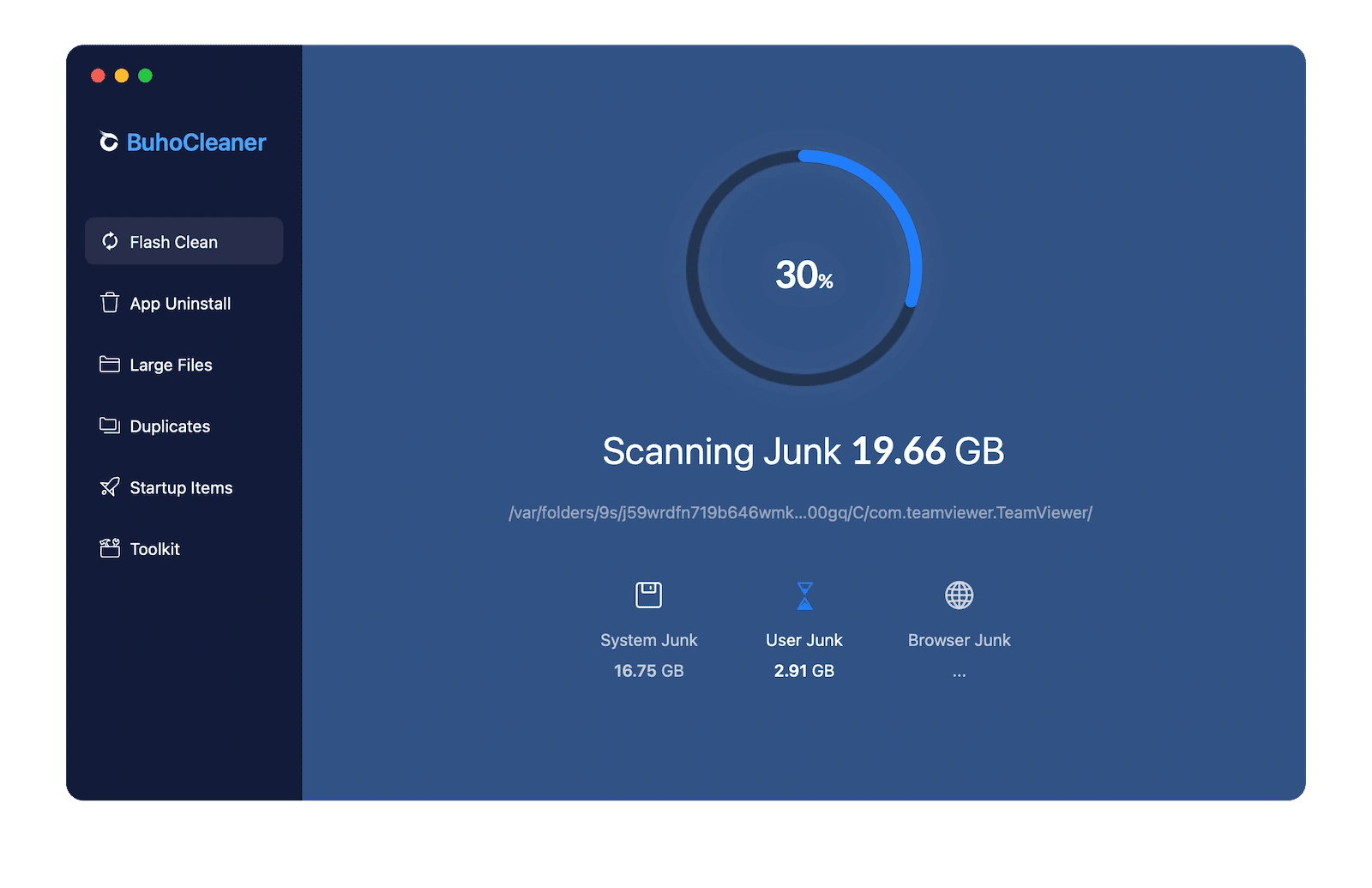
The Flash Clean is the one-click "scan everything" button. It sweeps system caches, app caches, browser data, leftover DMG installers, and your Trash, then shows you what it found before you delete a thing. Most people pull 5 to 20GB on their first scan.


The Large Files Finder lists every file over 50MB on your disk, sorted by category: videos, documents, archives, disk images. This is how you find the 15GB iOS backup from two years ago that you completely forgot existed, or the virtual machine image sitting in a folder you never open.


The Duplicates Finder uses MD5 hashing to spot identical files even when they've been renamed, and it catches similar-looking photos too (burst shots, edits where you barely changed anything). Smart Select keeps the original in each set and flags the copies for you.

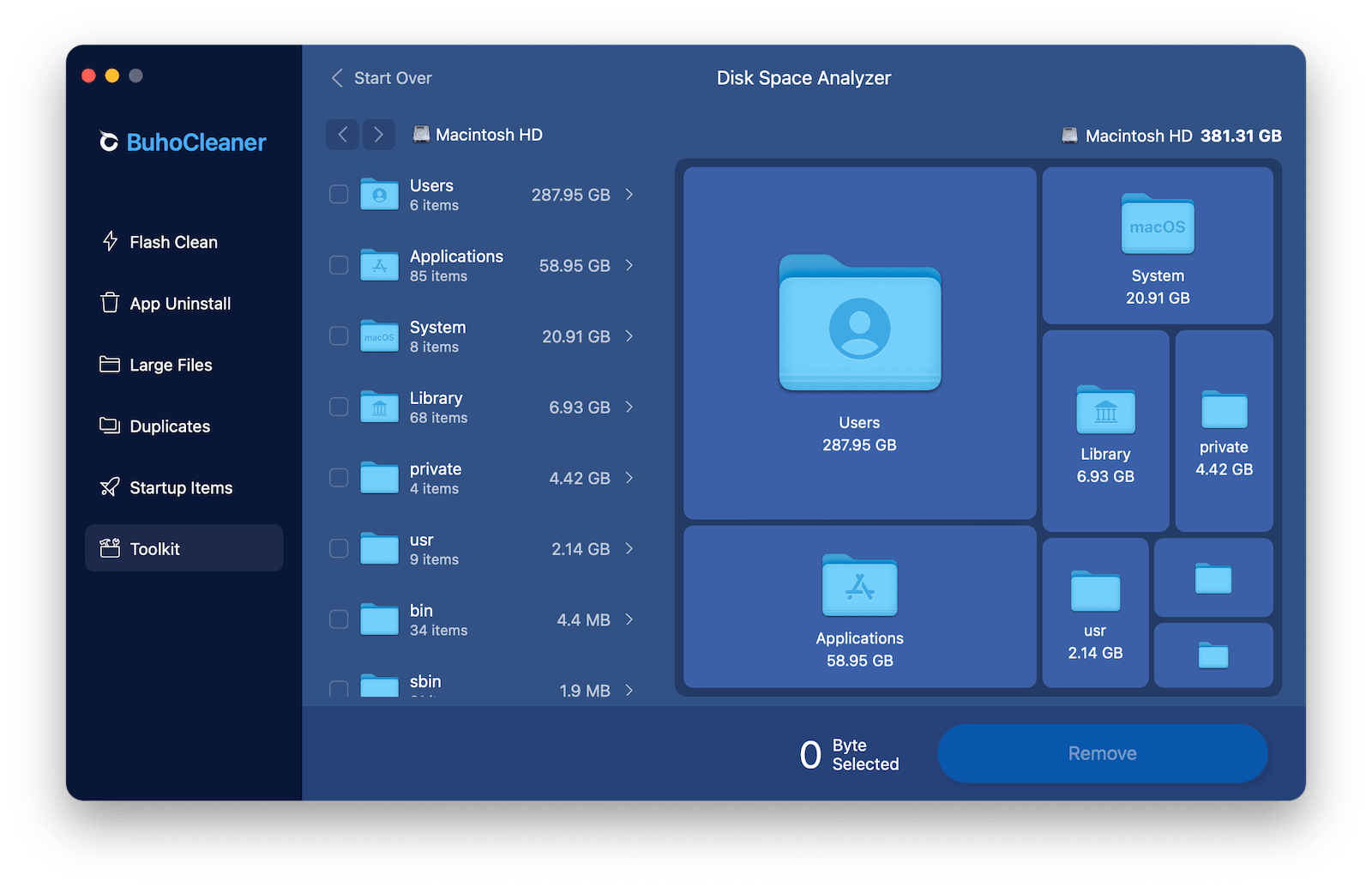
The Disk Space Analyzer gives you a visual map of your entire drive and lets you drill into any folder to see what's actually eating your space. Think of the built-in macOS storage overview, but one that's actually useful.
Manage Your Apps
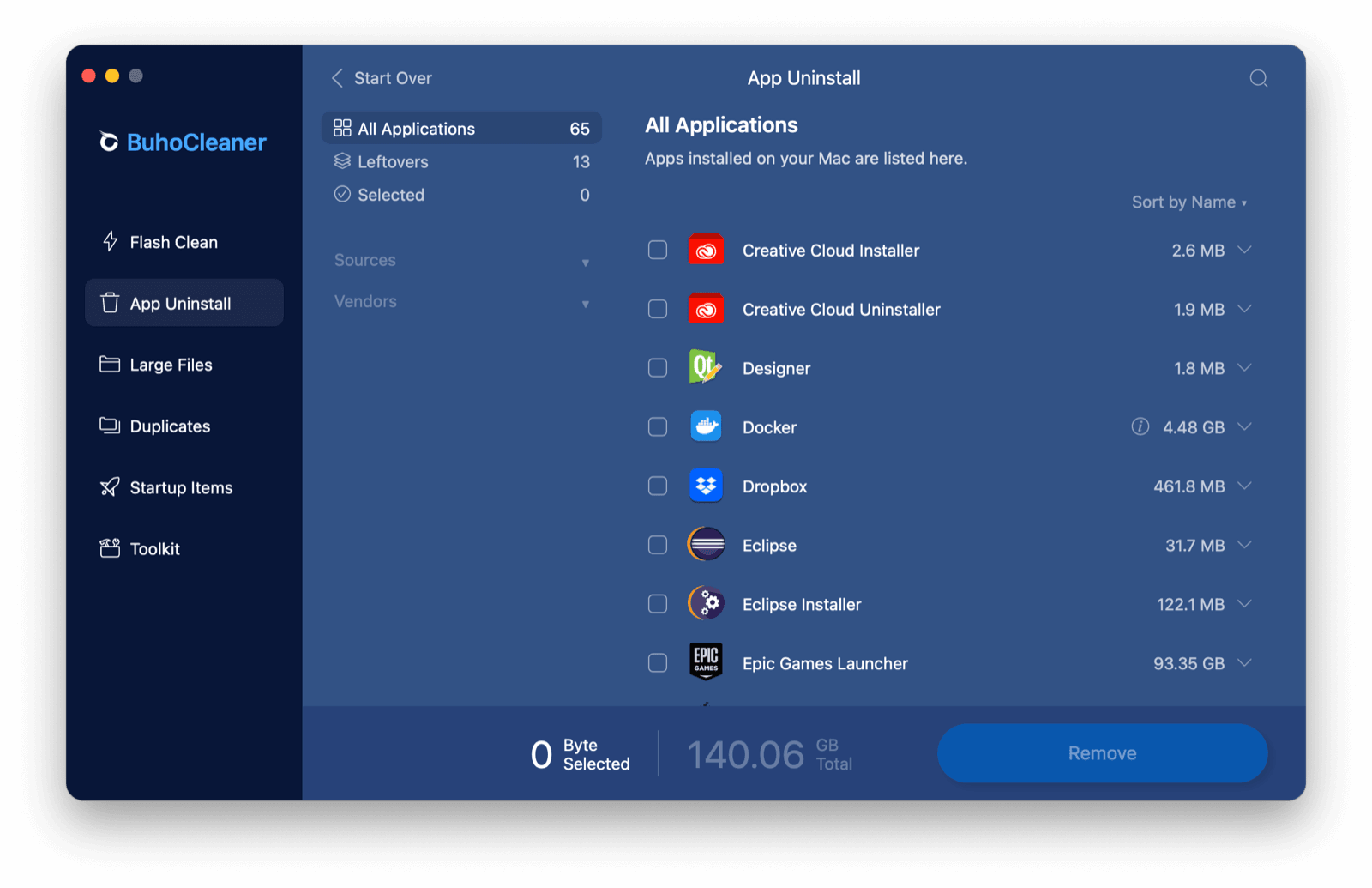
The App Uninstaller removes an app and tracks down every leftover file it left behind in ~/Library/Application Support/, ~/Library/Caches/, ~/Library/Preferences/, ~/Library/Containers/, and all the other corners nobody checks. It also groups your apps by where you got them (App Store, direct download) and by developer, so you can clean house by vendor if you want.
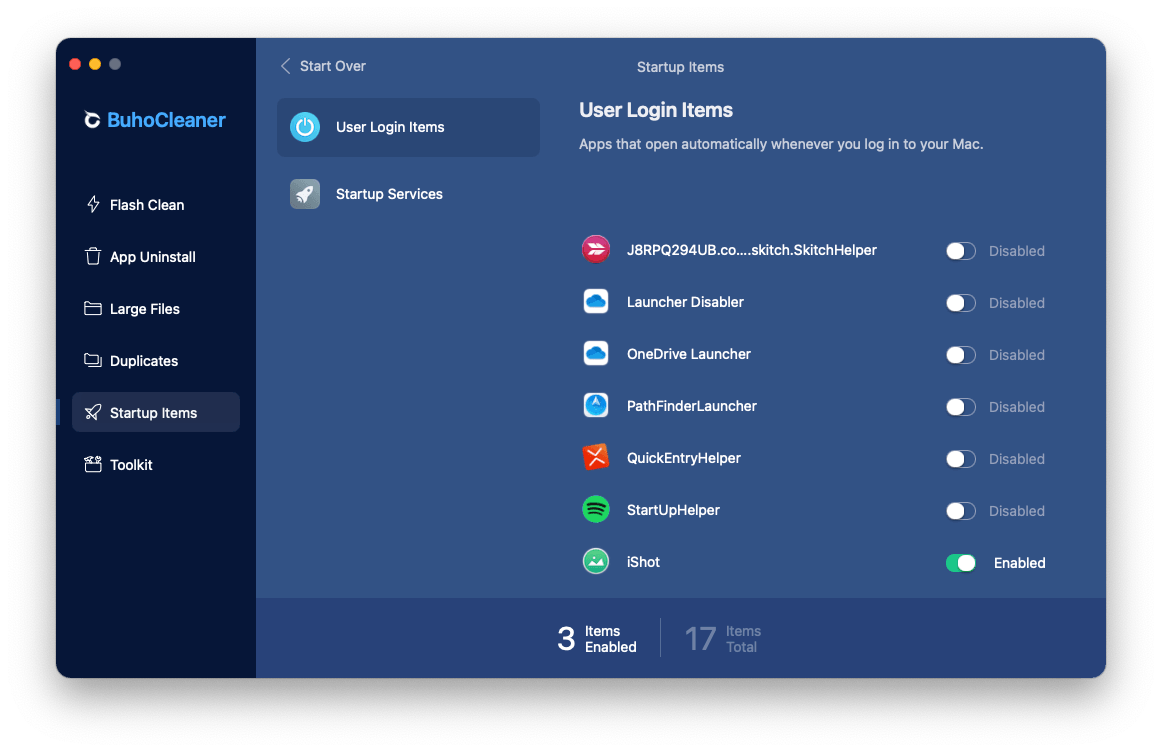
The Startup Items Manager shows you everything that fires up when your Mac boots, and lets you trim the ones you don't need. Fewer auto-launching apps, faster startup.
Tune Up Your System
Free Up RAM purges inactive memory in one click. Handy when your Mac's been running heavy apps all day, and things are starting to drag.
Rebuild Spotlight Index nukes and rebuilds the Spotlight index when search stops finding files you know are there.
Flush DNS Cache clears out stale DNS entries — the kind of quick fix for weird connection issues that nobody thinks to try.
File Shredder securely wipes sensitive files so they can't be pulled back with recovery tools. Not an everyday thing, but good to have when you need it.
Keep an Eye on Things
The Menu Bar App sits up in your menu bar and shows real-time stats: CPU load, CPU temperature, fan speed, RAM usage, network speed, disk usage. Basically, the useful parts of Activity Monitor are always visible.
More features are on the way.
What It Can't Do
Before you download, here's what the app doesn't handle, so you're not disappointed later:
- No malware scanning. Not a security tool. No virus detection, no malware removal.
- No VPN, password manager, or privacy suite. It cleans junk and tunes up your system. Period.
- No Windows or iOS support. macOS only, from Yosemite (10.10) through the latest release.
- No scheduled cleaning. You run scans yourself, review what turned up, and pick what to delete. There's no set-it-and-forget-it mode.
- No Mac App Store version. Sandboxing rules won't allow it. The app is a direct download from drbuho.com, Apple-notarized but not App Store-hosted.
Is It Safe?
Short answer: yes. Apple notarized it, which means their automated security system checked the code and found nothing malicious. Every release is also tested against VirusTotal before it ships, so it comes back clean across all the major antivirus engines.
Why do some antivirus programs flag it?
Because the app deletes files from system directories like /Library/Caches/. Some antivirus engines use broad heuristic rules that tag any program messing with system folders as a "Potentially Unwanted Application." It's a false alarm, not an actual threat. The app is just doing what a cleaning tool is supposed to do.
Will it delete something important by accident?
No. The app never deletes anything on its own. After every scan, you see exactly what it found and can uncheck anything you want to keep. Nothing gets removed until you tell it to go ahead. No "one-click wipe everything" button nukes your drive without warning.
What about privacy? Does it collect my data?
It doesn't upload your files, scan your personal documents, or send usage data anywhere. It's a local cleaning tool. Everything it does happens on your Mac. The full disk access permission it asks for is purely so it can reach the system directories where caches and junk files live. Without that permission, it simply can't do its job.
What's the Helper Tool, and do I have to install it?
The Helper Tool is an optional component that handles a small set of tasks requiring root access, like clearing certain system caches. It follows Apple's recommended privilege-separation model: the main app runs without elevated permissions, and the Helper Tool only kicks in for specific jobs you explicitly approve. If you're not comfortable installing it, you can skip it — the app will still do most things, just not the handful that need deeper system access.
Free vs Paid: What's the Difference?
Feature-wise, there's no difference. The free version gives you the exact same toolset — no locked features, no "pro" menus grayed out.
The only limit: once you've deleted 3GB through the app, you'll need to either upgrade or handle the rest yourself. What's nice is that you can still run scans and browse the results even after hitting that cap. The app doesn't suddenly lock you out. A lot of people use the free version just to find what's eating their space, then go delete the big stuff manually. Others try it, like what they see, and grab a lifetime license.
It's also worth mentioning that no credit card is required to start. You download, you scan, you clean. You only pay if you want to go past 3GB.
System Requirements
- macOS 10.10 Yosemite or later, all the way up to the newest releases.
- Runs natively on Intel and Apple Silicon (M1 through M5). It's a Universal Binary, so no Rosetta translation layer. On Apple Silicon Macs, it launches about 1.8× faster than on comparable Intel machines.
- Supports English, Chinese Traditional, Chinese Simplified, and more. Switch languages right inside the app.
- The installer is about 28MB. For reference, that's roughly a fifth the size of CleanMyMac.
How It Compares
BuhoCleaner vs CleanMyMac
| BuhoCleaner | CleanMyMac | |
|---|---|---|
| What it covers | Cleaning, uninstalling, system tuning, menu bar monitoring | All that plus malware scanning, VPN, privacy tools |
| Malware scanning | No | Yes |
| Where to get it | Official website only | Website + Mac App Store |
| Installer size | ~28MB | ~150MB+ |
| Annual plan | $19.99/year (1 Mac) | ~$39.95/year (1 Mac) |
| Lifetime license | $25.99 (1 Mac) | ~$119.95 (1 Mac) |
| Interface | Simple and straightforward | Lots of features, busier layout |
Go with BuhoCleaner if you want a straightforward cleaner that nails the basics at a fair price.
Go with CleanMyMac if you want the full toolbox (cleanup + malware + VPN + more) and you're willing to pay extra for it.
BuhoCleaner vs AppCleaner
| BuhoCleaner | AppCleaner | |
|---|---|---|
| What it does | Cleaning + uninstalling + disk analysis + system tuning + menu bar monitoring | App uninstalling only |
| Leftover scan depth | Deep, covers all Library subdirectories | Decent, may miss some deep leftovers |
| Price | Paid (free tier up to 3GB) | Completely free |
| UI language | English, Chinese, and more | English only |
| Maintenance | Actively maintained by a company | Maintained by a solo developer |
AppCleaner is great at what it does. If all you need is a free uninstaller that catches leftovers, stop reading and go get it.
BuhoCleaner is the upgrade when you realize you also want disk analysis, duplicate removal, large file hunting, and a menu bar monitor, and you'd rather not manage five separate apps to get there.
Pricing
Four plans, that's it:
| Plan | Price | Covers |
|---|---|---|
| Yearly | $19.99/year | 1 Mac |
| Lifetime | $25.99 | 1 Mac |
| Family Lifetime | $37.99 | 3 Macs |
| Business Lifetime | $59.99 | 10 Macs |
Every plan unlocks all features, includes future updates, and comes with 24/7 support. Payments go through Paddle or FastSpring (credit card, PayPal, and more).
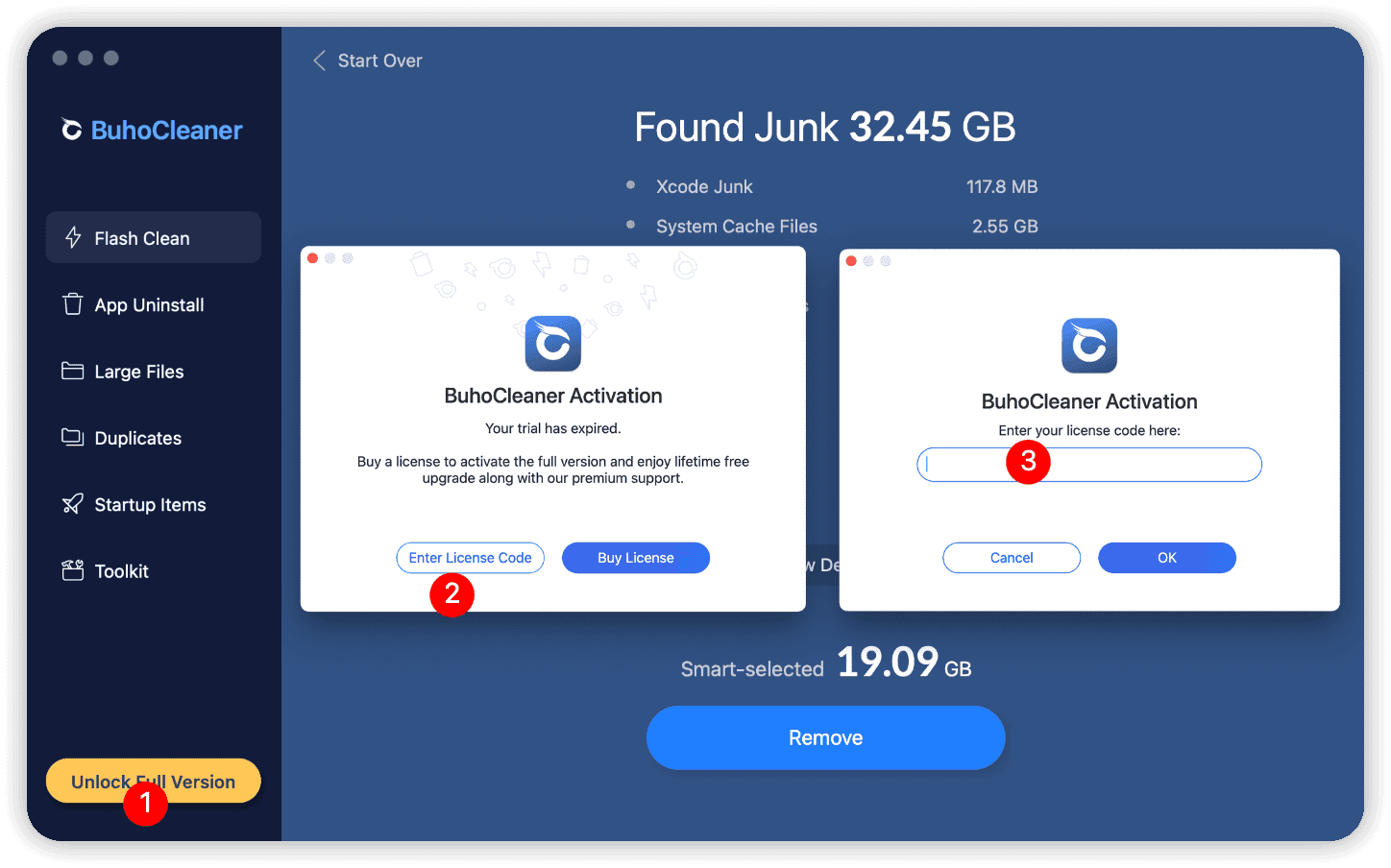
After buying, you'll get a license code by email from Paddle. Open the app, click activate, paste it in, done. Switching to a new Mac later? Just deactivate on the old one first.
There are usually seasonal discounts around Halloween, Black Friday, Christmas, and New Year's. Check drbuho.com to see if anything's running right now.
Refund Policy
Every purchase has a 30-day money-back guarantee. If you try it and it's not for you, email support@drbuho.com with your order info, and you'll get a full refund. No hoops to jump through.
What Are Users Saying?
The feedback across review sites is pretty consistent.
People like that the interface is clean and obvious — no tutorial needed. Scans are fast, particularly on Apple Silicon. It handles the same core cleaning jobs as CleanMyMac but costs a fraction as much. Customer support is surprisingly responsive for a smaller company. And the menu bar monitor is a nice extra that people actually use.
The main complaints are that license activation could be a bit smoother, and a few people on older macOS versions wish backward-compatibility testing went deeper.

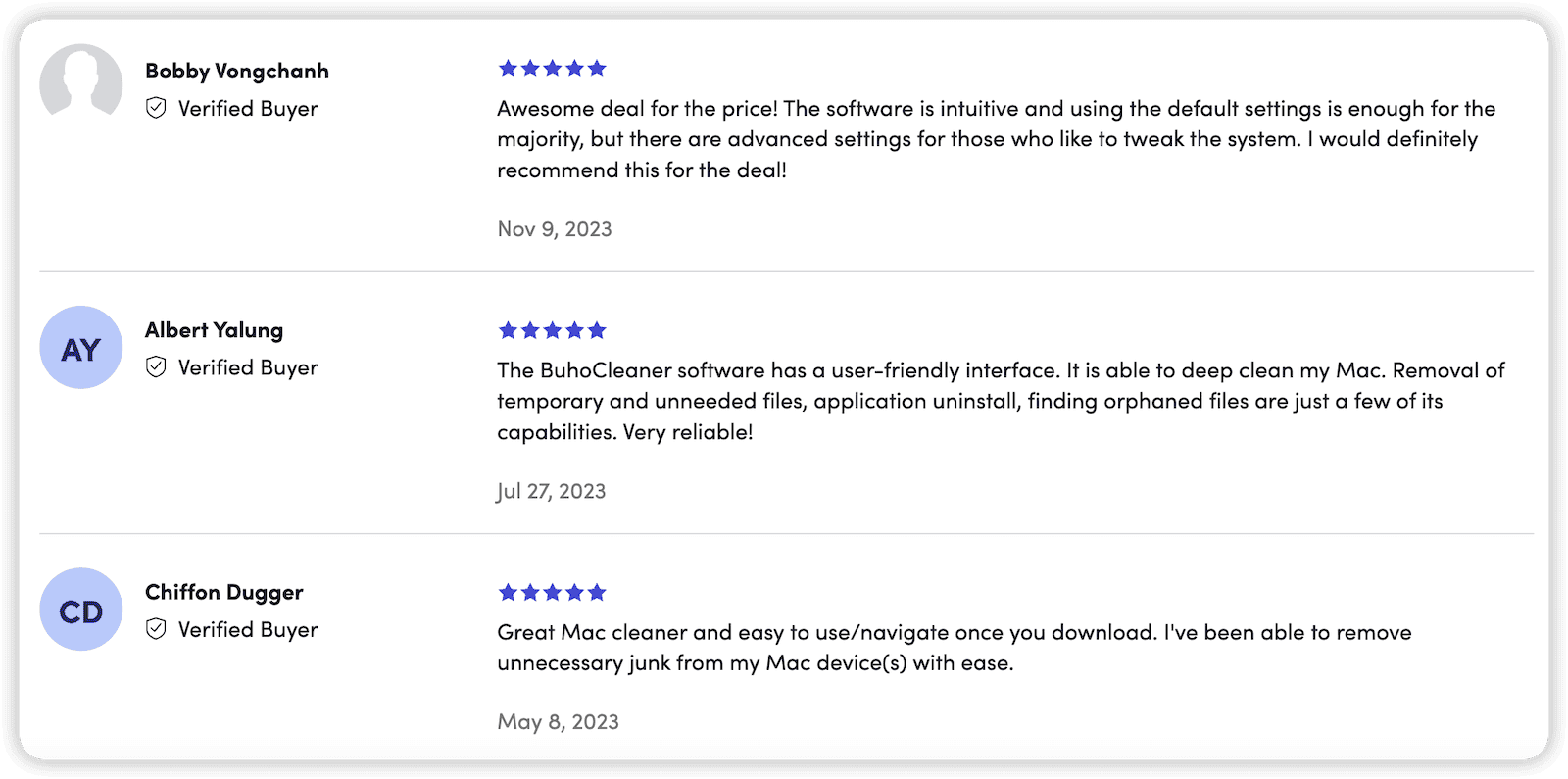

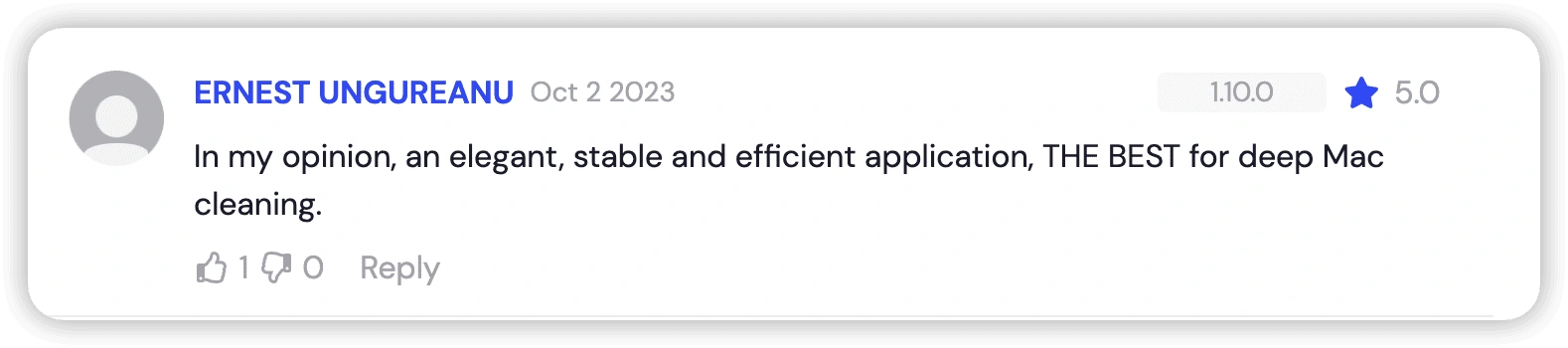

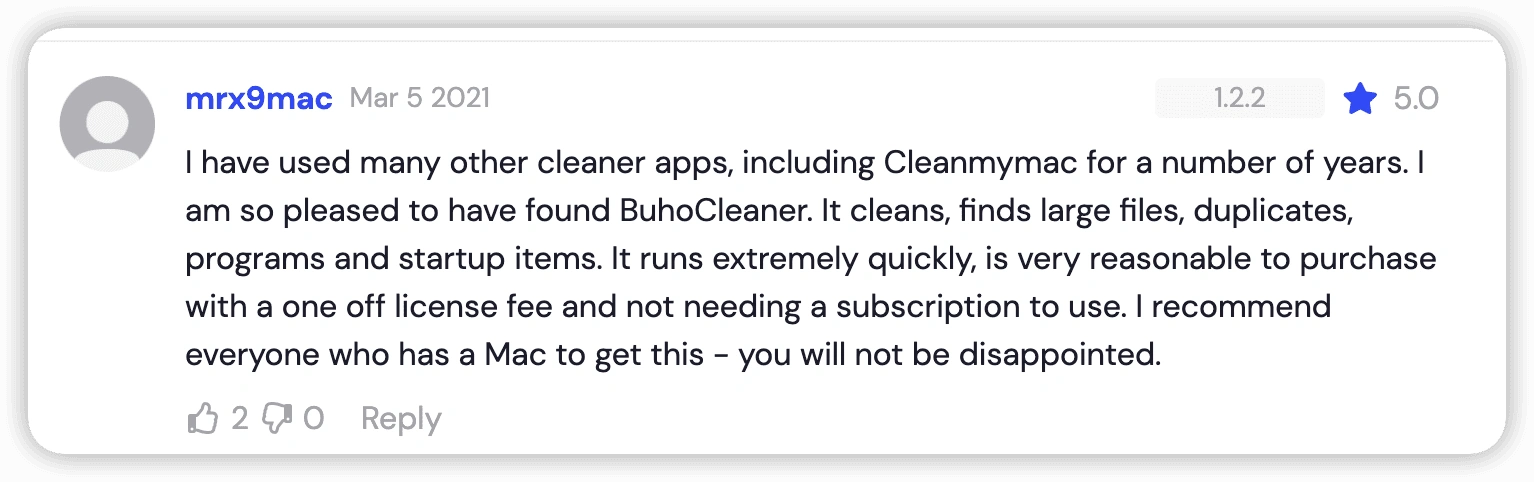
By the numbers: 4.8/5 on Trustpilot with 160-plus reviews, and 4.2/5 on MacUpdate with over 4,300 downloads.
We read all of it — good and bad. It's what makes the app better with each update.
How to Get Started
Download & Install
- Download BuhoCleaner from the official site.
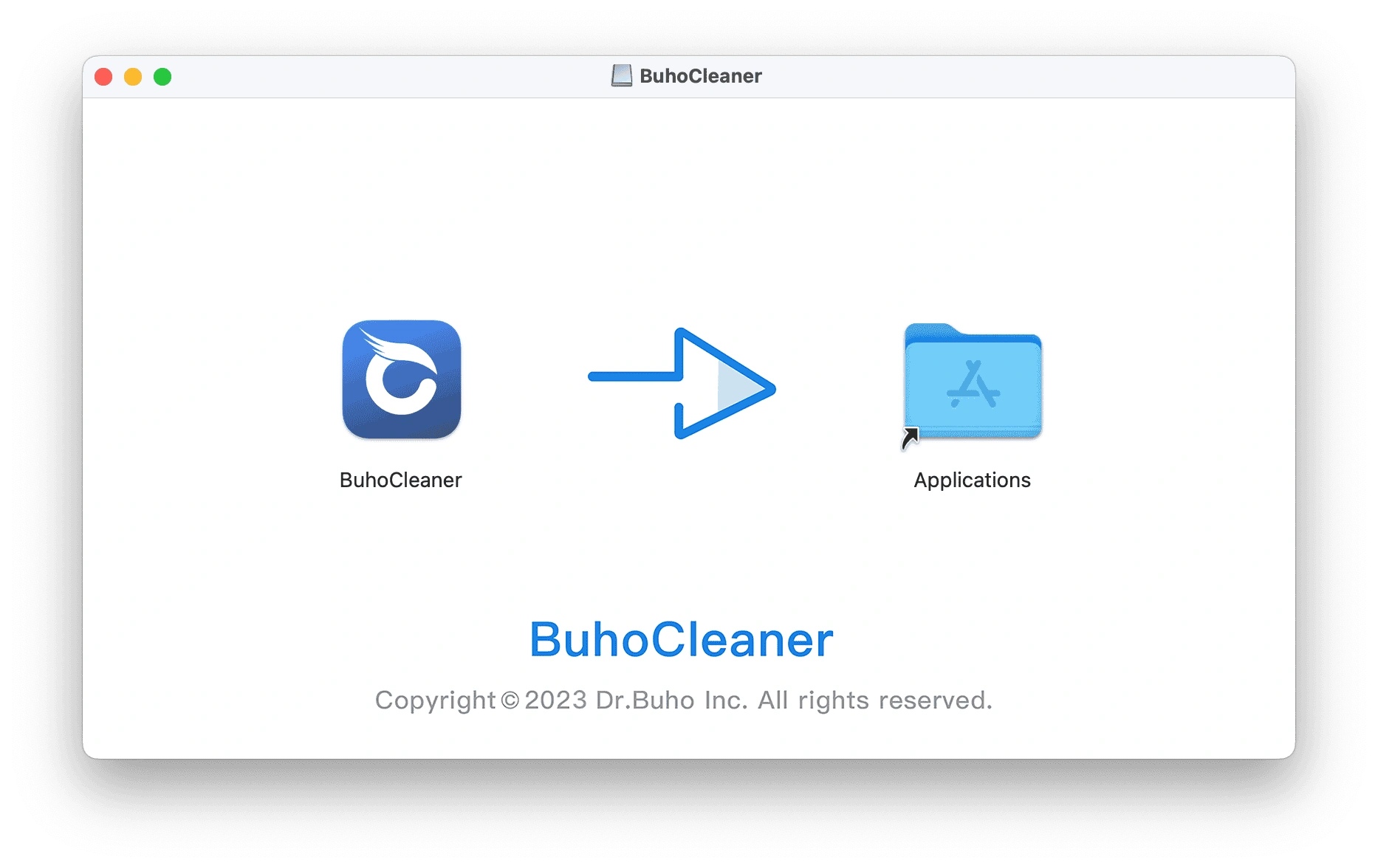
- Double-click the buhocleaner.dmg file.
- Drag the icon into Applications.
- Launch it. No account signup, no setup wizard.

For a proper walkthrough of every feature, head to the BuhoCleaner Guide.
Get a License
- Click Buy Now inside the app, or visit the Buy page.
- Pick a plan. If you have more than one Mac, the Family plan is the sweet spot.
- Check out, and you'll get a license code from Paddle by email. If it doesn't arrive, here's what to do.
- Copy the code from the email, paste it into the activation window, and done.

License code not working? Here's the troubleshooting guide.
Frequently Asked Questions
Can I get it from the Mac App Store?
Nope. Apple's sandboxing rules stop cleaning apps from reaching the system directories they need access to. BuhoCleaner is a direct download from drbuho.com, fully notarized by Apple — just not distributed through the App Store.
Does it run on Windows or iPhone?
No. macOS only, version 10.10 and up. No plans to bring it to other platforms.
Will it slow down my Mac?
The opposite. The installer is about 28MB, the menu bar app sits at a few MB of RAM, and scans finish in under a minute. Your Mac stays fully usable the whole time.
Will it make my Mac faster?
That depends on what's slowing it down. If your Mac is sluggish because your SSD is nearly full (under 10–15% free space), clearing out 30GB of junk will absolutely make things feel snappier — macOS throttles disk performance when space gets critically low. If your Mac is slow because it's ten years old and you're running the latest macOS on 8GB of RAM, no cleaning tool on earth will fix that. The app frees up storage, not magic.
How often should I run it?
Once a month is plenty for most people. Do a Flash Clean, check the Disk Space Analyzer every few months to spot what's changed, and use the Uninstaller whenever you remove an app. Cleaning every day is pointless — caches are there for a reason, and constantly wiping them just makes your apps rebuild everything from scratch.
Give it a shot. Download BuhoCleaner, run a scan, and see what it finds. You can clear up to 3GB for free. And if it turns out to be what you've been looking for, a lifetime license costs about the same as a couple of pizzas.
Jerome is a passionate enthusiast of all things Apple. He is expertise in crafting tech-related articles, with a portfolio of more than 100 articles covering various Apple products like the iPhone, iPad, and Mac.



