- iOS 27 Installation
- iOS 27 Instllation
- iOS 27 Problems
8 Things to Know Before Upgrading to iOS 27

Planning to upgrade to iOS 27? Before you do, there are a few important things to check. This guide covers everything you need to know, including new features, supported iPhones, storage requirements, upgrade preparation, installation steps, and how to downgrade if you decide iOS 27 isn't right for you.
Thinking about upgrading to iOS 27? Before you hit the Update button, it's a good idea to check whether your iPhone is compatible, make sure you have enough storage space, and back up your important data.
In this guide, we'll cover everything you need to know before updating, including iOS 27's new features, supported iPhone models, storage requirements, installation steps, and even how to downgrade if the new version doesn't work out for you.
Let's get started.
What's New in iOS 27?
iOS 27 isn't a complete redesign, but it does bring several noticeable improvements.
The biggest change is Siri AI. Siri is now more conversational and can better understand what you're asking, including information from your apps and what's currently on your screen.


Apple has also expanded Apple Intelligence across more apps, making it easier to write emails, edit photos, search for information, and complete everyday tasks.
Some highlights include:
- A smarter Siri that understands context better.
- More Apple Intelligence features throughout iOS.
- The ability to perform actions across multiple apps.
- A new transparency control for the Liquid Glass interface.
- Faster app launches and smoother system performance in daily use.
Should You Update to iOS 27?
For most people, the answer is probably yes—but not necessarily right away.
If you're interested in trying new features and don't mind dealing with occasional bugs, the iOS 27 beta is worth checking out. Early testers generally report that it feels more polished than previous major beta releases.
That said, beta software is still beta software. Some apps may not work properly, battery life can be inconsistent, and unexpected bugs are always possible.
If your iPhone is your primary device and reliability matters more than new features, it’s usually better to wait for the official release.
When Will iOS 27 Be Released?
Apple announced that iOS 27 will be officially released on September 14, 2026.
Which iPhones Will Get iOS 27?
iOS 27 supports all iPhone models currently running iOS 26, including:
- iPhone Duo
- iPhone 18 series
- iPhone 17 series
- iPhone 16 series
- iPhone 15 series
- iPhone 14 series
- iPhone 13 series
- iPhone 12 series
- iPhone 11 series
- iPhone SE (2nd generation and newer)


Keep in mind that some Apple Intelligence features are limited to newer devices. If you're using an older iPhone, you'll still get iOS 27, but some AI features may not be available.
How Much Storage Do You Need for iOS 27?
There's no fixed answer because the size of the update varies depending on your device and current iOS version.
As a rule of thumb, having at least 10 GB–20 GB of free space before updating is a good idea. This gives iOS enough room to download, unpack, and install the update without running into storage-related issues.
To check your available space, go to: Settings > General > iPhone Storage.

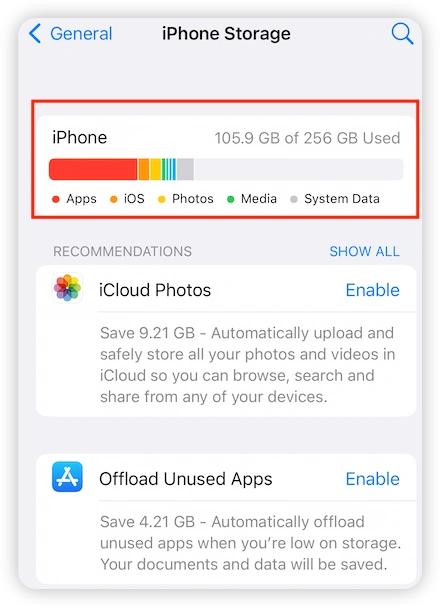
If you're running low on storage, consider removing unused apps, downloaded videos, or other large files before updating.
How Long Does iOS 27 Take to Install?
Most users can expect the entire process to take anywhere from 20 to 60 minutes.
The download itself may only take a few minutes on a fast connection, but preparing and installing the update often takes longer.
If Apple's servers are busy, especially on release day, the process may take even longer.
What Should You Do Before Upgrading to iOS 27?
A little preparation can save you a lot of frustration later.
Before installing iOS 27, make sure you:
- Back up your iPhone.
- Charge the battery.
- Connect to a stable Wi-Fi network.
- Free up enough storage space.
- Confirm your iPhone is supported.
Back Up Your Data
Backing up your iPhone is the most important step before any major update.
While update failures are rare, having a recent backup ensures you won't lose important photos, messages, or files if something goes wrong.
To create an iCloud backup:
- Open Settings.
- Tap your Apple ID.
- Select iCloud.
- Tap iCloud Backup.
- Tap Back Up Now.
You can also back up your device using Finder or iTunes.
Charge Your iPhone
Make sure your iPhone has enough battery before starting the update.
Apple generally requires at least 50% battery, but keeping your device plugged in during the installation is the safest option.
Check Your Internet Connection
A slow or unstable network can cause download failures and installation delays.
Before updating, connect to a reliable Wi-Fi network and avoid using public Wi-Fi whenever possible.
Free Up Storage Space
Not enough storage is one of the most common reasons iOS updates fail.
If your iPhone is nearly full, delete unused apps, old downloads, or large videos before starting the update.
How to Download and Install iOS 27
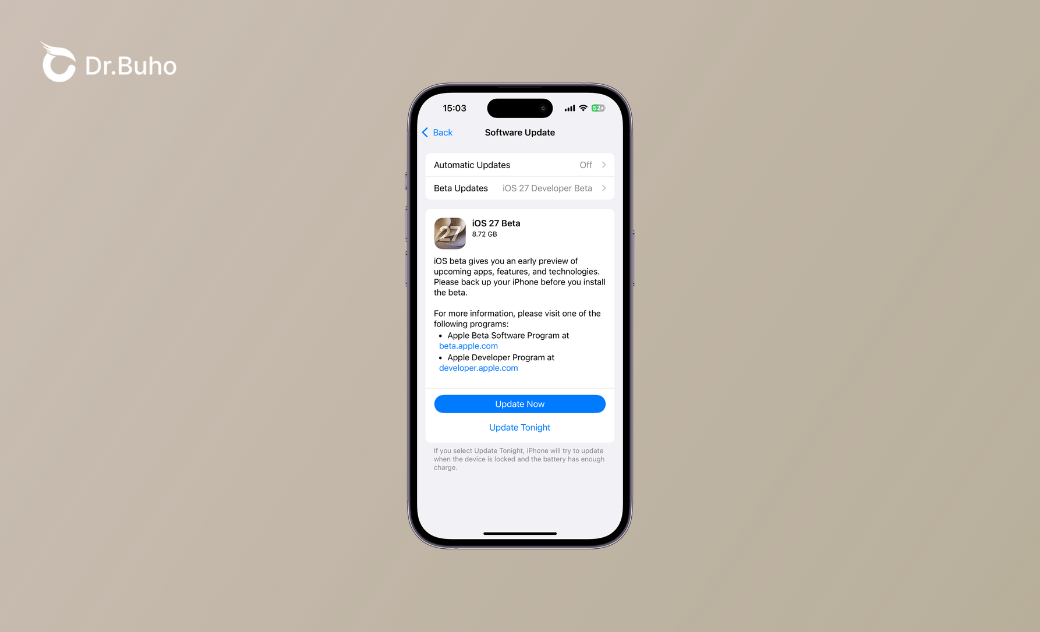
iOS 27 is currently available in beta, so you’ll need to be enrolled in the Apple Developer Program or Apple Beta Software Program to install the beta.
Once enrolled:
- Open Settings > General > Software Update.
- Tap Beta Updates and choose an available iOS 27 beta.
- Tap Update Now to download and install it.


When the official version becomes available, you'll be able to install it directly from Software Update without joining any beta program.
Related Article: How to Download and Install iOS 27
Bonus Tip: How to Downgrade from iOS 27 to iOS 26
Tried iOS 27 and decided it's not for you?
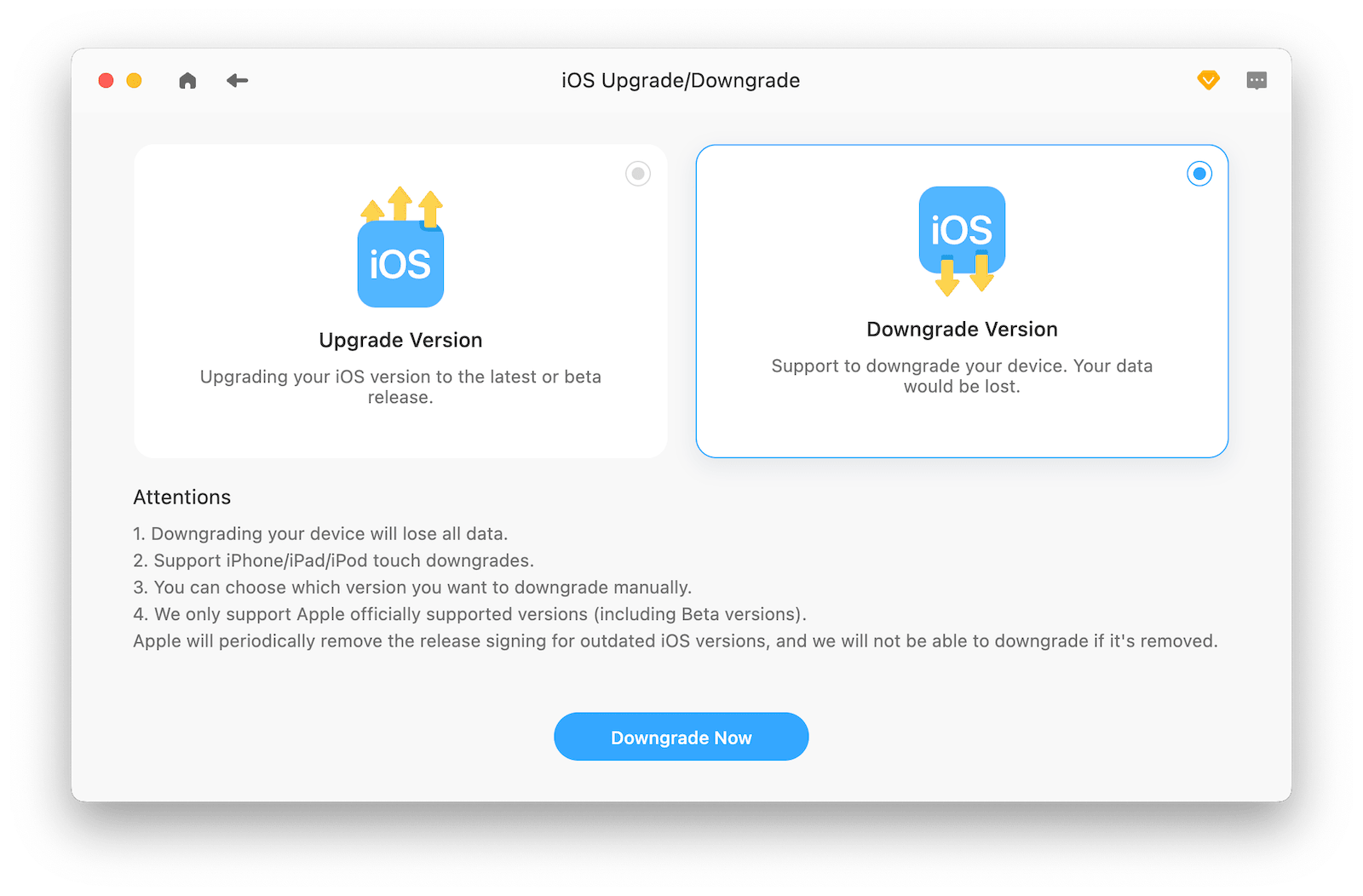
If you're experiencing bugs, battery drain, or app compatibility issues, you can downgrade to iOS 26 as long as Apple is still signing a compatible version.
iOS system repair tools like BuhoRepair can simplify the process by helping you find and install the appropriate firmware for your device.
- Connect your iPhone to your computer using a genuine USB cable.
- Download and install BuhoRepair on your Windows or Mac computer.
- Launch BuhoRepair, then go to Upgrade/Downgrade iOS > Downgrade iOS > Downgrade Now.
- Select the available firmware and download it.
- Once the download is complete, start the downgrading process.
- When your iPhone restarts, set it up as a new device.


Conclusion
iOS 27 brings a smarter Siri, more Apple Intelligence features, and several quality-of-life improvements. Before upgrading, take a few minutes to back up your data, check your storage space, and make sure your iPhone is ready.
Once everything is prepared, updating to iOS 27 should be a straightforward process.
Clare has been captivated by the world of Apple products since the launch of the iconic iPhone in 2007. With a wealth of experience, Clare is your go-to source for iPhone, iPad, Mac, and all things Apple.