- iOS 27 Installation
- iOS 27 Problems
How to Get the iOS 27 Public Beta: Complete Guide

The iOS 27 Public Beta is finally here, so you can now try Apple’s latest iPhone features without installing the Developer Beta.
For most people, the Public Beta is the better choice. It includes the same headline features but has gone through more testing, making it a smoother experience overall.
Here’s how to install it, plus a few things to check before you update.
Before You Update
Before we get into the installation, there are three things I'd strongly recommend.
1. Back Up Your iPhone
Even though most beta installations go smoothly, they're still beta software. A quick iCloud backup, or a backup to your Mac or PC, can save you a lot of trouble if you decide to roll back later or something unexpected happens. Apple also recommends backing up your device before installing beta software.
2. Make Sure Your iPhone Has Enough Storage Space
iOS updates need more than just space for the download itself. During installation, your iPhone also needs temporary storage to unpack files and complete the upgrade.
If your storage is almost full, I'd suggest cleaning up a few things first:
- Delete apps you no longer use.
- Remove downloaded videos or files.
- Clear old message attachments.
- Move photos and videos to iCloud or your computer.
3. Check Your iPhone's Compatibility
The good news is that if your iPhone supports iOS 26, it can also run iOS 27.
Below are the iPhone models compatible with iOS 27:
- iPhone 17 series
- iPhone 16 series
- iPhone 15 series
- iPhone 14 series
- iPhone 13 series
- iPhone 12 series
- iPhone 11 series
- iPhone SE (2nd generation and newer)


However, some of the new Apple Intelligence features, including the upgraded Siri experience, require newer models such as the iPhone 15 Pro or later.
How to Download and Install iOS 27 Public Beta
Apple has made installing beta software much easier than it used to be. There's no longer any need to download a beta profile manually.
Here's all you need to do.
Step 1: Join Apple's Beta Software Program
- Open Safari and navigate to the Apple Beta Software program page and sign in with your Apple ID.
- Follow the instructions to enroll in the program.


Step 2: Enable Beta Updates
- On your iPhone, open Settings > General > Software Update.
- Tap Beta Updates, then chooseiOS 27 Public Beta.
- Return to the Software Update screen, tap Update Now, and follow the on-screen instructions.


Your iPhone will download the update, restart, and finish the installation automatically. The whole process usually takes around 20–60 minutes, depending on your internet speed.
FAQ
What to Do If You Can't Find the iOS 27 Public Beta?
If the update isn't showing up, don't panic. It's usually something simple.
Here are some troubleshooting tips:
- Make sure you've joined Apple's Beta Software Program.
- Confirm you're signed in with the same Apple Account.
- Restart your iPhone.
- Connect to a stable Wi-Fi network.
- Update to the latest public version of iOS first.
What If You Don't Like iOS 27?
If the iOS 27 Public Beta causes bugs, battery drain, or app compatibility issues, you can either wait for a newer update or downgrade to a stable iOS version.
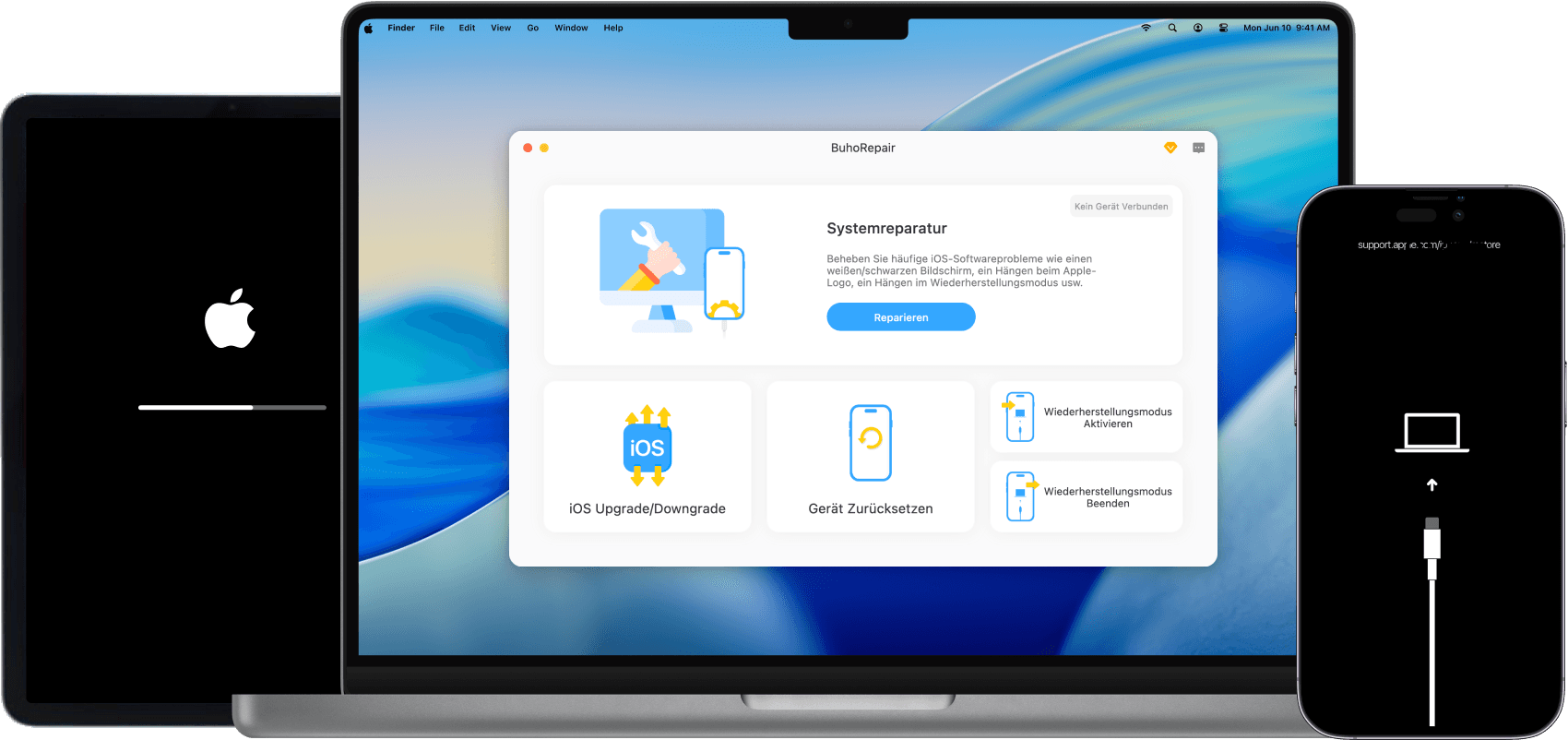
For an easier downgrade, BuhoRepair lets you install a supported iOS version without complicated Finder or IPSW steps. It automatically downloads the correct firmware, making the process quick and beginner-friendly.


Before downgrading, remember to back up your iPhone first. If your backup was created after installing the iOS 27 beta, it may not be compatible with an older iOS version.
So...Should You Update to iOS 27 Public Beta?
It depends. If you've been waiting to try iOS 27, the Public Beta is the version I'd recommend. However, if stability matters more than trying new features, waiting for another Public Beta—or even the official release—is never a bad idea.
Jerome is a passionate enthusiast of all things Apple. He is expertise in crafting tech-related articles, with a portfolio of more than 100 articles covering various Apple products like the iPhone, iPad, and Mac.