4 Proven Ways to Hide Unused Launchpad Apps

Learn 4 simple ways to hide unwanted apps from Launchpad on macOS. You can remove app icons for a cleaner interface without uninstalling the apps.
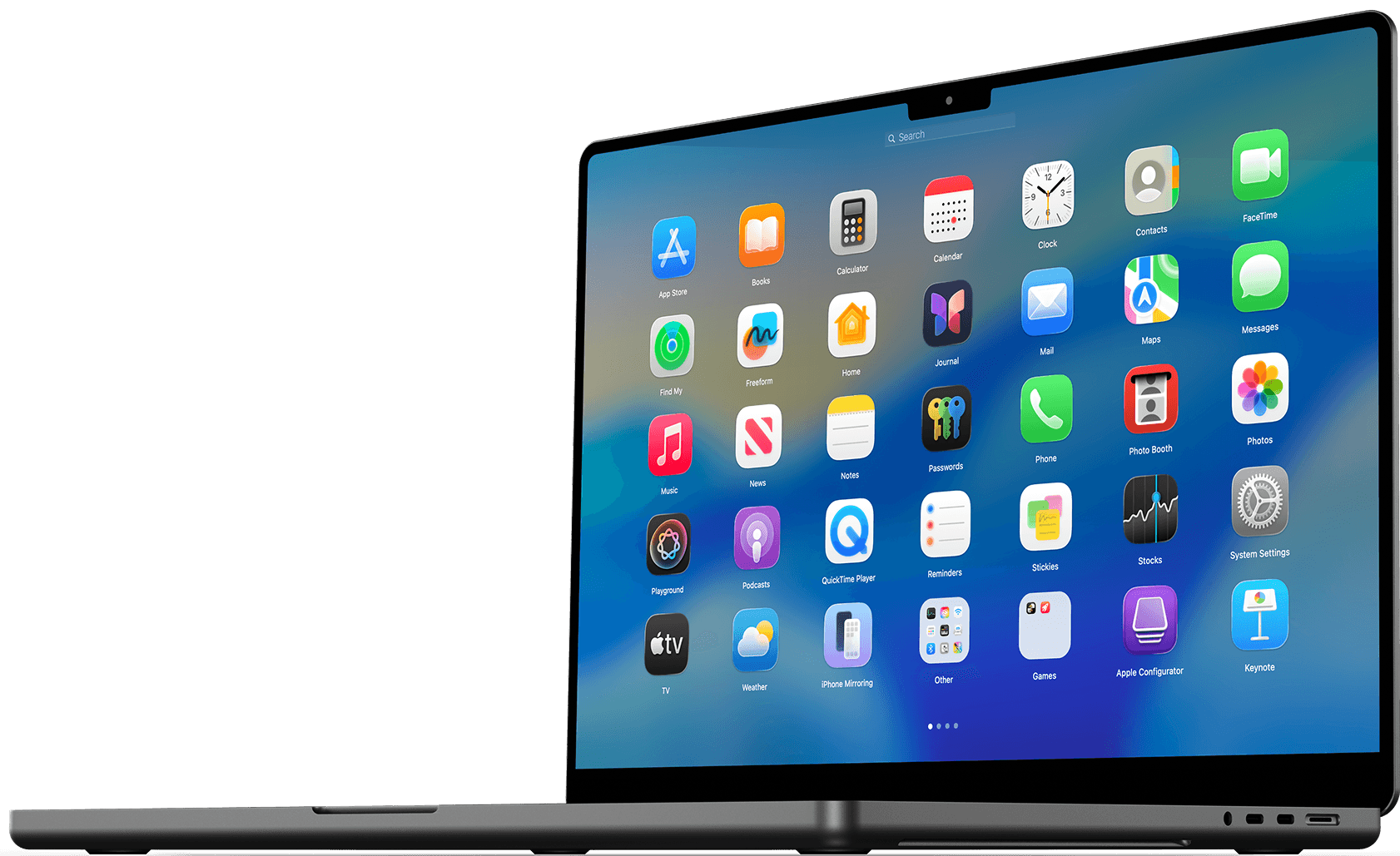
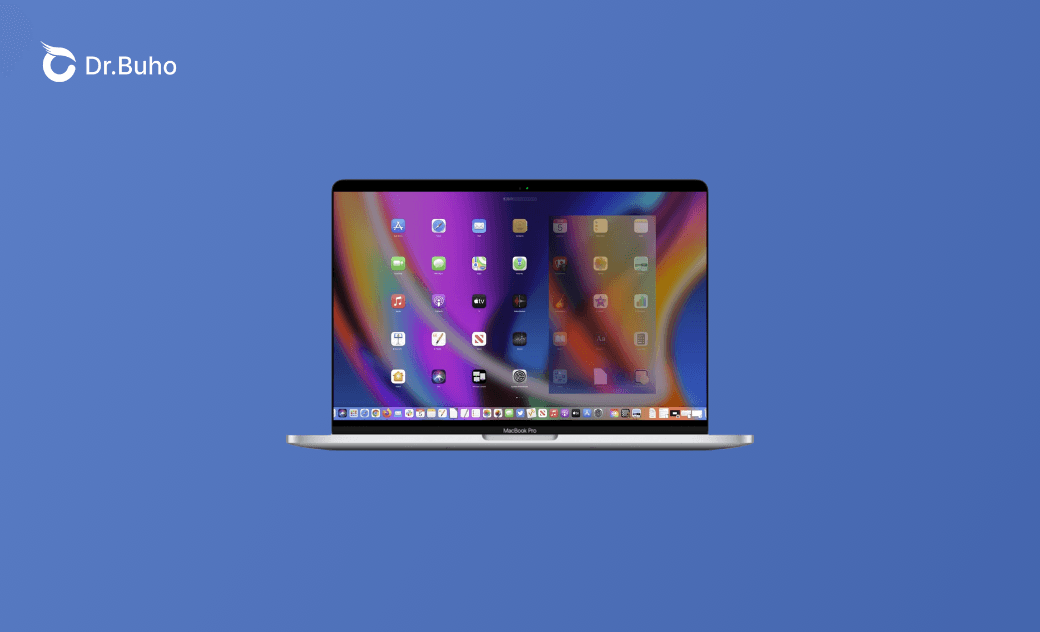
Launchpad works like an iPad-style hub where you can quickly open and organize your apps. But over time, it can get crowded with apps you rarely—or never—use. When everything is visible at once, it can take longer to find the app you actually need.
If you don’t want to uninstall those apps but would prefer not to see them in Launchpad, you might want to hide them instead. In this guide, we’ll walk through several ways to hide app icons and reduce unnecessary clutter.
Can You Hide Apps from Launchpad?
No. macOS doesn’t provide a built-in option to hide apps from Launchpad.
By default, Launchpad automatically shows every app located in the Applications folder and its subfolders. While you can rearrange icons or group apps into folders, macOS doesn’t allow you to hide specific apps, especially system apps, utilities, or built-in software, without removing them.
Can Third-Party Apps Hide Apps from Launchpad?
Not really. There aren’t any reliable third-party apps specifically designed to hide apps from Launchpad on modern macOS versions such as Sonoma or Sequoia.
That’s because Launchpad relies on a protected SQLite database located at:
~/Library/Application Support/Dock
It indexes all app bundles in /Applications, and Apple doesn’t provide a public API that allows developers to exclude apps from the index.
How to Hide Apps from Launchpad on Mac
If you want a cleaner Launchpad interface, the best approach is to remove or conceal apps you don’t use often. Since Launchpad doesn’t include a “Hide” button—and third-party tools can’t directly modify it—you’ll need to use alternative methods.
Delete Apps from Launchpad
The easiest way to remove an app from Launchpad is to delete the app itself. Launchpad simply displays an index of installed apps, so when you uninstall an app from your Mac, its icon disappears from Launchpad as well.


You can remove apps from Launchpad using jiggle mode:
- Click and hold an app icon until the icons start jiggling.
- Click the X button that appears on the icon.
- Confirm the deletion.
Keep in mind that this method only works for apps installed from the Mac App Store, such as games or utilities. It won’t work for built-in apps like Safari or Mail.
Create Folders to Hide Apps in Launchpad
Another simple workaround is to group rarely used apps into a folder and move that folder out of the way.
Many users place unused apps in a folder on the last Launchpad page so they’re not immediately visible.
This method doesn’t remove apps—it simply hides them within Launchpad’s folder structure.
- Open Launchpad.
- Click and hold an app until the icons start jiggling.
- Drag one app onto another to create a folder.
- Name the folder something like Archive.
- Move the apps you don’t often use into the folder.
- Drag the folder to the last page of Launchpad.
You can also create a folder for built-in apps:
- Create a folder named System.
- Drag unused built-in apps into it.
- Move the folder to the last page of Launchpad.
Move Apps to a Different Folder
Another method is to move apps out of the /Applications folder.
Launchpad mainly indexes apps stored in /Applications and /Applications/Utilities. If an app is stored somewhere else, Launchpad may stop displaying it after the Dock refreshes.
When you move an app to another location, such as a custom folder, Launchpad may no longer detect it. However, you can still open the app using Spotlight, Finder, or Terminal.
Open Finder and go to the Applications folder.
Locate the app you want to hide.
Drag the
.appfile to another location outside the standard Launchpad paths, such as~/HiddenApps/.Restart the Dock so Launchpad refreshes its app list.
killall Dock
- Some apps may still appear temporarily in Launchpad until the Dock refreshes.
- Certain built-in macOS apps are protected by the system and may not be movable.
Hide Apps from Launchpad Using Terminal (Dock Refresh Only)
While modifying Info.plist with LSUIElement does not reliably hide apps in Launchpad, you can use Terminal to reset or rebuild the Launchpad database to remove leftover icons.


Open Terminal from Applications > Utilities.
Reset Launchpad:
defaults write com.apple.dock ResetLaunchPad -bool true; killall DockIf some icons still remain, rebuild the database:
rm ~/Library/Application\ Support/Dock/*.db; killall Dock
After the Dock restarts, Launchpad will rebuild the app layout automatically.
How to Restore the Launchpad Experience and Hide Apps on macOS Tahoe
In macOS Tahoe 26, Apple introduced a new Applications view in Spotlight, replacing the traditional Launchpad interface.
If you still prefer the classic Launchpad experience, you can bring it back using BuhoLaunchpad, a Launchpad-style app launcher for macOS Tahoe.


BuhoLaunchpad recreates the familiar grid-style app launcher and adds extra customization options. With it, you can:
- Quickly access apps in a Launchpad-style grid
- Create folders to organize apps
- Hide apps you don’t want to see
- Customize grid size and themes
- Launch with gestures and hot corners
This can provide a smoother and more flexible experience compared to the original Launchpad.
Conclusion
Although macOS doesn’t include a built-in way to hide apps from Launchpad, there are several practical workarounds:
- Delete apps you don’t need
- Group apps into folders on the last page
- Move apps outside
/Applications(for non-system apps) - Reset or rebuild the Launchpad database via Terminal
For a more customizable experience on macOS Tahoe 26, BuhoLaunchpad provides a familiar Launchpad-style interface with extra organization options, making it easier to manage and hide apps.
FAQs
- Why Do Some Apps Still Appear in Launchpad After Being Moved?
Even if you move an app out of /Applications, it may still appear temporarily because Launchpad caches app data in: ~/Library/Application Support/Dock
To fix this, refresh the Dock: killall Dock
Or rebuild the Launchpad database: rm ~/Library/Application\ Support/Dock/*.db; killall Dock
- Why Can't Some Built-in Apps Be Moved or Deleted?
Some macOS apps are protected by the system and cannot be easily moved or removed, including Safari, Mail, Photos, and FaceTime.
These apps reside in: /System/Applications. macOS uses System Integrity Protection (SIP) to prevent modifications, ensuring system stability and security.
For these apps, the safest approach is to place them in a folder on the last Launchpad page.
- Which Folders Does Launchpad Scan?
Launchpad indexes apps from multiple locations, including:
/Applications/Applications/Utilities/System/Applications
Even if you move an app, Launchpad may still display apps from other indexed directories. Refreshing the Dock or rebuilding the database ensures it rescans these folders.
Jerome is a passionate enthusiast of all things Apple. He is expertise in crafting tech-related articles, with a portfolio of more than 100 articles covering various Apple products like the iPhone, iPad, and Mac.