- iOS 27 Installation
- iOS 27 Problems
iOS 27 AirDrop Not Working? 11 Quick Fixes

This post explains why AirDrop is not working on iOS 27 and provides you with 11 quick fixes. Read on to learn more useful information!
Many users have reported that AirDrop is not working after updating to iOS 27. If you are experiencing this issue and are looking for a solution, don’t miss this article. Here, you’ll learn the reasons behind this problem and get 11 troubleshooting tips.
Let’s find out what they are.
Why Is My AirDrop Not Working on iOS 27?
The common reasons are listed below. Check whether your iPhone is in the same situation.
- You share to an Apple device that doesn't support AirDrop (an older Apple device or a non-Apple device).
- Wrong AirDrop Settings.
- Wi-Fi/Bluetooth is turned off.
- The distance between the two devices is more than 30 feet (9 meters).
- Your iPhone runs out of power.
- You have enabled Airplane Mode/Focus Mode.
- You have enabled the hotspot.
- VPN issues.
- Corrupted network.
- iOS system issues.
- AirDrop compatibility issues.
How to Fix iOS 27 AirDrop Not Working
After going over the possible causes, let’s take a look at some proven ways to fix the issue.
Select/Change AirDrop Discoverability to Everyone
The first recommended try is to select or change AirDrop discoverability to Everyone. By doing this, the recipient can find and recognize your iPhone better. Here is how to set AirDrop discoverability to Everyone on an iPhone/iPad:
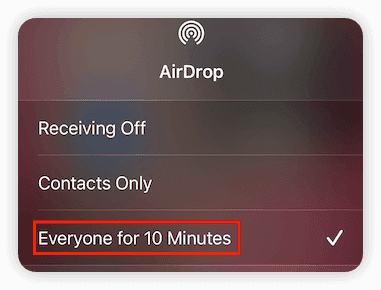
- via Control Center Swipe up/down to access Control Center>Tap and hold AirDrop>Click Everyone for 10 Minutes.

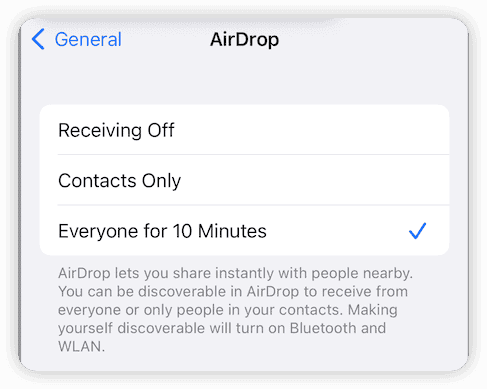
- via Settings
Open Settings>General> AirDrop>Everyone for 10 Minutes.

Here is how to set AirDrop discoverability to Everyone on Mac:
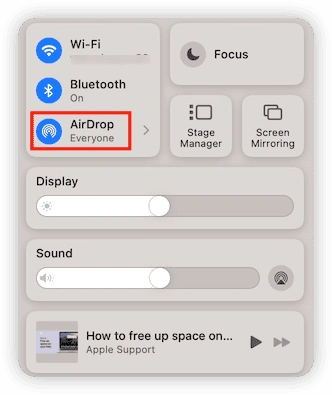
- via Control Center
Click the Control Center icon in the menu bar > Click AirDrop > Select Everyone.

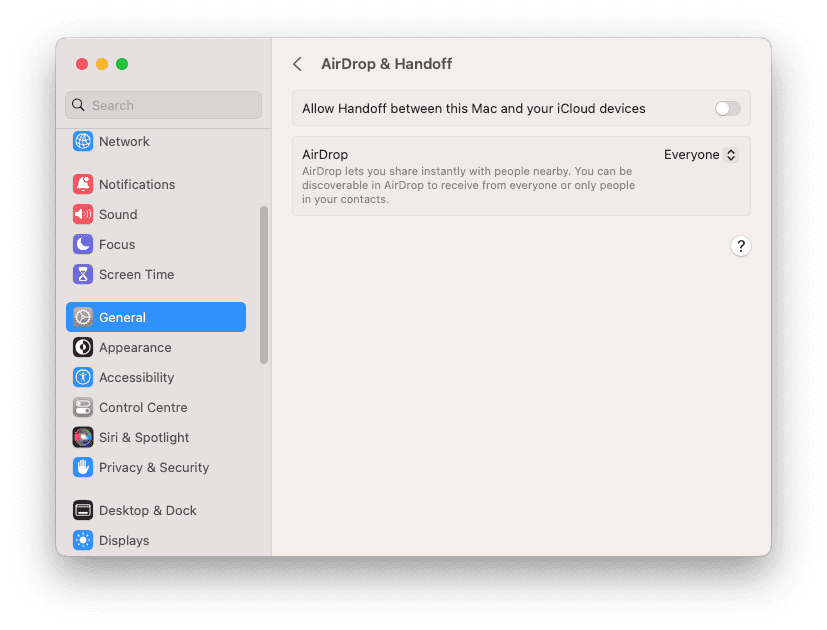
- via System Settings Go to Apple Menu>System Settings>General>AirDrop & Handoff>Select Everyone.

Turn on Bluetooth and Wi-Fi
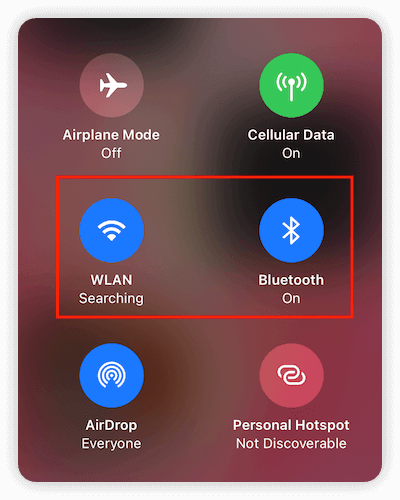
A successful transfer via AirDrop requires both Wi-Fi and Bluetooth to be turned on. So, go to Settings or Control Center to check and turn them on.

Move the Devices Closer
Although AirDrop lets you wirelessly transfer photos, videos, and other files, it only works between nearby devices. Apple recommends keeping the two devices within 30 feet (9 meters) of each other for the transfer to work properly.
Restart Your iPhone
It is also recommended to give your iPhone/iPad/Mac a restart. There may be some occasional errors. Rebooting your iPhone/iPad/Mac may fix these errors.
Avoid Locking Your iPhone
Another reason why AirDrop may not work on iOS 27, or why it may get stuck on “Waiting,” is that you, the recipient, or both of you haven’t unlocked your iPhone.
In this case, unlock your iPhone and keep it unlocked until the transfer is complete.
Turn Off Airplane Mode and Focus Mode
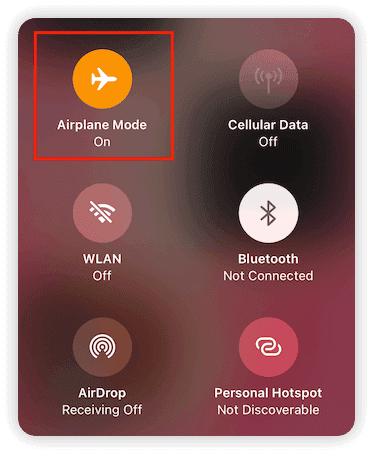
Airplane Mode and Focus Mode can interfere with AirDrop transfers. Airplane Mode turns off Wi-Fi and Bluetooth, both of which are required for AirDrop to work properly.

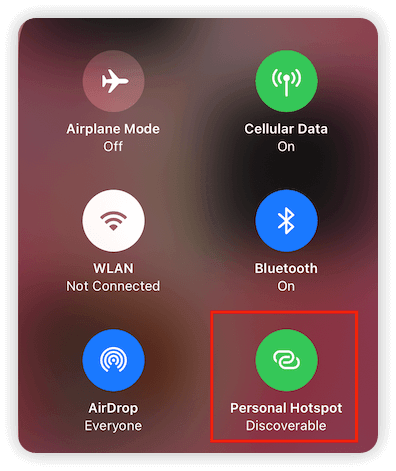
Turn Off Personal Hotspot
Turning on Personal Hotspot can interfere with AirDrop because your iPhone may not be connected to Wi-Fi. If AirDrop isn’t working on iOS 27, turn off Personal Hotspot and make sure Wi-Fi is enabled, then try the transfer again.

Remove AirDrop Restrictions
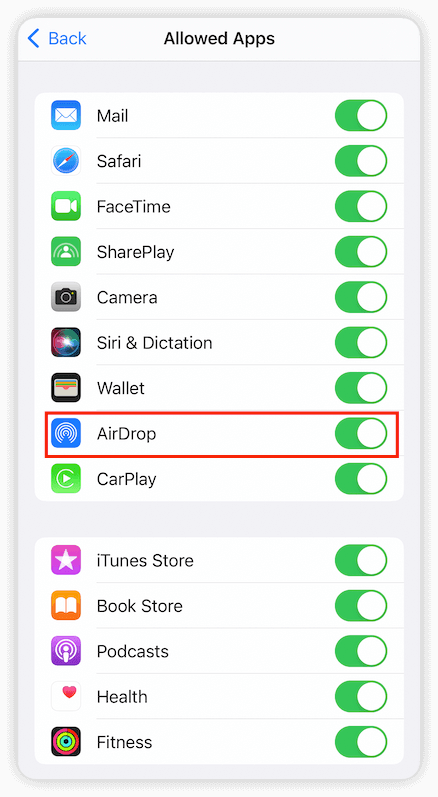
In some rare cases, you may find that AirDrop is not showing up or is grey on your iPhone. This is because you have disabled AirDrop in Content & Privacy Restrictions.
Go check and remove the restrictions on your iPhone/iPad.
Here is how: Go to Settings>Screen Time>Content & Privacy Restrictions>choose Allowed Apps>AirDrop.

Update Your iPhone
If the problem persists after trying all the above methods, it may be due to your iOS. In this case, you just need to wait for the next update. When the update is available, tap Settings > General > Software Update to download and install it.


Reset Network Settings
If AirDrop is taking too long to complete a transfer, try switching to a more stable Wi-Fi network. If the problem persists, you can also try resetting your network settings. Resetting network settings can rule out the network problem. Note that it will erase all your network settings, including your Wi-Fi password. So remember to write down your password first.
Here is how to reset network Settings:
Open Settings>General>Transfer or Reset iPhone>Reset Network Settings.


Contact Apple Support
If none of the above methods work to bring your AirDrop back to normal, ask Apple Support for help.
Besides the methods mentioned above, there are a few other solutions worth trying. For example, add the sender’s email address or Apple Account to their contact information on the recipient’s iPhone, sign back in to your Apple Account, disconnect from any VPN, and make sure your iPhone has enough battery or is charged.
Conclusion
In this post, 11 fixes for iOS 27 AirDrop not working are presented to you. Pick one or more of these fixes and go ahead and make your AirDrop work normally again.
Clare has been captivated by the world of Apple products since the launch of the iconic iPhone in 2007. With a wealth of experience, Clare is your go-to source for iPhone, iPad, Mac, and all things Apple.