10 Common iOS 27 Issues and How to Fix Them

Running into problems after updating to iOS 27? Here are the 10 most common iOS 27 issues, from update failures and installation problems to battery drain, overheating, slow performance, large System Data, app crashes, and Wi-Fi issues, with practical fixes.
You updated your iPhone to iOS 27, and now something feels off. Maybe the update won’t show up, the installation is stuck, or your iPhone suddenly gets hot, and the battery drops faster than usual. You might even notice that System Data is taking up a huge amount of storage or that an app keeps crashing for no obvious reason.
The good news is that not every problem means something is seriously wrong with your iPhone. Some issues are temporary, while others can usually be fixed with a few simple steps.
Here are 10 common iOS 27 problems and what you can do about them.
1. Why Is the iOS 27 Update Not Showing Up?
If iOS 27 isn’t listed under Settings > General > Software Update, first make sure your iPhone model is compatible with the new version.


If your iPhone supports iOS 27 but the update still doesn’t appear, try these steps:
- Restart your iPhone.
- Connect to a reliable Wi-Fi network.
- Make sure your iPhone has enough free storage.
- If you’re running a beta version, check Settings > General > Software Update > Beta Updates and turn off beta updates if necessary.
- Check Software Update again after some time.
A major iOS update may take some time to become available, especially right after release. If the update was just released, waiting a little while and checking again may solve the problem.
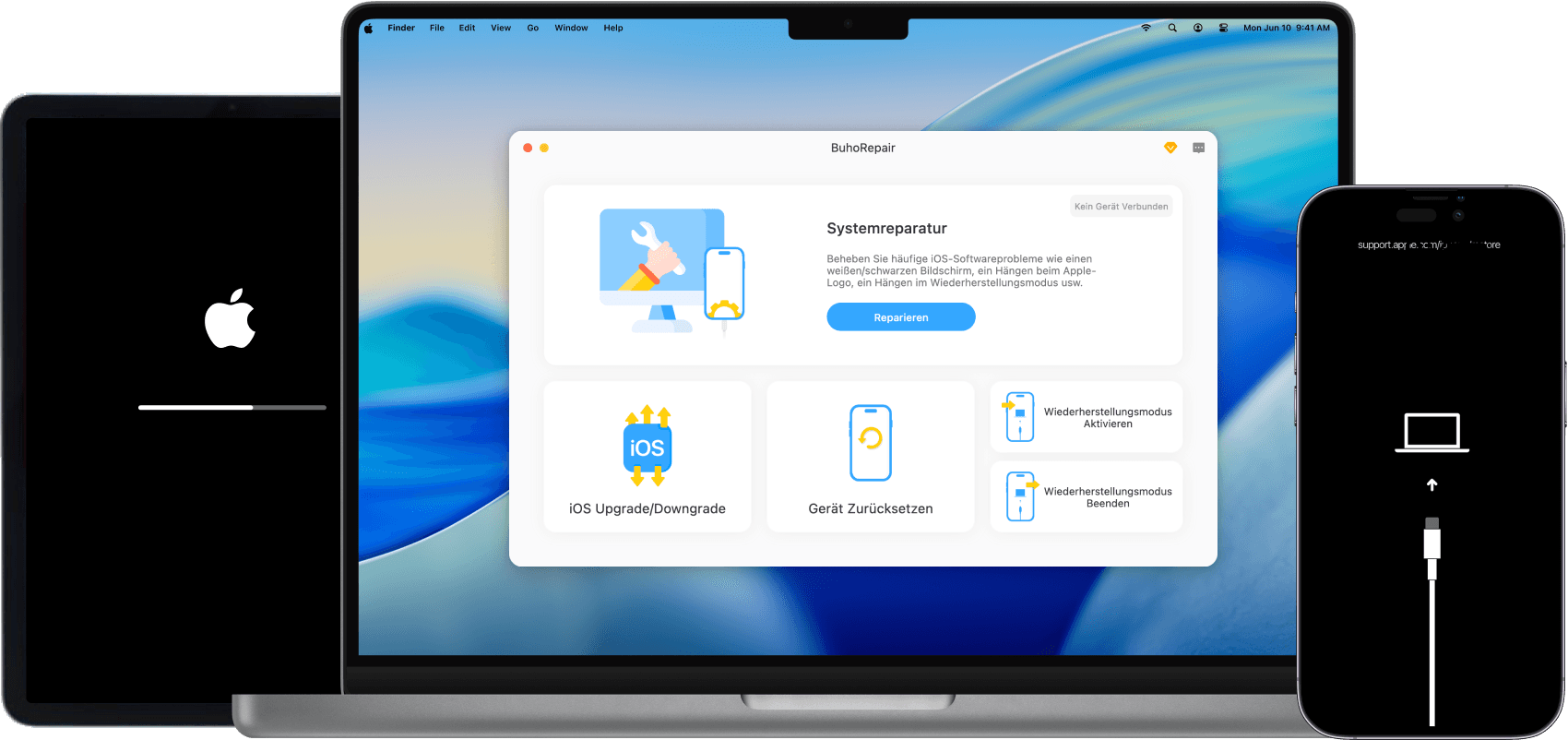
If iOS 27 still doesn’t appear through Software Update, you can also update your iPhone using a computer. An iOS system repair tool such as BuhoRepair can download the appropriate firmware and help update your iPhone without relying entirely on the over-the-air update process.


2. Why Can’t I Install iOS 27?
If you see an “Unable to Install Update” or “Unable to Verify Update” message when installing iOS 27, the problem is usually related to one of these things: not enough free storage, a failed or incomplete update download, an unstable Wi-Fi connection, or an issue with your current iOS installation.
Before trying again, check the following:
- Make sure you have enough free storage under Settings > General > iPhone Storage.
- Connect your iPhone to a charger.
- Use a stable Wi-Fi connection.
- Restart your iPhone.
- Delete the downloaded iOS update and download it again if necessary.
To remove a downloaded update, go to Settings > General > iPhone Storage, find the iOS update, tap it, and select Delete Update if the option is available. Then return to Software Update and download it again.
3. Why Is the iOS 27 Update Taking So Long?
A slow update doesn’t necessarily mean something has gone wrong.
An iOS update goes through several stages, including downloading the software, preparing the update, verifying it, and installing the new system. Some stages can take considerably longer than others.
The download may also take longer if Apple’s servers are busy or your Wi-Fi connection is slow.
If the progress bar is still moving, keep your iPhone connected to power and Wi-Fi and give it more time.
If the iPhone has remained on the same screen for an unusually long time with no obvious activity, restart it and try the update again.
4. Why Is My iPhone Stuck During the iOS 27 Update?
If your iPhone is stuck on the Apple logo, progress bar, or an update screen and doesn’t respond normally, you’re dealing with something different from a slow installation.
If the update has only just started, give it some time first. Interrupting an installation too early can create additional problems.
If the iPhone is clearly frozen, try a force restart.
For an iPhone with Face ID:
- Quickly press and release the Volume Up button.
- Quickly press and release the Volume Down button.
- Press and hold the Side button until the Apple logo appears.
If the iPhone starts normally afterward, go to Settings > General > Software Update and check whether the installation completed.
If it remains stuck or repeatedly returns to the same screen, connect the iPhone to a Mac or Windows PC. Finder on Mac or the Apple Devices app on Windows can be used to update or restore the device.


5. Why Is My iPhone Battery Draining So Fast After Updating to iOS 27?
Your iPhone may still be doing a lot of work in the background, such as indexing files, processing photos, syncing iCloud data, and completing other post-update tasks. This can temporarily increase battery usage.
Give your iPhone some time, ideally up to 24 hours, before changing a lot of settings.
If the battery is still draining much faster than before, go to Settings > Battery and check battery usage by app. Look for apps that are consuming an unusual amount of power.
If one app stands out:
- Update it from the App Store.
- Close and reopen it.
- Check whether it has significant background activity.
- Reinstall it if the problem continues.
If battery life doesn’t return to normal after several days, the issue may be related to a bug in iOS 27. In that case, you may need to wait for a future iOS update that addresses the problem.
6. Why Is My iPhone Getting So Hot After Installing iOS 27?
Some extra heat is normal shortly after installing a major iOS update. Your iPhone may still be indexing content, syncing data, processing photos, or completing other background tasks.
If the temperature returns to normal once those tasks finish, there may not be anything you need to fix.
Persistent or excessive heat is different. Go to Settings > Battery and check for apps with unusually high battery usage or background activity.
You can also try these steps:
- Restart your iPhone.
- Update your apps.
- Avoid intensive games or video editing while the iPhone is hot.
- Temporarily remove the case if the iPhone becomes particularly warm while charging.
- Install the latest available iOS 27 update.
7. Why Is My iPhone Slow After Updating to iOS 27?
Background processing can temporarily make your iPhone feel slower after a major update, but it’s not the only possible cause.
Low storage, outdated apps, or a process consuming too many resources can also affect performance.
Start by checking your available storage under Settings > General > iPhone Storage.
If you’re almost out of space, remove large videos, downloads, unused apps, and other files you no longer need.
Next, update your apps through the App Store. An app that hasn’t been updated for the new iOS version can sometimes cause slow launches, freezes, or other performance problems.
If your iPhone is still noticeably slower after a few days, restart it and check whether a newer iOS 27 update is available.
If the slowdown only affects one app, focus on troubleshooting that app instead of resetting the entire iPhone.
8. Why Did System Data Get So Large After Updating to iOS 27?
Seeing System Data suddenly take up 20 GB or more after an iOS update can be alarming. But in many cases, it's temporary.
System Data includes caches, logs, temporary files, and other files used by iOS. After a major update, your iPhone may need extra space to process data in the background. Once these tasks are finished, System Data may shrink back to a more normal size.
If System Data is taking up more than 20 GB, try these steps:
- Clear app cache.
- Enable "Offload Unused Apps".
- Clear browser data and history.
- Delete unnecessary apps and large files.
- Restart your iPhone.
If System Data remains unusually large for a long time and you're running out of storage, back up your iPhone before considering an erase and restore.
9. Why Are Apps Crashing or Not Working After Updating to iOS 27?
An app that worked perfectly before the update may suddenly crash, freeze, or refuse to open after installing iOS 27.
In many cases, the app itself needs an update. Open the App Store, tap your profile picture, and install any available updates. Then restart your iPhone and try the app again.
If the app still doesn’t work:
- Force close the app and open it again.
- Check whether the developer has released another update.
- Restart your iPhone.
- Delete and reinstall the app if necessary.
10. Why Is Wi-Fi Not Working After Updating to iOS 27?
Wi-Fi problems can range from a network that refuses to connect to a connection that keeps dropping or becomes noticeably slower after the update.
First, check whether the problem affects only your iPhone or every device connected to the same network.
If other devices work normally, try these steps on your iPhone:
- Turn Wi-Fi off and back on.
- Restart your iPhone.
- Restart your router.
- Try connecting to another Wi-Fi network.
- Forget your Wi-Fi network, then connect to it again.
As a last resort, you can reset your network settings: Settings > General > Transfer or Reset iPhone > Reset > Reset Network Settings.


This will remove your saved Wi-Fi networks and passwords, so make sure you have your Wi-Fi passwords available before doing this.
Final Thoughts
Most iOS 27 problems are temporary, so give your iPhone some time before making major changes. If the problem continues after trying the fixes above, going back to an earlier iOS version may be worth considering.
Just remember to back up your iPhone first, as downgrading may erase your data. If you decide to go back, BuhoRepair can help you download the required firmware and complete the downgrade from a computer.
Robert is a tech-savvy fan who loves all things Apple. As a hobbyist of gardening and meditation, he is also a seasoned writer covering a wide array of Apple products, like iPhone, iPad, iOS, and more.