- iOS 27 Installation
- iOS 27 Problems
How to Download and Install iOS 27 [Step-by-Step]

iOS 27 brings Siri AI and serious speed improvements. Check compatibility, back up, and install it three ways: over the air, with Finder, or with a repair tool.
iOS 27 makes the difference obvious the moment you open an app: apps start about 30 percent faster, AirDrop transfers move up to 80 percent faster, and Siri finally feels like an assistant you can actually talk to. If your iPhone has felt slower than it should, this update fixes it.
Here's how to download and install iOS 27, step by step: Software Update, Finder or iTunes, or a system repair tool. I've been installing iOS updates on iPhones for years, and the one habit that has never failed me is backing up first, so that's where we start.
Check If Your iPhone Is Compatible
iOS 27 supports every iPhone that runs iOS 26. No models were dropped this year.
- iPhone 11, 11 Pro, and 11 Pro Max
- iPhone 12 series (including mini)
- iPhone 13 series (including mini)
- iPhone 14 series
- iPhone 15 series
- iPhone 16 series (including 16e)
- iPhone 17 series (17, 17e, Air, Pro, Pro Max)
- iPhone 18 series (18 Pro, 18 Pro Max)
- iPhone Duo
- iPhone SE (2nd generation and later)


Before You Install
Three quick steps take a minute and save the whole weekend:
- Back up. Go to Settings > your name > iCloud > iCloud Backup > Back Up Now. Or back up to a computer with Finder. This is the only step that actually protects you.
- Free up at least 10 GB, ideally 20 GB. The download is about 5 to 9 GB, and installation needs temporary space on top of that. Go to Settings > General > iPhone Storage to see what you can remove.
- Charge to at least 20% and stay on Wi-Fi. Plugged in is even better.
Method 1: Update to iOS 27 With Software Update (Recommended)
This is the easiest option and works for most people.
- Open Settings > General > Software Update.
- Wait for iOS 27 to appear, then tap Update Now.
- Enter your passcode if asked, accept the terms, and wait. Your iPhone restarts once, and the whole process usually takes 20 to 40 minutes plus the download.


If you don't see the update, make sure Beta Updates are turned off, confirm your iPhone is on the compatible list, and check that you have enough space.
On the iOS 27 beta? Open Settings > General > Software Update > Beta Updates > Off. The final release then appears as a normal update, and your data comes along. No erase needed.
Method 2: Update iOS 27 with Finder or iTunes
Use this when Software Update isn't showing the update, or you prefer to update over a cable instead of Wi-Fi.
- Connect your iPhone to your computer with an original USB cable and tap Trust on your iPhone.
- On a Mac, open Finder and click your iPhone in the sidebar. On Windows, open iTunes.
- Click Check for Update.
- Click Download and Update, then wait for it to finish. Keep your iPhone connected the whole time.


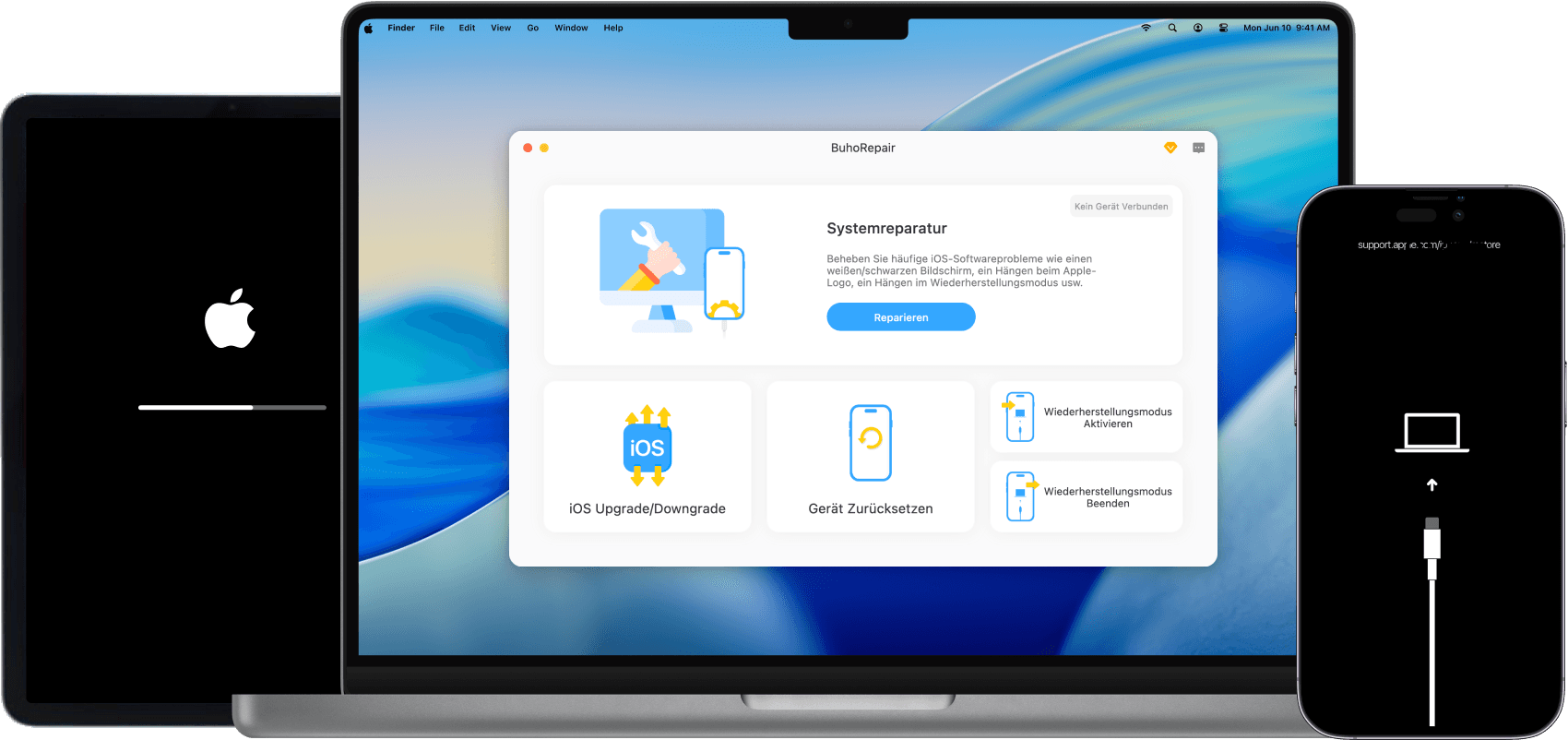
Method 3: Update iOS 27 with BuhoRepair
If the update keeps failing or your iPhone gets stuck mid-install, a system repair tool is the reliable fallback.
BuhoRepair, from Dr.Buho Inc., is the tool I reach for in that situation: it upgrades and downgrades iOS and handles firmware issues that Software Update can't.
- Download and install BuhoRepair on your Mac or PC.
- Select Upgrade/Downgrade iOS > Upgrade Version.
- Connect your iPhone, tap Trust, and click Upgrade Now.
- BuhoRepair downloads the correct firmware for your model and installs it.


FAQ
1. Which of the three methods should I use?
Software Update if the update shows up and you want the easiest path, no computer required. Finder or iTunes if Software Update isn't showing it or you prefer updating over a cable. BuhoRepair if the update keeps failing or your iPhone gets stuck partway.
2. Why isn't iOS 27 showing in Software Update?
Beta Updates may still be on, the rollout may be phased, or your iPhone isn't compatible. Turn off beta updates, confirm compatibility, and wait a day or two.
3. What to do when the iOS 27 update fails or is stuck?
Restart your iPhone, check space and Wi-Fi, and try again. If it keeps failing, use the Finder method or a repair tool like BuhoRepair.
4. Can I go back to iOS 26 if I don't like it?
Only while Apple still signs iOS 26, which is usually a short window after a new release. Downgrading iOS needs a computer: download the signed iOS 26 IPSW for your exact model, put your iPhone in recovery mode, and restore it with Finder (hold Option) or iTunes (hold Shift). The restore erases your iPhone, so you need a backup made before the update. For beginners, I'd avoid downgrading unless something is genuinely broken; if you must, a guided tool like BuhoRepair walks you through it step by step.
Jerome is a passionate enthusiast of all things Apple. He is expertise in crafting tech-related articles, with a portfolio of more than 100 articles covering various Apple products like the iPhone, iPad, and Mac.