- iOS 27 Installation
- iOS 27 Problems
iOS 27 AirDrop Slow? Try These 9 Fixes

Here, you’ll find 9 fixes for repairing the AirDrop slow issue on iOS 27. Try them step by step and enhance the speed in minutes.
After upgrading to iOS 27, many users have reported that they’re experiencing significant lag across apps and system settings. Recently, the same issue happened again for AirDrop. One of the AirDrop users said, “It took more than 20 minutes to transfer a 360MB file from my Mac to my iPhone 16 Pro.”
You may wonder why your AirDrop is taking so long to transfer data and files. In this guide, we’ll explore the possible reasons and solutions. With these measures, you can make your AirDrop faster and enhance the overall user experience.

Why Is AirDrop Taking So Long on My iPhone?
Here are the common reasons why your AirDrop is slow or unresponsive.
- The devices are not close enough to keep a strong connection.
- The devices are not running the same iOS version.
- AirDrop relies on a stable network connection. If your network is slow or unstable, it may delay AirDrop transfers.
- AirDrop uses both Bluetooth and Wi-Fi to transfer files. If either element doesn’t work well, it can slow down AirDrop’s transfers.
- Your AirDrop is not set to “Everyone” or “Contacts Only”.
- You cannot use AirDrop when your devices are locked.
- Some apps or background processes may slow down your device and AirDrop.
- There are issues or bugs with your current iOS 26 version.
How to Make AirDrop Faster on iOS 27
In this section, we’ll fix the “AirDrop slow” issue and try to make your AirDrop run faster on your devices.
Restart Your iPhone
In most cases, a simple restart can resolve app issues and system bugs. By restarting both your iPhones, you can close apps and get more system resources to run AirDrop.

- For iPhone 8 and Later Models: Press and hold the Side button and the Volume button simultaneously until you see the Power off slider. Swipe the slider to turn off the device.
After turning off your iPhones, get them back on and try to connect the devices again.
Keep Your iPhones Unlocked
The transfer will be interrupted if your iPhones are locked or powered off. Always keep your iPhone awake when it's transferring files.
Ensure Devices Are Close Enough
To have a smooth and fast AirDrop transfer experience, you should establish a strong connection between the two devices. The first factor you should focus on is a close physical distance. If your devices are too far apart, the signal will become weak. This may result in a slow transfer speed or even a failed transfer. Therefore, put the devices close together and don’t move them when transferring data.
Quit Running Apps
It’s necessary to check if you’re running multiple apps while using AirDrop. This is because every single app is likely to take up system resources and consume CPU. By closing other apps, you can get more resources to run AirDrop.


- Swipe up from the bottom edge or double-press the Home button to open the App Switcher.
- Scroll sideways to find the app card you want to close.
- Flick the card upward to close the app.
Check iOS Version Compatibility
Both iOS devices should be running the same iOS version. If not, you may encounter compatibility issues that can affect Wi-Fi and Bluetooth. If one device is already on iOS 27, check the system version on the other device. If it isn’t running iOS 27, update it to the latest version.


- On your iPhone, go to Settings, General, and Software Update.
- If there is an available update to iOS 26, click on the “Update Now” button.
- Wait for the update process to complete.
Check and Ensure a Stable Network Connection
AirDrop requires both Wi-Fi and Bluetooth to trigger AirDrop. If your Wi-Fi is slow or unstable, it can delay or even interrupt the data transfer. So, ensure you have turned on Bluetooth on both devices:


- Locate the Control Center from the home screen.
- Tap on the Bluetooth icon to turn it on.
To keep a stable network connection, you can:
- Ensure that your devices are not far from the router and that there are no physical obstructions between them.
- Check if your router works well.
- Disconnect and reconnect the Wi-Fi.
If the network is still unstable, reset network Settings without data loss:


- On your iPhone, navigate to Settings, General, and Transfer or Reset iPhone.
- Click on Reset and Reset Network Settings.
Adjust AirDrop Settings
Many users speed up AirDrop by adjusting its Settings. By default, AirDrop relies on both Bluetooth and Wi-Fi to set up a connection and transfer files. By selecting options like “Contacts Only” or “Everyone for 10 Minutes”, you can reduce the time it takes for one device to discover the other.
- Contacts Only: This is the most secure setting, as it only allows your contacts to see and send files to your device.
- Everyone for 10 minutes: This allows anyone nearby to see and send files to your device for 10 minutes. You can enable this option when the sender or receiver isn't in your contacts.


- Open Control Center from your iPhone home screen.
- Find the AirDrop icon and tap on it.
- Choose options like “Contacts Only” or “Everyone for 10 minutes”.
Fix iOS 27 System Issues
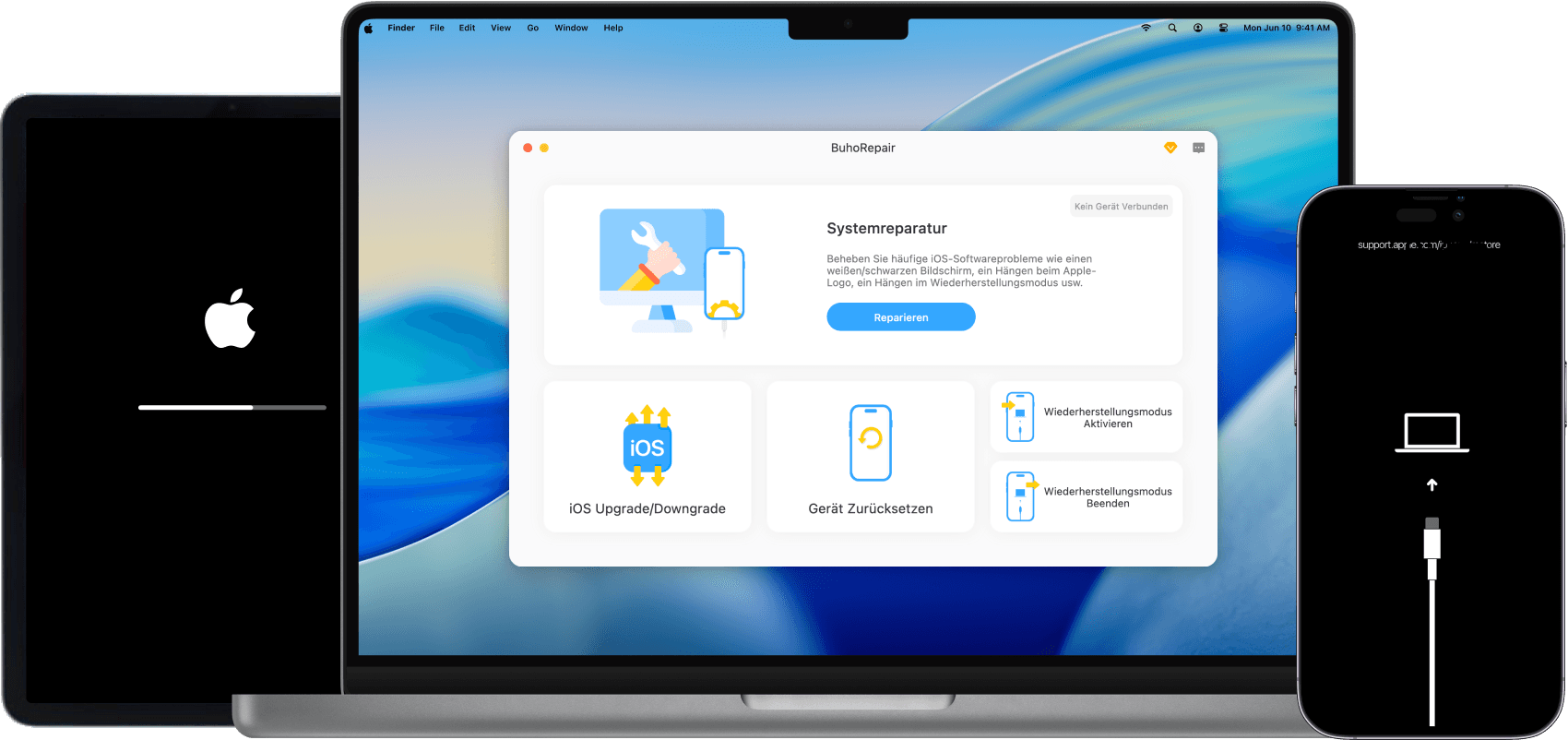
As iOS 27 is a new iOS version, it might contain bugs or system issues. If your iPhone continues to experience slow AirDrop speeds, it may be caused by underlying iOS system issues. To fix the potential iOS 26 issues, you can try an iOS system repair tool like BuhoRepair.
This professional all-in-one toolkit can fix various AirDrop issues, such as connectivity problems, slow performance, and discovery failures. Despite AirDrop, BuhoRepair can also fix many other app and system issues. By restoring your device to a more stable state, you can have a better overall experience.
Step 1. Free install BuhoRepair and launch it on your computer. Connect your iPhone to the computer one by one. Step 2. On the welcome page, select the System Repair mode.


If you continue to encounter app issues after upgrading to iOS 27, consider downgrading to a previous version. You can also use BuhoRepair to downgrade or upgrade your iOS system.
Conclusion
In this post, you can find 9 quick ways to make your AirDrop faster. From restarting your iPhone and putting two devices closer together to adjusting AirDrop settings and repairing iOS 27 system issues with BuhoRepair, you can always find a solution here.
However, if your iPhone continues to experience app issues, consider downgrading to a previous iOS version and using it until Apple releases a new update. Whether you need to fix an iOS system issue or want to upgrade or downgrade your device, you can use BuhoRepair to handle it.
Jerome is a passionate enthusiast of all things Apple. He is expertise in crafting tech-related articles, with a portfolio of more than 100 articles covering various Apple products like the iPhone, iPad, and Mac.