- iOS 27 Installation
- iOS 27 Problems
How to Cancel an iOS 27 Update in Progress on iPhone

Accidentally tapped Update Now on your iPhone and started downloading an iOS update, only to realize you're not ready to upgrade?
Don't worry. If you're wondering how to cancel an iOS 27 update in progress, there are several ways to stop the update before it's installed.
Whether you accidentally started an update, the download is currently in progress, or you simply want to postpone upgrading, this guide will show you exactly what to do.
Why Would You Want to Cancel an iOS 27 Update?
Many iPhone users look up how to cancel an iOS update for reasons like these:
- You accidentally tapped Update Now and didn't intend to upgrade.
- The update file is taking up too much storage space.
- Your battery is running low, and you're worried the update could fail.
- You've heard about bugs or performance issues in the latest iOS release.
- You're in the middle of something important and don't want an update interrupting your workflow.
Whatever the reason, you don't have to install an update immediately. In many cases, you can pause or cancel it until you're ready.
Method 1: Delete the Downloaded Update File (Best Way to Cancel an iOS Update)
This method works well if you're trying to cancel an iOS update that has already started downloading but hasn't been installed yet.
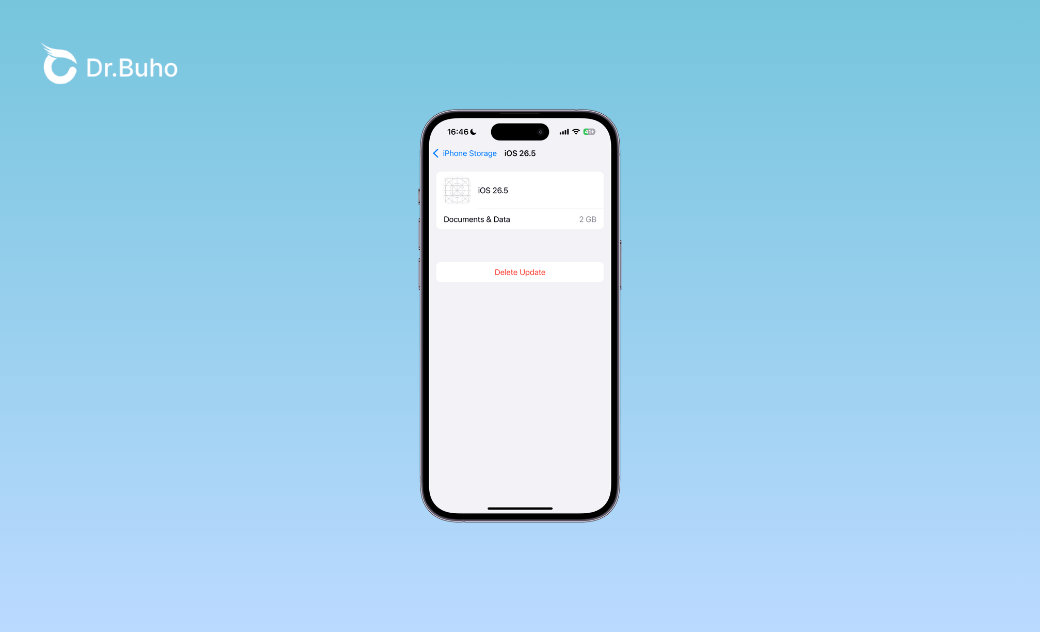
Steps to Delete an iOS Update
- Open Settings.
- Tap General > iPhone Storage.
- Scroll down and locate the downloaded iOS update file (for example, iOS 27).
- Tap the update file.
- Select Delete Update.
- Confirm your choice.


Once the update file is removed, the download is canceled, and your iPhone will no longer proceed with that update unless you download it again.
Method 2: Pause an iOS Update While It's Downloading
If you don't want to permanently cancel the update, you can temporarily pause it instead.
Option 1: Turn On Airplane Mode
- Open Control Center.
- Tap the Airplane Mode icon.
This disconnects your iPhone from both Wi-Fi and cellular networks, which pauses the update download.
Keep in mind that once you turn Airplane Mode off and reconnect to the internet, the download will automatically resume.
Option 2: Turn Off Wi-Fi
Since most iOS updates download over Wi-Fi, turning Wi-Fi off can temporarily stop the download.
To do this:
- Open Settings.
- Tap Wi-Fi.
- Turn Wi-Fi off.
The update should pause until you reconnect to a network.
Option 3: Enable Low Data Mode
You can also enable Low Data Mode to reduce background network activity.
To enable it:
- Open Settings.
- Tap Cellular.
- Select Cellular Data Options.
- Turn on Low Data Mode.
While this doesn't always stop an update completely, it can help delay background downloads.
Method 3: Let Battery or Storage Limitations Prevent Installation
iOS requires certain conditions before it will install an update.
For example:
- Battery level is below 50%, and the iPhone isn't plugged in.
- There isn't enough available storage space.
If either condition isn't met, iOS will usually postpone the installation process until the requirements are satisfied.
While this isn't an official way to cancel an update, it can temporarily stop the installation from proceeding.
How to Cancel an iOS Update in Progress When It's Stuck
Sometimes an update doesn't complete successfully and appears to be stuck.
Common situations include:
- Stuck on Preparing Update
- Stuck on Install Now
- The progress bar isn't moving
- The loading spinner keeps spinning indefinitely
- No progress for an extended period
If this happens, it's often a good idea to cancel or pause the update first.
Then check the following:
- Is your Wi-Fi connection stable?
- Does your iPhone have enough battery life?
- Is there sufficient free storage available?
Once you've confirmed everything looks good, try downloading the update again. Many update issues are resolved simply by restarting the process.
What If an iOS Update Fails?
Over-the-air (OTA) updates don't always go as planned.
An update may fail because of:
- Network interruptions
- Corrupted update files
- Software glitches
- Insufficient storage
- Device-related issues
When that happens, you can update your iPhone using a computer through Finder or iTunes.
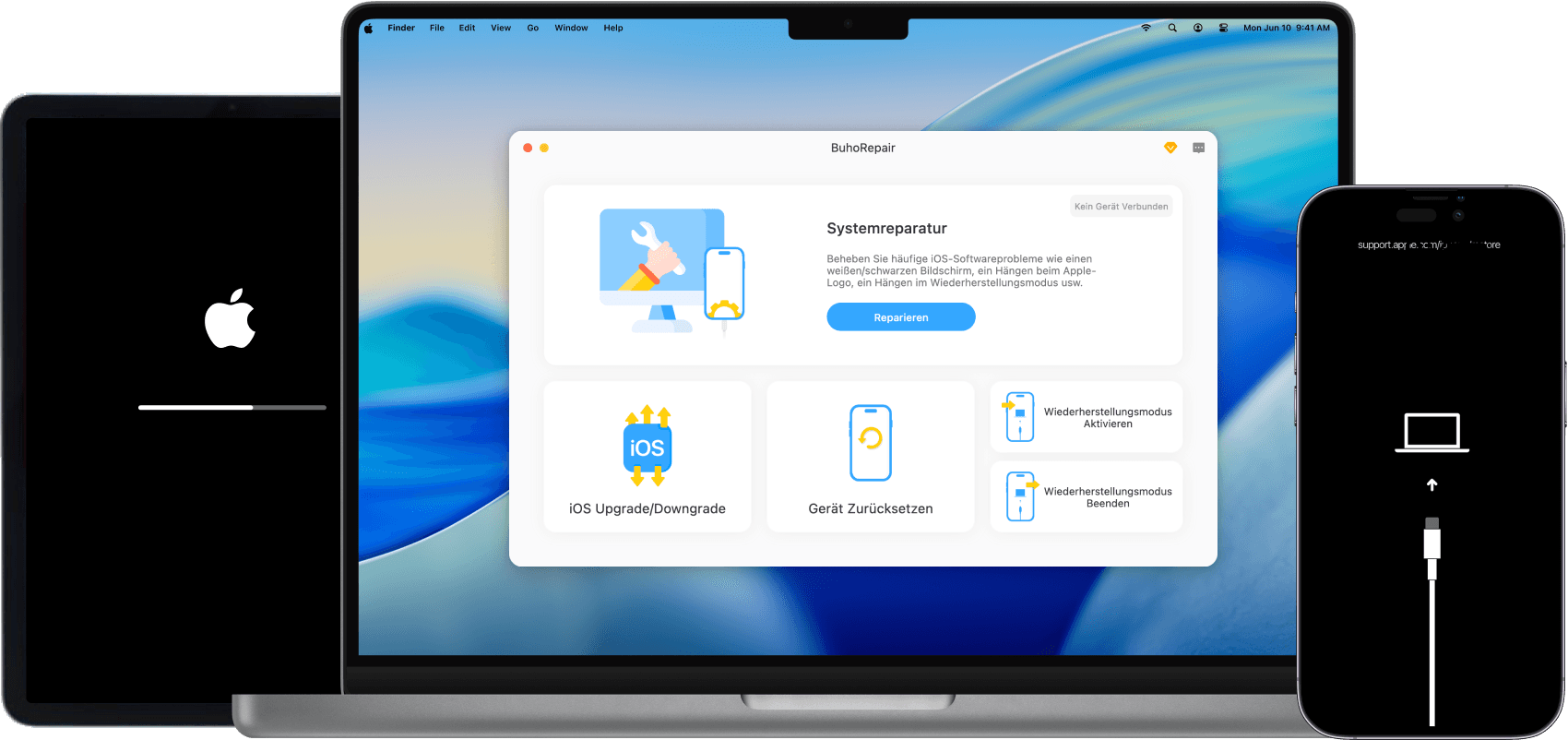
Another option is to use a dedicated iOS system repair tool such as BuhoRepair.


BuhoRepair is designed to help users upgrade, reinstall, repair, and even downgrade iOS without requiring advanced technical knowledge. The process is straightforward, making it a practical option for users who run into update-related problems.
One useful feature is iOS downgrading. If you update to a newer version and later decide you prefer the previous one, BuhoRepair can help you downgrade as long as Apple is still signing the older firmware.
How to Upgrade or Downgrade iOS with BuhoRepair
- Download, install, and launch BuhoRepair.
- Connect your iPhone to your computer.
- Select Upgrade/Downgrade iOS from the main interface.
- Choose either Upgrade Version or Downgrade Version based on your needs.
- Click Upgrade Now/Downgrade Now.
- Follow the on-screen instructions to complete the process.


FAQ
Can I cancel an iOS update after it starts downloading?
Yes. If the update hasn't been installed yet, you can usually cancel it by deleting the downloaded update file from Settings > General > iPhone Storage.
How do I cancel an iOS 27 update?
To cancel an iOS 27 update, go to Settings > General > iPhone Storage, locate the iOS 27 update file, and tap Delete Update.
Can I stop an iOS update while it's installing?
Generally, no. Once the installation process begins, interrupting it may cause software issues. It's safest to let the installation finish.
Will deleting the update file affect my data?
No. Deleting a downloaded iOS update only removes the update package. Your apps, photos, messages, and other personal data will remain untouched.
Final Thoughts
If you accidentally started an update or simply aren't ready to upgrade yet, there are several ways to stop the process.
For most users wondering how to cancel an iOS update, the easiest solution is to delete the downloaded update file before installation begins.
And if you encounter update failures, software issues, or regret installing a new version, iOS system repair tools like BuhoRepair can help you repair, upgrade, or downgrade iOS with minimal hassle.
Remember, you don't have to install every iOS update the moment it becomes available. It's perfectly fine to wait until you're confident the update is right for your device and needs.
Robert is a tech-savvy fan who loves all things Apple. As a hobbyist of gardening and meditation, he is also a seasoned writer covering a wide array of Apple products, like iPhone, iPad, iOS, and more.