- macOS 27 Installation
- macOS 27 Problems
- 10 Common macOS Golden Gate Problems and Their Fixes
- [Fixed] Spotlight Search Not Working on macOS Golden Gate & Earlier
- 8 Fixes for "AirPlay Not Working on macOS Golden Gate"
- Apps Crashing on macOS Golden Gate? Here's the Fix
- Apps Won’t Open on macOS Golden Gate? 8 Fixes
- Chrome Not Working after Golden Gate Update? Here's the Fix
- macOS Golden Gate 27 Slow? 8 Ways to Speed It Up
- How to Fix "Not Enough Space to Install macOS Golden Gate"
- macOS Golden Gate Battery Draining Fast: 11 Easy Fixes
- macOS Golden Gate Not Downloading? 10 Proven Fixes
- macOS Golden Gate Overheating? Try These 7 Fixes
- macOS Golden Gate Wi-Fi Not Working? Try These 10 Fixes
- Downgrade macOS 27
10 Common macOS Golden Gate Problems and Their Fixes

10 common macOS Golden Gate problems explained, including update failures, installation issues, slow performance, app compatibility, storage, overheating, Wi-Fi, battery drain, and downgrade options.
Upgrading to macOS Golden Gate brings new features and system changes. Still, a major macOS update can also cause issues with installation, apps, storage, Wi-Fi, battery life, and external devices.
If you have just upgraded to macOS Golden Gate and something is not working as expected, find the issue that matches what you are experiencing.
1. Why Is macOS Golden Gate Update Not Showing?
If macOS Golden Gate does not appear in Software Update, first check whether your Mac is compatible with the new system.
If your Mac is supported, try these steps:
- Restart your Mac.
- Go to System Settings > General > Software Update again.
- Make sure you have a stable internet connection.
- Install any pending macOS updates first.
- If you are trying to install a beta version, check that your Mac is enrolled in the appropriate beta program.
You can also download the full macOS installer from Apple if Software Update continues to have problems.
2. Why Can’t I Install macOS Golden Gate?
The most common causes are insufficient storage, an unstable internet connection, an incomplete installer, or an issue with the startup disk.
Before trying the installation again:
- Make sure your Mac has plenty of free storage.
- Restart your Mac.
- Disconnect unnecessary external devices.
- Check your internet connection.
- Try the installation again.
If the installation continues to fail, start macOS Recovery and use Disk Utility > First Aid to check the startup disk.
Apple recommends checking the startup disk and using macOS Recovery when a normal macOS installation cannot be completed.
3. How Much Storage Does macOS Golden Gate Need?
You need more free space than the size of the macOS installer itself.
During installation, macOS needs additional temporary space to download, unpack, prepare, and install system files. If your Mac is nearly full, the upgrade may fail even when the available space looks close to the installer size.
Do not wait until the installer reports that there is not enough storage to install macOS Golden Gate. Make sure you have at least 35 GB of free space before starting the installation.
Check your storage under Apple menu > System Settings > General > Storage.


If you are short on space, start by removing large files, old downloads, unused applications, and unnecessary backups.
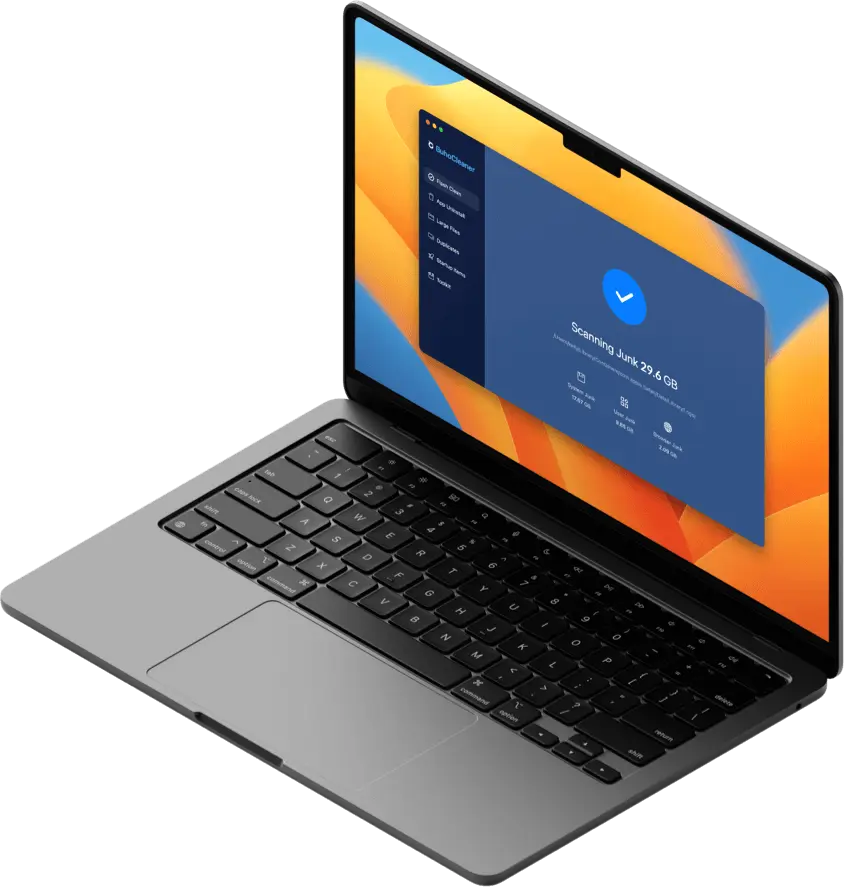
You can also use a cleaning tool like BuhoCleaner to scan your Mac for junk files, large files, duplicate files, and apps you no longer need. This can be much faster than manually searching through individual folders when you need to free up space before a major macOS upgrade.


4. Why Is macOS Golden Gate Stuck During Installation?
If the installation progress bar appears to stop moving, do not immediately force your Mac to shut down.
macOS can spend a long time at one percentage while it installs system files, migrates data, or performs other background tasks. The estimated remaining time is not always accurate.
If your Mac is still responding or restarting normally, give it more time.
If it has completely stopped responding for an unusually long period, start macOS Recovery and run Disk Utility > First Aid on the startup disk before attempting the installation again.
If you repeatedly see errors such as “macOS could not be installed” or “The installer is damaged,” download a fresh installer rather than repeatedly using the same installation files.
5. Why Is My Mac Slow After Updating to macOS Golden Gate?
A Mac can temporarily run slower after a major macOS update.
macOS may be indexing files, syncing iCloud data, processing Photos, and rebuilding caches. These activities can increase CPU usage and battery consumption.
If your Mac remains slow after these background tasks have finished, check Activity Monitor:
- Open Applications > Utilities > Activity Monitor.
- Select the CPU tab.
- Look for apps or processes using unusually high CPU.
- Check the Memory tab for applications consuming excessive RAM.


If a third-party application is constantly using significant resources, update it or temporarily remove it to see whether performance improves.
It’s also a good idea to check System Settings > General > Login Items & Extensions and prevent unnecessary apps from opening automatically.
If your Mac's storage is nearly full, freeing up some space may also help.
6. Why Won’t Apps Open After Updating to macOS Golden Gate?
If an app worked before the upgrade but will not open after installing Golden Gate, compatibility is the first thing to check.
Update the app to its latest version. If no update is available, visit the developer’s website and check whether the current version supports macOS Golden Gate.
For apps that use system extensions, drivers, plug-ins, or security components, simply reinstalling the app may not solve the problem. The developer may need to release a Golden Gate-compatible version.
If macOS shows a security warning when you open the app, check System Settings > Privacy & Security to see whether there is an option to allow the application to run.


This is particularly important for VPN software, antivirus tools, virtualization software, audio plug-ins, hardware drivers, and other utilities that interact closely with macOS.
7. Why Is My Mac Overheating or Running the Fan Loudly?
If your Mac gets hot and the fan runs more than usual immediately after installing Golden Gate, check Activity Monitor before assuming there is a hardware problem.
Open Applications > Utilities > Activity Monitor > CPU, then sort the list by CPU usage and look for processes that remain unusually high.
A major macOS upgrade can temporarily increase background activity. Third-party applications can also cause high CPU usage if they are not fully compatible with the new system.
If a specific application is responsible, update it or quit it temporarily.
You can also restart your Mac and leave it connected to power for a while so background indexing and synchronization can finish.
If your Mac continues to run hot when you are doing very little, check Activity Monitor again to identify what is using the CPU.
8. Why Is Wi-Fi Not Working After Updating to macOS Golden Gate?
If Wi-Fi stopped working or became unstable after the upgrade, start with these basic fixes:
- Turn Wi-Fi off and back on.
- Restart your Mac.
- Restart your router.
- Forget the Wi-Fi network and reconnect.
- Test another Wi-Fi network.
If Wi-Fi works normally on another network, the problem may be related to your router or network configuration.
9. Why Is macOS Golden Gate Draining My Battery So Fast?
If your Mac suddenly uses more battery after the upgrade, give the system some time before assuming that the battery itself is the problem.
After a major update, macOS may perform indexing, iCloud synchronization, and other background tasks.
If the battery drain continues, open Applications > Utilities > Activity Monitor > Energy and look for applications with unusually high energy usage.
If a particular app consistently appears near the top of the Energy list, update it first. An outdated background utility can sometimes cause more battery drain than macOS itself.
It’s also a good idea to check System Settings > General > Login Items & Extensions and prevent unnecessary apps from opening automatically.
If your Mac still loses battery unusually quickly after these steps, check System Settings > Battery > Battery Health to see whether the battery itself may need attention.


10. How Do I Downgrade macOS Golden Gate to the Previous Version?
Yes, you can downgrade macOS Golden Gate to macOS Tahoe or an earlier version, but the process depends on your Mac and the backups you have.
If you have a Time Machine backup from before the upgrade, restoring that backup can be the easiest option.
Without a suitable backup, you may need to:
- Back up your important files.
- Start your Mac in macOS Recovery.
- Erase the startup disk.
- Reinstall the compatible older version of macOS.
- Restore your files and applications.
Be careful with this method because erasing the startup disk removes its contents.
Final Thoughts
Most macOS Golden Gate issues can be traced to outdated apps, limited storage, background processes, or hardware and software that have not yet caught up with the new macOS version.
If an issue started immediately after the upgrade, don’t assume that you need to reinstall macOS. Check the specific app, setting, peripheral, or process involved first. Updating the affected software or installing the latest macOS update may be enough to fix it.
If Golden Gate simply isn’t working well with your setup, you can also return to the previous macOS version, as long as your important data is backed up before you start.
Clare has been captivated by the world of Apple products since the launch of the iconic iPhone in 2007. With a wealth of experience, Clare is your go-to source for iPhone, iPad, Mac, and all things Apple.